
In one of the last articles from the series, we talked about tons of problems that modern test automation frameworks should be able to solve. The full-stack test automation frameworks are the latest 5th generation tooling. They have some features that make them better than previous generations. Allowing you to use them in the newly emerging complex contexts. In 5 Must-Have Features of Full-Stack Test Automation Frameworks Part 1, we talked about the first five features such framework should have. Some of them were- cross-platform, cross-technology and cloud readiness. Troubleshooting easiness, library customization and easy knowledge transfer. Here, I am going to extend the list and add a new category- API usability. Also, some of the mentioned features solve the “Automated Tests Are Not Stable” problem.
API Usability- Locate Elements
Vanilla WebDriver Example
Vanilla stands for examples that use only standard WebDriver code without anything else. Look at this standard WebDriver automated test.
public void OpenBellatrixDemoPromotions()
{
    IWebDriver driver = new ChromeDriver();
    driver.Navigate().GoToUrl("http://demos.bellatrix.solutions/");
    var promotionsLink = driver.FindElement(By.Id("Promotions"));
    promotionsLink.Click();
    Console.WriteLine(promotionsLink.TagName);
}
Generally, this is quite OK. However, for me at least in C# using the FindElement syntax requires additional effort. It is not fluent since you had to begin a new “chain” using the By static class. Moreover, since By contains static methods, you are limited to the built-in locators. Which means that if the promotions ID is uglier, something like- sf_colsOut-sf_1col_1_100-promotions. You need a locator such as- By.IdEndingWith.
Also, imagine that you want to wait for the button to disappear after it is clicked. It is doable with WebDriver. You use code like below.
public void OpenBellatrixDemoPromotions()
{
    IWebDriver driver = new ChromeDriver();
    driver.Navigate().GoToUrl("http://demos.bellatrix.solutions/");
    var promotionsLink = driver.FindElement(By.Id("Promotions"));
    promotionsLink.Click();
    var wait = new WebDriverWait(driver, TimeSpan.FromSeconds(30));
    wait.Until(ExpectedConditions.InvisibilityOfElementLocated(By.Id("Promotions")));
    Console.WriteLine(promotionsLink.TagName);
}
I am sure, you noticed the code duplication- By.Id(“Promotions”). Which is bad since if the locator changes in future we will have to fix it multiple times. This happens because IWebElement interface didn’t give us a way to access the By class after the element is located which is a usability problem. Moreover, the full WebDriverWait usage is quite complicated in my opinion. It can be made much simpler and more convenient.
Note
Keep in mind that all comparisons and “issues” I describe, doesn’t mean that I don’t like WebDriver libraries and tools. On the contrary, this is my favourite automation tool. As it is written on SeleniumHQ homepage- “Selenium automates browsers“. Because people use it in countless ways, it is created to be generic. Only one of its usages is automated testing. It is not testing automation framework, so it is entirely normal to miss some features or its APIs not provide maximal usability in certain use cases.
Improved Example
Here is the same test rewritten using BELLATRIX Test Automation Framework.
public void OpenBellatrixDemoPromotions()
{
    App.NavigationService.Navigate("http://demos.bellatrix.solutions/");
    var promotionsLink = App.ElementCreateService.CreateByLinkText<Anchor>("Promotions");
    promotionsLink.Click();
    Console.WriteLine(promotionsLink.By.Value);
    Console.WriteLine(promotionsLink.WrappedElement.TagName);
}
The first noticeable difference is how we locate elements. Instead of using the By syntax which is harder to type and not-extendable, we use CreateBy methods. Everything follows the natural writing flow leveraging to the maximal degree on IntelliSense. Moreover, you can automatically generate the code using code snippets.
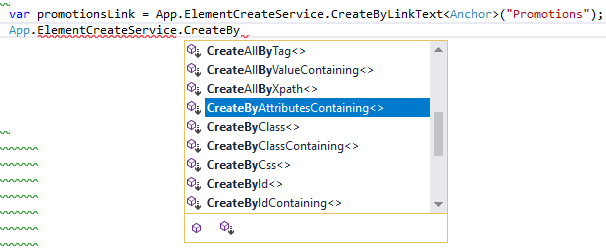
Bellatrix contains CreateBy methods for all often-used locators. One of the coolest things is that Bellatrix element includes By property (knowing how it was located).
If we need to wait for the button to be disabled, we can use the following code.
public void OpenBellatrixDemoPromotions()
{
    App.NavigationService.Navigate("http://demos.bellatrix.solutions/");
    var promotionsLink = App.ElementCreateService.CreateById<Button>("Promotions");
    promotionsLink.Click();
    promotionsLink.EnsureIsNotVisible();
}
As you can see thanks to the built-in By property, the code duplication is skipped. Moreover, the syntax is simplified to the bare minimum. The Ensure method automatically waits until the button is disabled.
Check how we do it for web, desktop, Android and iOS.
API Usability- Wait for Elements
Vanilla WebDriver Example
It is relatively complex to wait for conditions with vanilla WebDriver. Maybe “complex” is not the most accurate word but for sure you will need additional classes/methods to skip code duplication. As mentioned, since you don’t have access to how the WebDriver element was located you need to specify this on multiple locations or think of a way how to reuse the By locators.
public void OpenBellatrixDemoPromotions()
{
    IWebDriver driver = new ChromeDriver();
    driver.Navigate().GoToUrl("http://demos.bellatrix.solutions/");
    var promotionsLink = driver.FindElement(By.Id("Promotions"));
    promotionsLink.Click();
    var wait = new WebDriverWait(driver, TimeSpan.FromSeconds(30));
    wait.Until(ExpectedConditions.ElementToBeClickable(By.Id("Promotions")));
}
There is one more usability issue with the Wait-Until API. You see all ExpectedConditions static methods, there are not filtered based on the type of the element. Check the below example. ElementToBeSelected makes sense only for comboBoxes or select elements.
var wait = new WebDriverWait(driver, TimeSpan.FromSeconds(30));
wait.Until(ExpectedConditions.ElementToBeSelected(By.Id("Promotions")));
Above, we pass By locator for button but we can use the ElementToBeSelected method.
One more thing, the usage is different depending on the methods you use.
var wait = new WebDriverWait(driver, TimeSpan.FromSeconds(30));
wait.Until(ExpectedConditions.TextToBePresentInElement(promotionsLink, "Bellatrix"));
Instead of By locator, the method accepts IWebElement**.** In my opinion, these differences make the whole usage more confusing and complicating which in the end slows down the tests development.
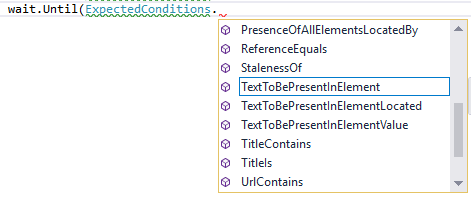
Not only the methods are not filtered based on the type of the element but you see all kind of methods here- related to title, URL and frames. Which pollutes even more the API interface which leads to longer periods while you find the right method.
Improved Example
How we solved these problems in BELLATRIX? You already saw an example how we waited for element not be present on the page. But we go even further. To make the API most convenient the ValidateSomeCondition methods are part of the elements API interface. Also, you will see only the relevant methods for the element based on its type. For example, for Anchor element you won’t see the ValidateIsDisabled method, since HTML anchor elements don’t have a disabled attribute.
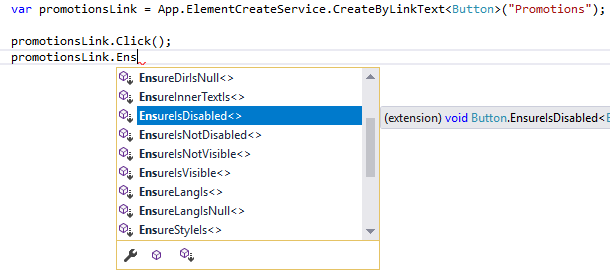
The usage is identical for all elements since you don’t have to specify locators second time.
var promotionsLink = App.ElementCreateService.CreateByLinkText<Button>("Promotions");
promotionsLink.Click();
promotionsLink.ValidateIsDisabled();Automatically Handle All Synchronization Issues
Another frequent problem that people face is related to elements still not present on the page or not meeting some condition. Usually, all of these problems can be handled entirely with WebDriver code, but it varies depending on what difficulty you try to solve. If you don’t configure the library the right way, you may make your tests significantly slower.
Implicit VS Explicit Waits
One way to handle the synchronization issues is through a global implicit wait timeout.
IWebDriver driver = new ChromeDriver();
driver.Manage().Timeouts().ImplicitWait = TimeSpan.FromSeconds(30);
However, in some cases, you may need a larger wait interval. What do you do if this happens? One option is to increase the global timeout, but this will affect all existing tests. Another option is to mix implicit and explicit wait (showed in previous examples). But this is not recommended.
Here is a quote from Jim Evans (one of the Core Selenium contributors) why this is not recommended.
“When you try to mix implicit and explicit waits, you’ve strayed into “undefined behavior”. You might be able to figure out what the rules of that behavior are, but they’ll be subject to change as the implementation details of the drivers change. So don’t do it.“
“Don’t mix implicit and explicit waits. Part of the problem is that implicit waits are often (but may not always be!) implemented on the “remote” side of the WebDriver system. That means they’re “baked in” to IEDriverServer.exe, chromedriver.exe, the WebDriver Firefox extension that gets installed into the anonymous Firefox profile, and the Java remote WebDriver server (selenium-server-standalone.jar). Explicit waits are implemented exclusively in the “local” language bindings. Things get much more complicated when using RemoteWebDriver, because you could be using both the local and remote sides of the system multiple times.“
Wait for Conditions Before First Element’s Usage
In most tests, before you use some element- click or type text in it, you need it to be visible and existing on the web page. However, it needs to be clickable or selectable. Which means that you need to use WebDriverWait not only for assertions/verifications but also before performing actions.
Here is a simple example where we wait for the element to exists before the first usage.
IWebDriver driver = new ChromeDriver();
driver.Manage().Timeouts().ImplicitWait = TimeSpan.FromSeconds(30);
However, imagine that we need our element to fulfill more than two conditions- to exists and to be clickable. Shortly you will realize that there isn’t an easy way to do that. You can write something like this.
IWebDriver driver = new ChromeDriver();
driver.Navigate().GoToUrl("http://demos.bellatrix.solutions/");
var wait = new WebDriverWait(driver, TimeSpan.FromSeconds(30));
var promotionsLink = wait.Until(ExpectedConditions.ElementExists(By.Id("Promotions")));
promotionsLink.Click();
There is always the alternative to open the ExpectedConditions source code- view how both methods work and combine them in your anonymous or normal function. But believe me, you will end up with much more complex code. Moreover, it is not rational to create such functions for each pair or tripe of conditions you might need.
Improved Example
How did we decide to handle these problems in BELLATRIX? First, all elements are internally waited to exist before usage. This solves 80% of all use cases. After that as part of the CreateBy API, we added additional ToBeCondition methods which you can chain. Which means you can specify unlimited number of conditions for each element that need to be fulfilled before the element is returned.
var promotionsLink = App.ElementCreateService.CreateByLinkText<Button>("Promotions").ToBeVisible().ToBeClickable().ToExists();
promotionsLink.Click();
promotionsLink.EnsureIsDisabled();
Different Timeouts Problem
But this is not everything. If you use a single WebDriverWait instance, this means that the timeout will be the same for each Until method and condition you use. But this may vary for each condition you use and each usage of these conditions. For example, I want in my test the timeout for ToBeVisible to be 15 seconds but for ToBeNotVisible 30 seconds. Next, for some optimized web pages I may wish to set the ToBeVisible timeout to be 10 seconds, not 15. In vanilla WebDriver, this flexibility is missing, and you need to handle this with custom code somehow.
Here is a naive solution to the problem with vanilla WebDriver.
IWebDriver driver = new ChromeDriver();
driver.Navigate().GoToUrl("http://demos.bellatrix.solutions/");
var wait15Seconds = new WebDriverWait(driver, TimeSpan.FromSeconds(15));
var wait30Seconds = new WebDriverWait(driver, TimeSpan.FromSeconds(30));
var wait45Seconds = new WebDriverWait(driver, TimeSpan.FromSeconds(45));
var promotionsLocator = By.Id("Promotions");
wait15Seconds.Until(ExpectedConditions.ElementExists(promotionsLocator)); // same 30 seconds
var promotionsLink = wait30Seconds.Until(ExpectedConditions.ElementToBeClickable(promotionsLocator));
promotionsLink.Click();
We have multiple WebDriverWait instances with different timeouts.
Different Timeouts Solution
In BELLATRIX, we have a JSON configuration where we can fine-tune different aspects of the framework. There is a dedicated section called timeoutSettings, where you can change the default timeouts for the different wait conditions.
"timeoutSettings": {
    "waitForAjaxTimeout": "30",
    "sleepInterval": "1",
    "elementToBeVisibleTimeout": "30",
    "elementToExistTimeout": "30",
    "elementToNotExistTimeout": "30",
    "elementToBeClickableTimeout": "30",
    "elementNotToBeVisibleTimeout": "30",
    "elementToHaveContentTimeout": "15"
},
But you can also, further override these values directly in the methods. Below, we set ToBeVisible timeout to be 30 seconds, ToBeClickable 20 seconds with sleep interval = 2 seconds, ToBeVisible timeout = 10 seconds with sleep interval 1 second.
var promotionsLink = App.ElementCreateService.CreateByLinkText<Button>("Promotions").ToBeVisible(30).ToBeClickable(20, 2).ToExists(10, 1);
promotionsLink.Click();
promotionsLink.EnsureIsDisabled();Summary
Full-stack test automation frameworks have many features that can enable you to work in the new emerging complex contexts. Here, we primary talked about test automation frameworks API usability- locating and waiting for elements. In the next articles of the series, we will discuss how to create additional locators, faster generate elements and why you should care about this.
