

In this article part of the WebDriver Series, we will look at the new exciting features and improvements coming in the new version of Selenium WebDriver 4.0. We will look at detailed examples of how to use the new Chrome Dev Tools protocol support and the new relative locators. Also, I will give you a detailed overview of all the other essential changes that are coming.
Before presenting the detailed code examples, I will go over the other significant changes.
Distributed Selenium Grid 4.0
Definition
Selenium Grid is a smart proxy server that allows Selenium tests to route commands to remote web browser instances. Its aim is to provide an easy way to run tests in parallel on multiple machines.
Selenium Grid 4 has a new architecture supporting four separate processes: Router, Distributor, Session Map, and Node. With Selenium 2, the Hub included three of those processes (Router, Distributor, Session Map).
j
java -jar selenium-server-4.0.0-alpha-1.jar hub

java -jar selenium-server-4.0.0-alpha-1.jar node --detect-drivers

java -jar selenium-server-4.0.0-alpha-1.jar distributor --sessions http://localhost:5556
Moreover, Selenium Grid 4 allows observability and updated to be more modern. Observability permits us to trace and log what’s going on. As a request comes in, there will be a trace ID to help our debugging efforts.
Modern means Selenium Grid will be more convenient for modern technology like Docker and Kubernetes.
java -jar selenium-server-4.0.0-alpha-1.jar standalone -D selenium/standalone-firefox:latest '{"browserName": "firefox"}' --detect-drivers falseThere is no UI right now, but you can always curl **http://localhost:4444/status** to get some interesting information out of the system --- the same information that we’ll build the new UI using.
Selenium 4 IDE TNG The Next Generation
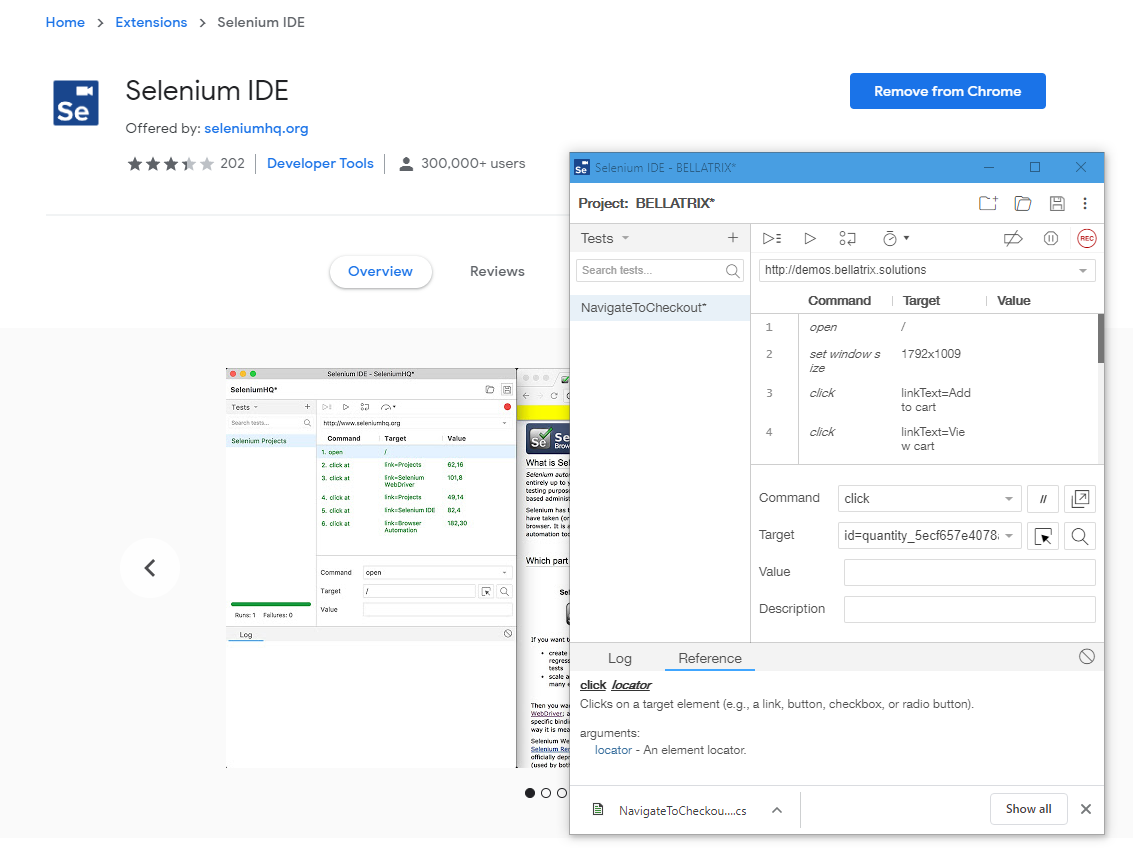
This project is a work in progress, towards a complete rewrite of the old Selenium IDE. The IDE traditionally was developed to be a browser extension, we are now rewriting it to work as an electron app. Now it is available as Firefox and Chrome extensions.
There is also a new CLI runner based on Node JS, instead of the old HTML-based CLI runner. It can execute test cases in parallel and provide information like passed and failed test cases, the time required, etc. The new IDE runner is wholly based on WebDriver.
WebDriver API W3C Standardization
Instead of JSON Wire Protocol, native support of W3C standard using (for Session processes, Desired Capabilities)
In test automation, the use of WebDriver API is not just confined to be part of Selenium; it is consumed in various other automation tools as well. For Example, the Appium, used for mobile testing leverages Web Driver API. Similarly, it is used in iOS drivers and WinAppDriver (for automating Windows desktop apps). One of the most significant changes is that Selenium 4 is WebDriver API standardization as per the W3C standard. WebDriver API will be compatible with implementing across multiple platforms, the so called WebDriver.*.
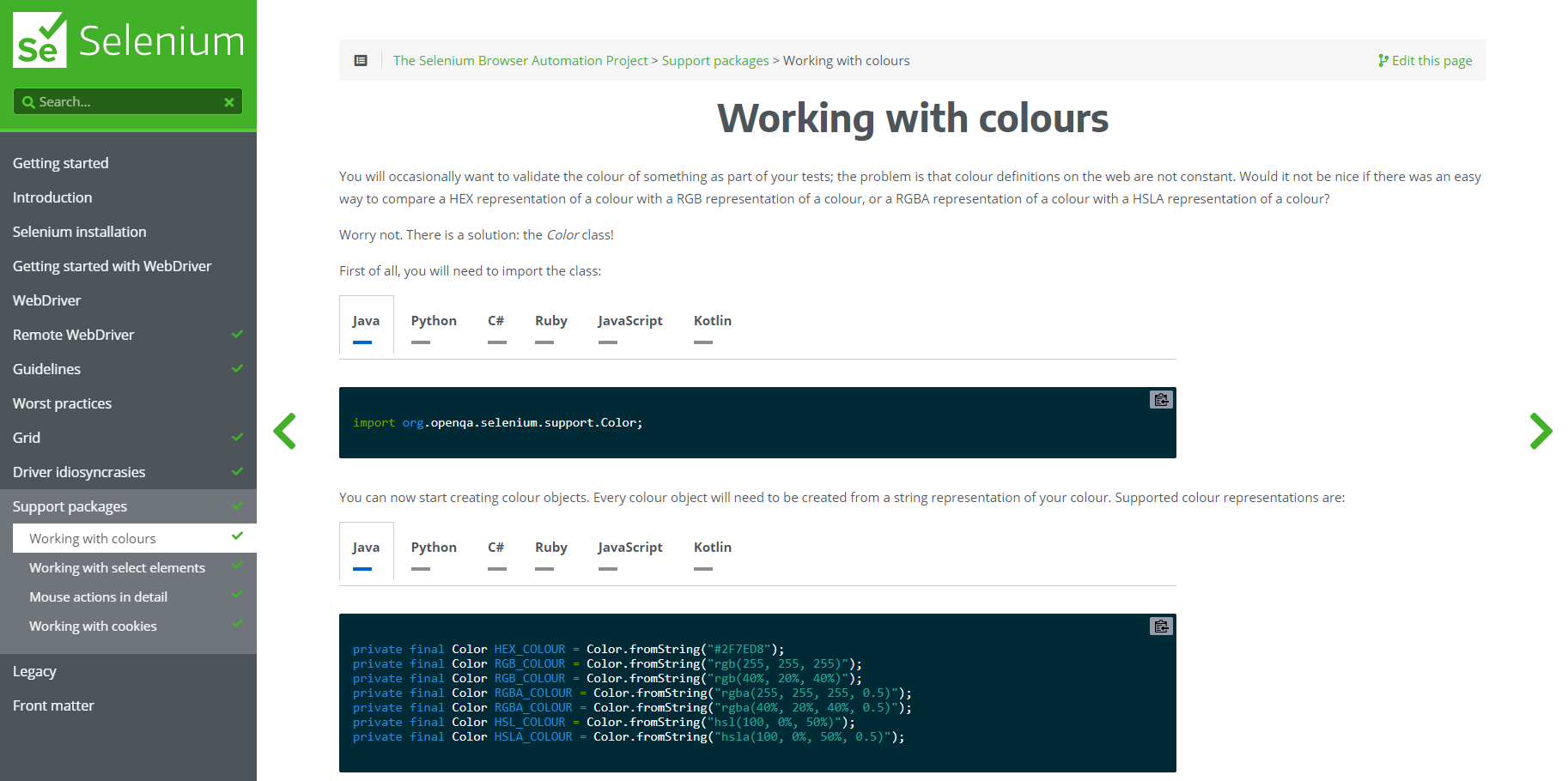
Refreshed Documentation
Supported Browsers
New Edge Chromium Support
In Selenium 3, EdgeDriver and ChromeDriver have their own implementation inherited from RemoteWebDriver class. In Selenium 4 ChromeDriver and EdgeDriver are inherited from ChromiumDriver. ChromiumDriver class has predefined methods to access the Dev Tools. More about the new Dev Tools support in the next sections.
There is a new support for Edge Chromium.
To use the new EdgeDriver you need to install a NuGet package called Microsoft.Edge.SeleniumTools. Here is an example how to create a new instance of the browser.
var edgeDriverService = Microsoft.Edge.SeleniumTools.EdgeDriverService.CreateChromiumService();
var edgeOptions = new Microsoft.Edge.SeleniumTools.EdgeOptions();
edgeOptions.PageLoadStrategy = PageLoadStrategy.Normal;
edgeOptions.UseChromium = true;
wrappedWebDriver = new Microsoft.Edge.SeleniumTools.EdgeDriver(edgeDriverService, edgeOptions);
Deprecation of Opera and PhantomJS
Support for Opera and PhantomJS browsers has been removed since the WebDriver implementations for these browsers are no longer under active development. Opera is using the Chromium open source project (the engine of Chrome and Edge browsers) so the behavior of Chrome, Edge and Opera should be very similar.
Headless Test Execution
If you want to execute your tests in headless mode you can do so using Chrome and Firefox headless execution. Below you can find and example or read the articles- Headless Execution of WebDriver Tests- Chrome Browser, Headless Execution of WebDriver Tests- Firefox Browser
var options = new ChromeOptions();
options.AddArguments("headless");
using (IWebDriver driver = new ChromeDriver(options))
{
    // the rest of your test
}
var options = new FirefoxOptions();
options.AddArguments("--headless");
using (IWebDriver driver = new FirefoxDriver(options))
{
    // the rest of your test
}
Relative Locators
We can also get locators relative to any other locator.
-
LeftOf()
Element located to the left of the specified.
-
RightOf()
Element located to the right of the specified.
-
Above()
Element located above the specified.
-
Below()
Element located below the specified.
-
Near()
Element is at most 50 pixels far away from the specified element. The pixel value can be modified.
Let see an example. First, we find the element with the title “Falcon 9” and then using the new RelativeBy.Below find the span button below it.

IWebElement imageTitle = _driver.FindElement(By.XPath("//h2[text()='Falcon 9']"));
IWebElement falconSalesButton = _driver.FindElement(RelativeBy.WithTagName("span").Below(imageTitle));
falconSalesButton.Click();
My personal preference is to use a little bit more complex XPath than to find calls, but I guess it is always better to have a choice. A single call to the server is more optimal than two, especially when you work with large amounts of elements as in the case of HTML tables.
Chrome Dev Tools
DevTools API offers great capabilities for controlling the Browser and the web traffic. The complete API can be found here: https://chromedevtools.github.io/devtools-protocol/
Here is a list of some of the things we can achieve by using DevTools API with WebDriver:
-
URL filtering
-
Adding custom headers for requests
-
Intercepting requests/responses and acting as a proxy
-
Get performance and Metrics of our Browser/Network
-
Leverage Console capabilities
-
Emulate network conditions
-
Perform security operations
Added Chrome DevTools Protocol (CDP) support to .NET bindings. By casting a driver instance to IDevTools, users can now create sessions to use CDP calls for Chromium-based browsers. The DevTools API is implemented using .NET classes, and can send commands and listen to events raised by the browser’s DevTools implementation. Please note that CDP domains listed as “experimental” in the protocol definition are not implemented at present. Additionally, the current API is to be considered highly experimental, and subject to change between releases until the alpha/beta period is over. Feedback is requested. — WebDriver Changelog
Now let’s see some examples.
To use the new Dev Tools API first, you need to create a new Dev Tools session.
ChromeDriver _driver = new ChromeDriver();
var session = _driver.CreateDevToolsSession();
Block Requests
There is a strategy for optimizing the tests to run faster called Black Hole Proxy Pattern. You can read more about it in my book. But in short, we can block certain non-essential requests concerning our current test. For example, analytics or social network pixels, etc.
var blockedUrlSettings = new SetBlockedURLsCommandSettings();
blockedUrlSettings.Urls = new string[] { "http://demos.bellatrix.solutions/wp-content/uploads/2018/04/440px-Launch_Vehicle__Verticalization__Proton-M-324x324.jpg" };
devToolssession.Network.SetBlockedURLs(blockedUrlSettings);
Adding Custom Headers
It may be extremely useful to modify all feature requests. In this case, we turn-on the requests compression.
var setExtraHTTPHeadersCommandSettings = new SetExtraHTTPHeadersCommandSettings();
setExtraHTTPHeadersCommandSettings.Headers.Add("Accept-Encoding", "gzip, deflate");
devToolssession.Network.SetExtraHTTPHeaders(setExtraHTTPHeadersCommandSettings);
Intercepting Requests
We can intercept certain requests by providing a pattern and then subscribe to an event where we can perform operations against the intercepted requests. In the example, we catch all image requests.
EventHandler<RequestInterceptedEventArgs> requestIntercepted = (sender, e) =>
{
    Assert.IsTrue(e.Request.Url.EndsWith("jpg"));
};
RequestPattern requestPattern = new RequestPattern();
requestPattern.InterceptionStage = InterceptionStage.HeadersReceived;
requestPattern.ResourceType = ResourceType.Image;
requestPattern.UrlPattern = "*.jpg";
var setRequestInterceptionCommandSettings = new SetRequestInterceptionCommandSettings();
setRequestInterceptionCommandSettings.Patterns = new RequestPattern[] { requestPattern };
devToolssession.Network.SetRequestInterception(setRequestInterceptionCommandSettings);
devToolssession.Network.RequestIntercepted += requestIntercepted;
Listen To Console Logs
Sometimes it may be useful to be able to check console messages. For example, checking for JavaScript errors.
EventHandler<MessageAddedEventArgs> messageAdded = (sender, e) =>
{
    Assert.AreEqual("BELLATRIX is cool", e.Message);
};
devToolssession.Console.Enable();
devToolssession.Console.ClearMessages();
devToolssession.Console.MessageAdded += messageAdded;
_driver.ExecuteScript("console.log('BELLATRIX is cool');");
Ignore Certificate Errors
This comes in handy especially for executing the tests against a TEST environment without HTTPS certificates installed.
var setIgnoreCertificateErrorsCommandSettings = new SetIgnoreCertificateErrorsCommandSettings();
setIgnoreCertificateErrorsCommandSettings.Ignore = true;
devToolssession.Security.SetIgnoreCertificateErrors(setIgnoreCertificateErrorsCommandSettings);
Configure Browser Cache
You can disable or clear the browser cache. Also as before you can modify the cookies.
var setCacheDisabledCommandSettings = new SetCacheDisabledCommandSettings();
setCacheDisabledCommandSettings.CacheDisabled = true;
devToolssession.Network.SetCacheDisabled(setCacheDisabledCommandSettings);
devToolssession.Network.ClearBrowserCache();
Emulate network conditions
Sometimes it is very handy to see how our web application works in offline mode or in fluctuating network.
var emulationSettings = new EmulateNetworkConditionsCommandSettings();
emulationSettings.ConnectionType = ConnectionType.Cellular3g;
emulationSettings.DownloadThroughput = 20;
emulationSettings.Latency = 1.2;
emulationSettings.UploadThroughput = 50;
devToolssession.Network.EmulateNetworkConditions(emulationSettings);
Get Performance Metrics
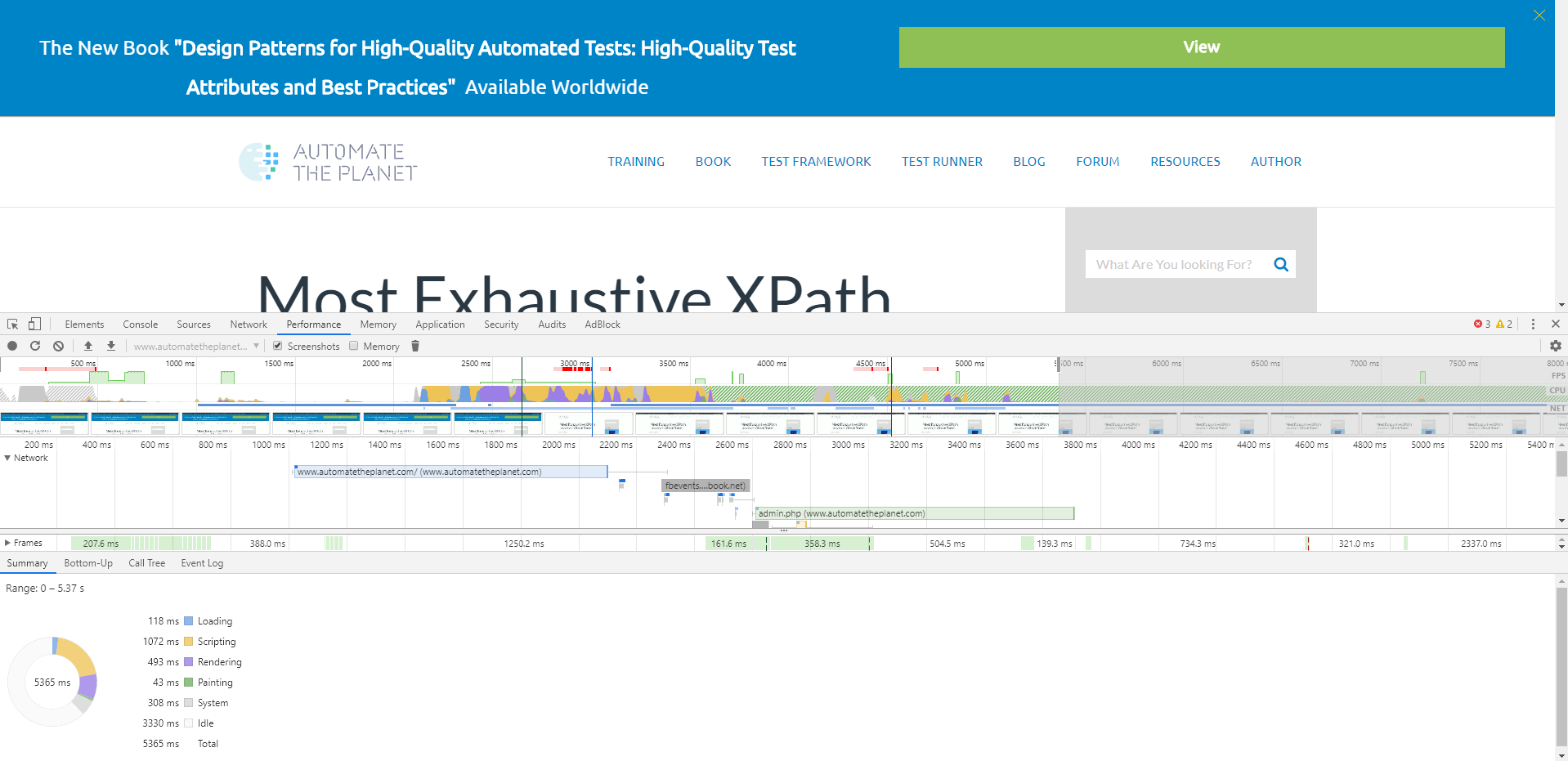
var metrics = devToolssession.Performance.GetMetrics();
foreach (var metric in metrics.Result.Metrics)
{
    Console.WriteLine($"{metric.Name} = {metric.Value}");
}
Override UserAgent
Note
The User-Agent request header contains a characteristic string that allows the network protocol peers to identify the application type, operating system, software vendor, or software version of the requesting software user agent.
We can change our browser to a mobile browser by providing a mobile user agent. UserAgent is vital in responsive designs, and we can change it to change the responsiveness behavior of our web app.
var setUserAgentOverrideCommandSettings = new SetUserAgentOverrideCommandSettings();
setUserAgentOverrideCommandSettings.UserAgent = "Mozilla/5.0 CK={} (Windows NT 6.1; WOW64; Trident/7.0; rv:11.0) like Gecko";
devToolssession.Network.SetUserAgentOverride(setUserAgentOverrideCommandSettings);
Other Changes
For complete list of all changes you can check the official Changelog.
Better Window and Tab Management
Selenium 4 can work on two different windows at the same time. This is particularly useful when we want to navigate to a new window(or tab) and open a different URL there and perform some action.
_driver.SwitchTo().NewWindow(WindowType.Tab);
_driver.SwitchTo().NewWindow(WindowType.Window);
_driver.SwitchTo().ParentFrame();
Updates
Added support for ChromeDriver “append log” flag. ChromeDriver has a command line option to append to existing log file instead of overwriting it.
Updated to allow .NET to disable W3C mode for Chrome 75+. Since Chrome/chromedriver 75 and above implement the W3C WebDriver Specification by default, the bindings now provide a way to execute using the legacy dialect of the protocol by setting the UseSpecCompliantProtocol property of ChromeOptions to false.
Updated supported .NET Framework versions. This version removes support for .NET Framework 3.5 and .NET Framework 4.0. Going forward, the minimum supported framework for the .NET language bindings is .NET 4.5. We will produce binaries for .NET Framework 4.5, 4.6, 4.7, and .NET Standard 2.0. While it would be theoretically possible to allow the .NET Standard binary to suffice for 4.6.1 or above, in practice, doing so adds many additional assemblies copied to the output directory to ensure compatibility, which is a suboptimal outcome. .NET Framework 4.7.1 is the first version that supports .NET Standard 2.0 without the need for these additional assemblies.
Removed legacy OSS protocol dialect from the language bindings. This version removes support for the legacy OSS dialect of the wire protocol, supporting only the W3C Specification compliant dialect, including in the Actions and TouchActions classes. Users who require use of the OSS dialect of the protocol should use RemoteWebDriver in conjunction with the Java remote Selenium server.
Refactored DriverOptions class and subclasses. This commit deprecates the AddAdditionalCapability method in the driver-specific Options classes in favor of two methods. The first, AddAdditionalOption, adds a capability to the top-level, global section of a browser’s desired capabilities section. The second method adds a capability to a browser’s specific set of options. Accordingly, these methods are different for each browser’s Options class (AddAdditionalChromeOption for ChromeOptions, AddAdditionalFirefoxOption for FirefoxOptions, AddAdditionalInternetExplorerOption for InternetExplorerOptions, etc.). Also, this version completes the removal of the DesiredCapabilities class by removing its visibility from the public API. All use cases that previously required adding arbitrary capabilities to a DesiredCapabilities instance should now be manageable by the browser-specific options classes. Moreover, the ToCapabilities method of the options classes now returns a read-only ICapabilities object. Users who find these structures insufficient are encouraged to join the project IRC or Slack channels to discuss where the deficiencies lie. Likewise, downstream projects (like Appium) and cloud providers (like SauceLabs, BrowserStack, etc.) that depend on the .NET language bindings for functionality should be aware of this change, and should take immediate steps to update their user-facing code and documentation to match.
Removed deprecated ExpectedConditions and PageFactory classes, as well as the supporting classes thereof.
References
-
Sneak peek at Selenium 4 – Introduction
-
Features and Improvements in Selenium 4
-
What To Expect From The New Version Of Selenium 4 Alpha
-
Selenium 4 (alpha) is Released: What’s New?
-
What’s New In Selenium 4?
-
Selenium 4 is in Alpha: What every QA must know?
-
What You Need to Know about the Selenium 4 Alpha (Infographic)
-
Hidden Functions In Selenium 4
-
Selenium + Chrome Dev-tools makes a Perfect Browser Automation Recipe
-
Selenium 4 – Chrome Dev Tools Samples
