

For a long time, I wanted to write automation using the Tor Web Browser. My preferred automation framework is Selenium WebDriver. However, I found out that there isn’t a built-in integration between the two. I wasted almost half a day to discover how to combine them. I did it in the past. You can find my original C# version here. Here I will show you how to do the same in Java.
NOTE: With this post, a new ERA begins for Automate The Planet. This is the first article dedicated to Java. All 250+ publications were related to the .NET world. Of course, I will continue to write C# articles, but I will put Java in the mix.
What is Tor and Tor Network?
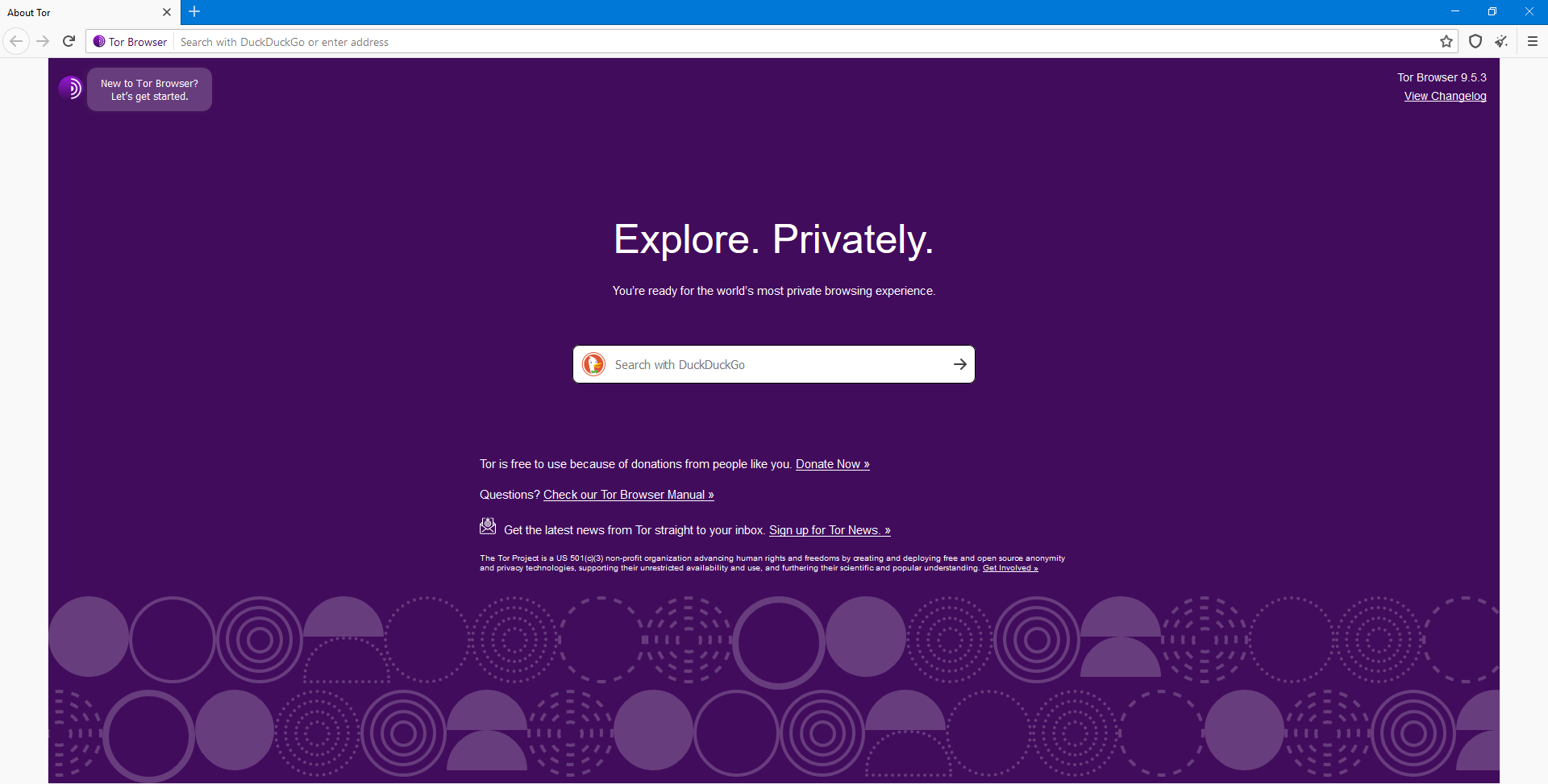
As you can see, Tor is a modified Firefox browser. You have all features of Firefox plus additional protection.
WebDriver Tor Network Integration Java Code
To accomplish WebDriver Tor integration, you first need to set up Firefox to use the Tor proxy. You cannot start the Tor browser using WebDriver because there isn’t an implementation for it. Once started, the proxy generated by Tor can be accessed via “127.0.0.1 9050”. So the first step in the plan is to start a new instance of Тоr. Next, we start a new FirefoxDriver configured with a new profile with the proxy settings generated by Tor.
private WebDriver driver;
private WebDriverWait wait;
private Process torProcess;
@BeforeClass
public void testSetup() throws IOException {
  System.setProperty("webdriver.gecko.driver", "resources\\geckodriver.exe");
  String torBinaryPath = "C:\\Users\\aangelov\\Desktop\\Tor Browser\\Browser\\firefox.exe";
  Runtime runTime = Runtime.getRuntime();
  torProcess = runTime.exec(torBinaryPath + " -n");
  FirefoxProfile profile = new FirefoxProfile();
  profile.setPreference("network.proxy.type", 1);
  profile.setPreference("network.proxy.socks", "127.0.0.1");
  profile.setPreference("network.proxy.socks_port", 9150);
  FirefoxOptions firefoxOptions = new FirefoxOptions();
  firefoxOptions.setProfile(profile);
  driver = new FirefoxDriver(firefoxOptions);
  driver.manage().timeouts().implicitlyWait(10, TimeUnit.SECONDS);
  driver.manage().window().maximize();
  wait = new WebDriverWait(driver, 30);
}
@AfterClass
public void afterClass() throws InterruptedException {
  driver.quit();
  torProcess.descendants().forEach(ph -> {
    ph.destroy();
  });
  torProcess.destroyForcibly();
}
By default, Tor is installed on your desktop. We start a new process of the browser, which we kill in the afterClass method. The setPreference method configures the Firefox profile to use the Tor’s proxy settings. You can validate the setup via the test below, change the IP address with yours. The test will open the whatismyipaddress site and will verify that your FirefoxDriver is running with different IP.
@Test
public void open_tor_browser() {
  driver.navigate().to("http://whatismyipaddress.com/");
  WebElement element = wait.until(ExpectedConditions.visibilityOfElementLocated(By.xpath("//\*[@id='section_left']/div[2]")));
  Assert.assertNotEquals("151.80.16.169", element.getText());
}
Change Tor Identity
As you know, this unique browser allows you to change your identity (IP address) via the magic Tor button.
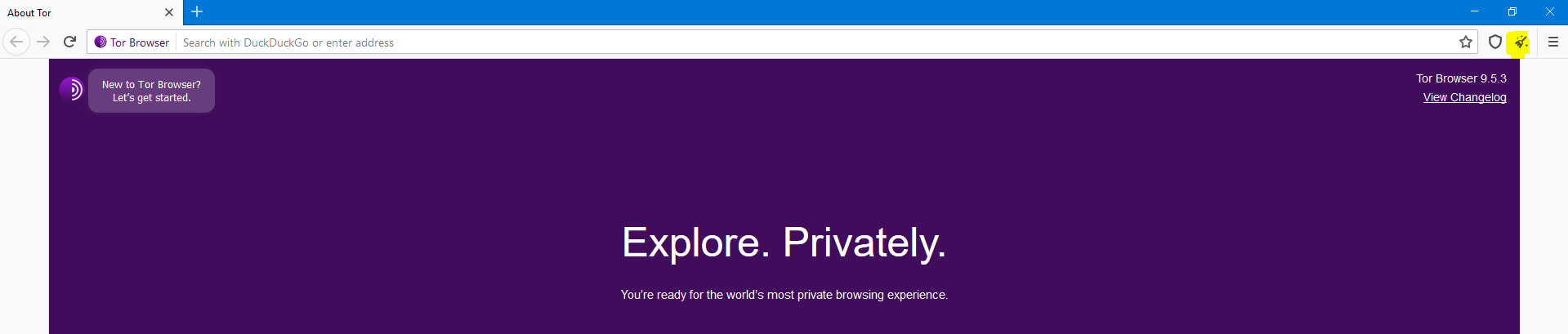
However, it’s possible to do it via telnet or code.
telnet localhost 9051
AUTHENTICATE userPassword
SIGNAL NEWNYM
In the following folder “C:\Users\{your_user}\Desktop\Tor Browser\Browser\TorBrowser\Data\Tor“, you are going to find torrc-defaults file (config file). If you want to use password authentication, you need to generate a password hash. You can do it via the tor.exe –hash-password “your_password” command.
Then open the torrc-defaults file and add the following line:
hashedControlPassword 16:751C69A9B10D7F4260B04E0D07D7EBCB760EDCEBADD40CDAF40F1FB095
The string after hashedControlPassword is the hash generated for your password.
Change Tor Identity Java Code
Now you can use the following Java code to refresh the proxy settings.
public void refreshTorIdentity(String userName) {
  try (Socket socket = new Socket("127.0.0.1", 9151)) {
    OutputStream output = socket.getOutputStream();
    String authenticationCommand = String.format("AUTHENTICATE " % s "\r\n", userName);
    output.write(authenticationCommand.getBytes());
    output.write("SIGNAL NEWNYM\r\n".getBytes());
    InputStream input = socket.getInputStream();
    BufferedReader reader = new BufferedReader(new InputStreamReader(input));
    String line = reader.readLine();
    if (!line.contains("250")) {
      System.out.println("Unable to signal new user to server.");
    }
  } catch (UnknownHostException ex) {
    System.out.println("Server not found: " + ex.getMessage());
  } catch (IOException ex) {
    System.out.println("I/O error: " + ex.getMessage());
  }
}