

In this article part of the popular WebDriver Series, we will look into what serverless means and how we can apply in automated testing. Also, we talk about Azure Functions and how to execute WebDriver tests in them. However, since they run an isolated sandbox, there are certain limitations caused by their scalability nature. Because of that, we cannot run out of the box Selenium tests in real browsers. In the most basic form, we can run WebDriver tests in a scalable manner using cloud providers such as SauceLabs or Docker containers engines such as Selenoid. In the second part of the article, I will show you how to work around the limitations and execute the Selenium WebDriver tests in real Chrome browsers in a Linux Docker container hosted in Kubernetes or similar service where we will install the Azure Functions host.
What Is Serverless?
Definition
Serverless computing is a cloud computing execution model in which the cloud provider runs the server, and dynamically manages the allocation of machine resources. Pricing is based on the actual amount of resources consumed by an application, rather than on pre-purchased units of capacity.
If I have to put it in simple words, you don’t care about the server. Someone else is responsible for managing the hardware and any required software. In case you need more resources, the serverless engine is responsible for scaling-up or down to meet your needs. Usually, you pay only for what you use.
What Are Azure Functions?
Definition
Serverless computing is a cloud computing execution model in which the cloud provider runs the server, and dynamically manages the allocation of machine resources. Pricing is based on the actual amount of resources consumed by an application, rather than on pre-purchased units of capacity.
There are different types of triggers for the Azure Functions- HTTP GET/POST, entities added/delete to/from DB or queue, run on schedule based on Cron expressions and many more. For this tutorial we will use HTTP triggered Azure Functions.
Create an Azure Functions Project
The Azure Functions project template in Visual Studio creates a project that you can publish to a function app in Azure.
1. From the Visual Studio menu, select File > New > Project.
2. In Create a new project, enter functions in the search box, choose the Azure Functions template, and then select Next.
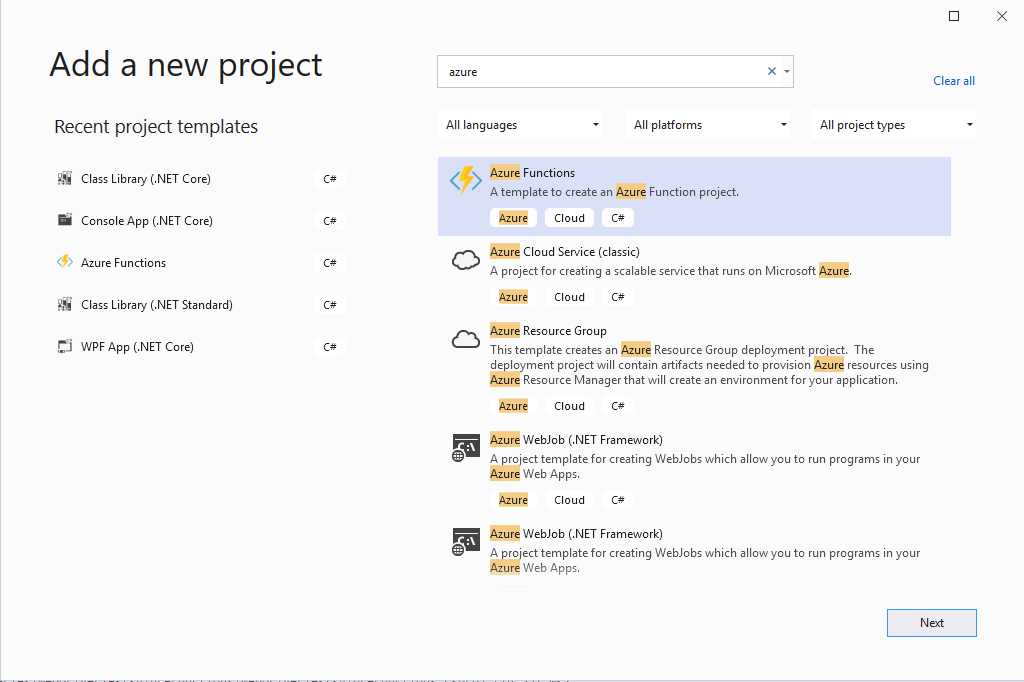
3. In Configure your new project, enter a Project name for your project, and then select Create.
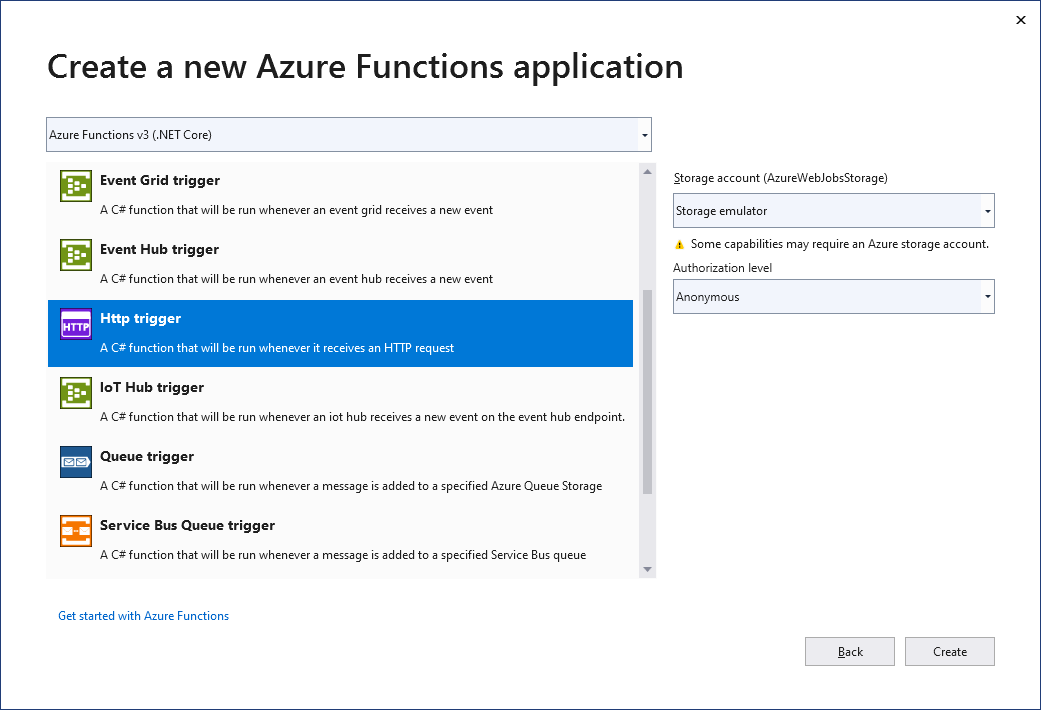
5. Select Create to create the function project and HTTP trigger function.
Create HTTP Trigger WebDriver Tests Function
As mentioned, the coolest thing about Azure Functions is that you can run your tests on a high scale without worrying about test agent machines and resources. The Azure engine will scale based on the demand. Of course, you will have to create an HTTP based runner for this purpose. But this article is research to prove the usefulness of the method. However, there are few limitations to the way Azure Functions work.
Read more about Azure Web App sandbox
Read more about Azure Functions scale and hosting
In short, you cannot start a real browser through WebDriver because of the PORT usage limitations. This is why, for the first example, we will execute our WebDriver test in SauceLabs. Edit the function created by the template and add the following code.
public class RunSauceLabsChrome
{
    [FunctionName("RunSauceLabsChrome")]
    public IActionResult Run(
        [HttpTrigger(AuthorizationLevel.Anonymous, "get", "post", Route = null)] HttpRequest req,
        ILogger logger
    )
    {
        string result = "Nothing Happend";
        try
        {
            var options = new ChromeOptions();
            options.AddAdditionalOption("browserName", "Chrome");
            options.AddAdditionalOption("platform", "Windows 8.1");
            options.AddAdditionalOption("version", "49.0");
            options.AddAdditionalOption("username", "autoCloudTester");
            options.AddAdditionalOption("accessKey", "70dccdcf-a9fd-4f55-aa07-12b051f6c83e");
            using var _driver = new RemoteWebDriver(
                new Uri("http://ondemand.saucelabs.com:80/wd/hub"),
                options
            );
            _driver.Manage().Timeouts().PageLoad = TimeSpan.FromSeconds(30);
            _driver.Navigate().GoToUrl(new Uri("http://demos.bellatrix.solutions/"));
            result = _driver.Title;
        }
        catch (Exception ex)
        {
            result = ex.Message;
        }
        return new OkObjectResult(result);
    }
}
After you build and run your project in Debug mode, you can make a call to http://localhost:8080/api/RunSauceLabsChrome to execute your function.
Deploy Azure Function App to Azure
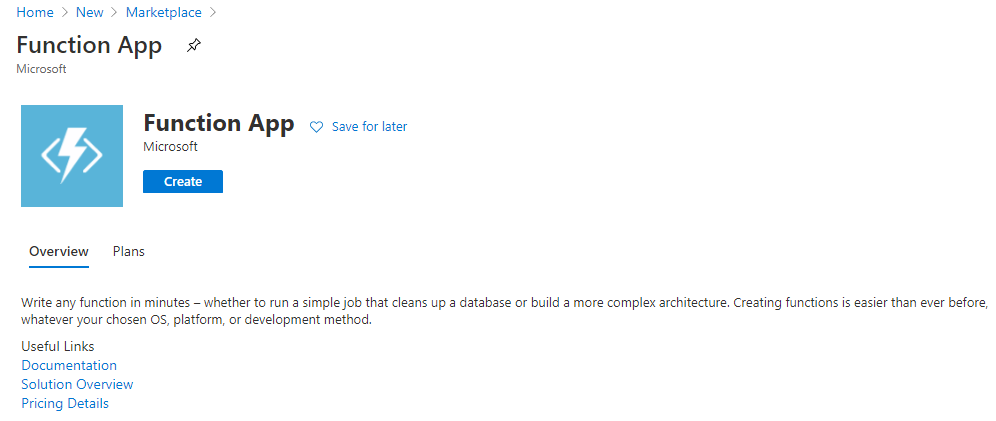
1. To deploy the project to Azure go to Azure Market place and search for Function App. Click Create.
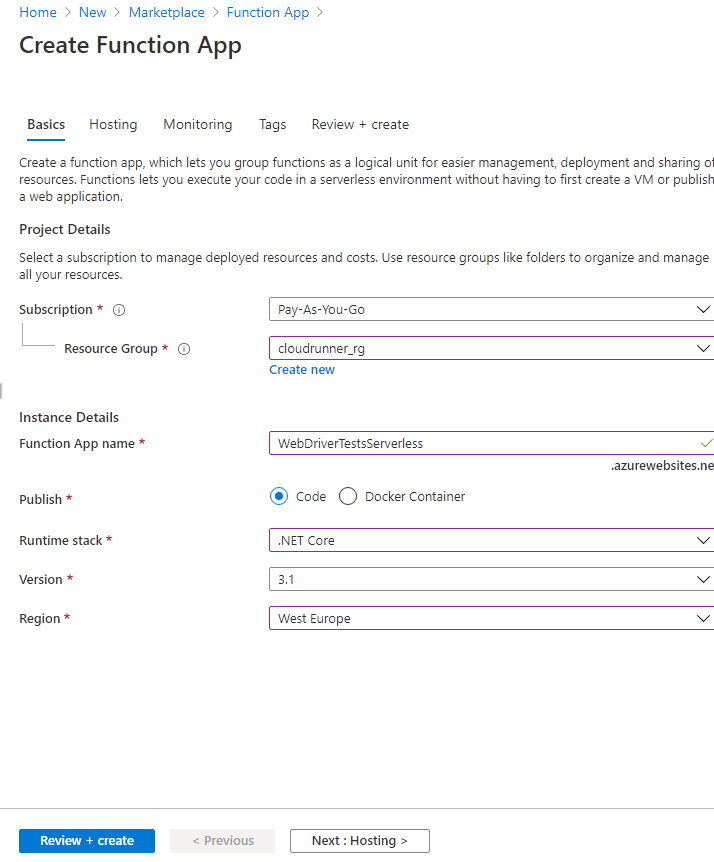
2. Fill the Basics info. Choose your subscription. In case you have a trial, you will receive 200$ credit, which is enough to run millions of WebDriver tests.
3. Fill the Hosting info. Choose Plan type = Consumption (Serverless). This way, you will pay only for what you use.
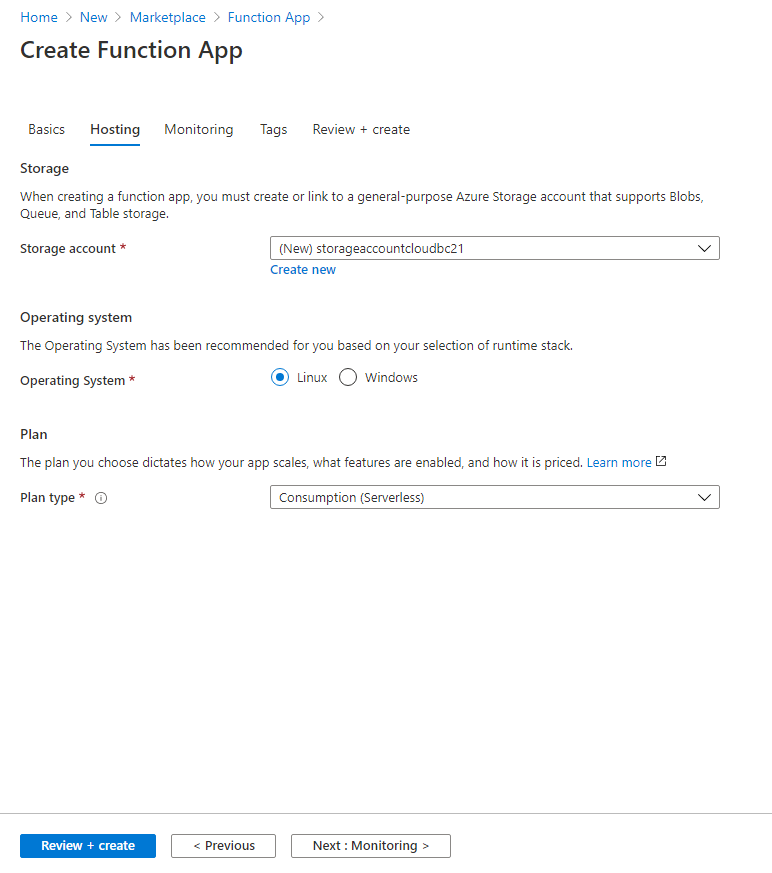
4. Finish the setup, review and create the app.
5. Click Publish on your project and select Azure.
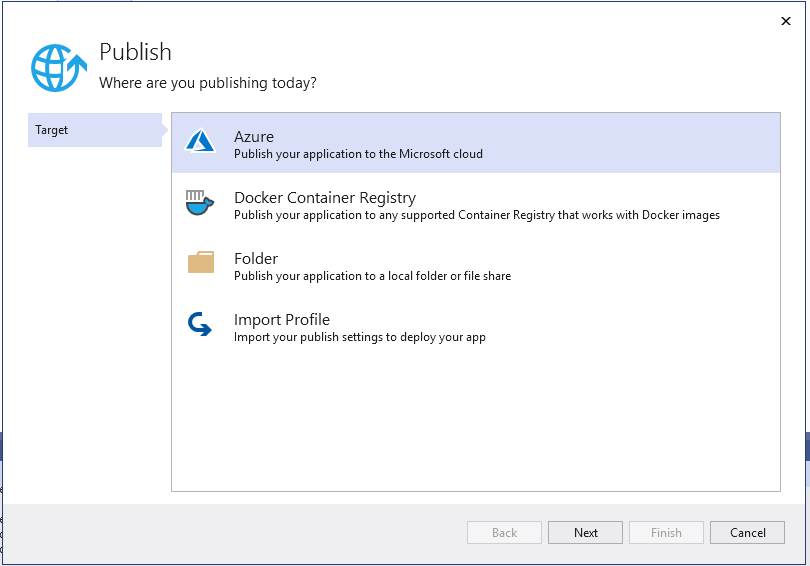
6. Select the already created resource group and app. Finish the deployment.
Now when you navigate to your Azure Functional App, there will be a public endpoint that you can use to call your Azure Function.
Execute WebDriver Tests in Chrome via Azure Functions Hosted on Linux Docker Container
To overcome the above limitations, we can host the Azure Functions in an isolated Linux Docker container deployed to Azure Service Fabric. Our docker image will be based on an image created by Microsoft, which installs Azure Functions Host. After that, we will deploy our app there and install the latest Chrome browser + driver.
Note
Azure Service Fabric is a distributed systems platform that makes it easy to package, deploy, and manage scalable and reliable microservices and containers.
Create a new docker file and add the following content.
#See https://aka.ms/containerfastmode to understand how Visual Studio uses this Dockerfile to build your images for faster debugging.
FROM mcr.microsoft.com/azure-functions/dotnet:3.0 AS base
WORKDIR /home/site/wwwroot
EXPOSE 80
FROM mcr.microsoft.com/dotnet/core/sdk:3.1-buster AS build
WORKDIR /src
COPY ["WebDriverTestsAzureFunctions/WebDriverTestsAzureFunctions.csproj", "WebDriverTestsAzureFunctions/"]
RUN dotnet restore "WebDriverTestsAzureFunctions/WebDriverTestsAzureFunctions.csproj"
COPY . .
WORKDIR "/src/WebDriverTestsAzureFunctions"
RUN dotnet build "WebDriverTestsAzureFunctions.csproj" -c Release -o /app/build
FROM build AS publish
RUN dotnet publish "WebDriverTestsAzureFunctions.csproj" -c Release -o /app/publish
RUN apt-get update &&
apt-get install -y gnupg wget curl unzip --no-install-recommends &&
wget -q -O - https://dl-ssl.google.com/linux/linux_signing_key.pub | apt-key add - &&
echo "deb http://dl.google.com/linux/chrome/deb/ stable main" >> /etc/apt/sources.list.d/google.list &&
apt-get update -y &&
apt-get install -y google-chrome-stable &&
CHROMEVER=$(google-chrome --product-version | grep -o "[^.]*.[^.]*.[^.]*") &&
DRIVERVER=$(curl -s "https://chromedriver.storage.googleapis.com/LATEST_RELEASE_$CHROMEVER") &&
wget -q --continue -P /chromedriver "//chromedriver.storage.googleapis.com/$DRIVERVER/chromedriver_linux64.zip" &&
unzip /chromedriver/chromedriver* -d /usr/bin/
FROM base AS final
WORKDIR /home/site/wwwroot
COPY --from=publish /app/publish .
ENV AzureWebJobsScriptRoot=/home/site/wwwroot
AzureFunctionsJobHost__Logging__Console__IsEnabled=true
I based my docker file on these two posts- first, second.
The deployment process is similar to the one that I showed you. You just have to pick other hosting settings. Also, keep in mind that running Azure Functions in Service Fabric is significantly more costly, and you cannot use the Consumption plan!
Now let’s create a second HTTP triggered Azure Function, where we will start a real Chrome browser in our Docker container.
public class RunStandaloneChrome
{
    [FunctionName("RunStandaloneChrome")]
    public IActionResult Run(
        [HttpTrigger(AuthorizationLevel.Anonymous, "get", "post", Route = null)] HttpRequest req,
        ILogger logger
    )
    {
        string result = "Nothing Happend";
        try
        {
            var chromeOptions = new ChromeOptions();
            chromeOptions.AddArguments(
                "--headless",
                "--no-sandbox",
                "--disable-gpu",
                "--whitelisted-ips"
            );
            var service = ChromeDriverService.CreateDefaultService("/usr/bin/", "chromedriver");
            using IWebDriver driver = new ChromeDriver(service, chromeOptions);
            driver.Navigate().GoToUrl(new Uri("http://demos.bellatrix.solutions/"));
            result = driver.Title;
        }
        catch (Exception ex)
        {
            result = ex.Message;
        }
        return new OkObjectResult(result);
    }
}
We start the browser in headless mode, without sandbox and disabling the GPU. Otherwise, you won’t be able to execute it through Azure Functions. We also need to specify where the chromedriver was downloaded from our Docker file to the CreateDefaultService method. To execute the test call http://localhost:8080/api/RunStandaloneChrome
