
Achieving high-quality test automation that brings value- you need to understand core programming concepts such as SOLID and the usage of design patterns. In this article, we will investigate the Adapter design pattern and how it can help us to eliminate the usage of hard-coded pauses in our automated tests and instead automatically wait for elements to appear. Moreover, it will help us to improve the API Usability of our tests. The tests will become much more readable and easier to write.
For more detailed overview and usage of many more design patterns and best practices in automated testing, check my book “Design Patterns for High-Quality Automated Tests, C# Edition, High-Quality Tests Attributes, and Best Practices”. You can read part of three of the chapters:
Defining High-Quality Test Attributes for Automated Tests
Benchmarking for Assessing Automated Test Components Performance
Generic Repository Design Pattern- Test Data Preparation
Overview Video
The Problem
We will start by checking the requirements of what we need to automate. Imagine that you work for a startup called “EU Space Rockets”. Our company makes the world a better place by allowing people to buy rockets through our website. How cool is that! Your job is to create a series of automated tests and make sure that everything is working as expected.
Our website uses modern web technologies and all actions are loading asynchronous instead of reloading the whole page.
Let us have a look at a step by step approach on how to create your first automated test case:
1. We navigate to the home page of our website and then click on the ‘Add to cart’ button that adds a ‘Falcon 9’ rocket to the cart.
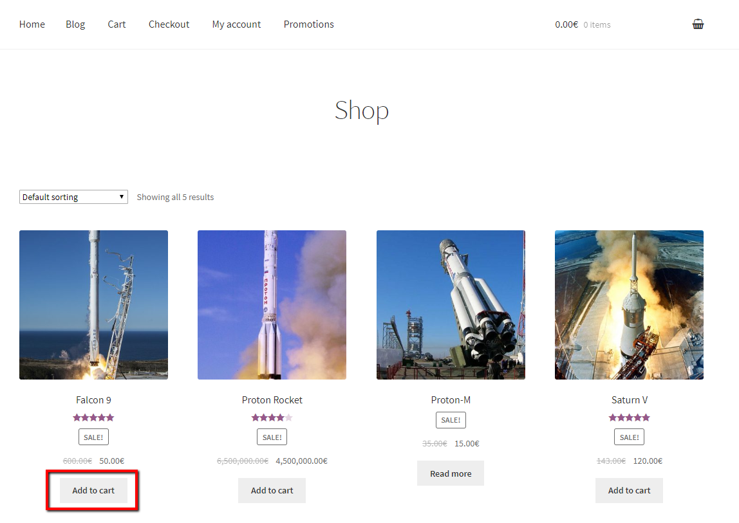
2. Next, we need to click on the ‘View cart’ button which will lead us to the cart page.
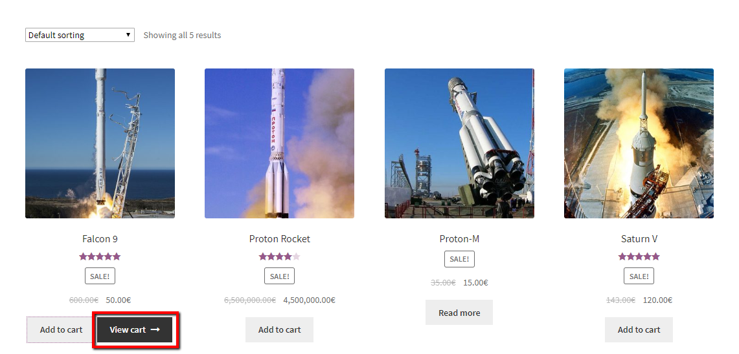
3. If it’s our birthday, we can apply the special discount coupon given to us by the company.
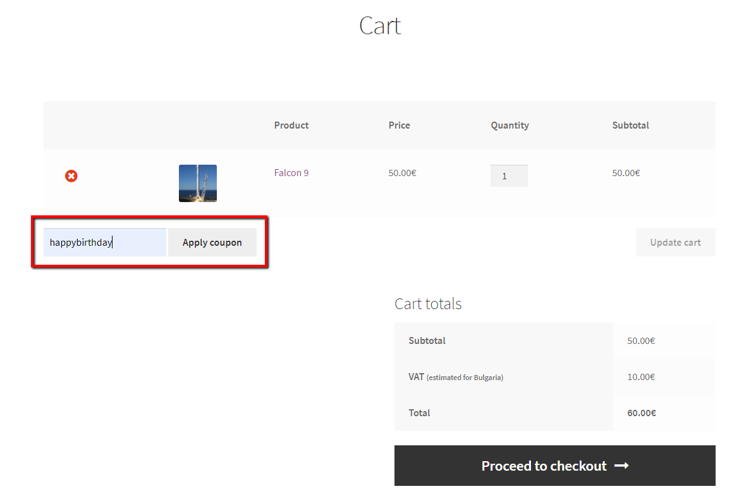
4. Before proceeding with any operations, we need to make sure that the loading indicator is not displayed.
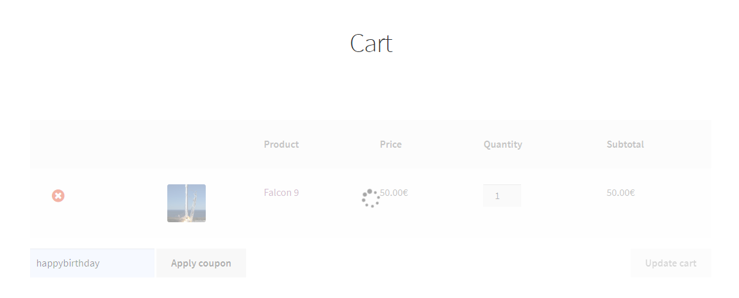
5. Next, since we got a discount, we have additional funding to buy additional rockets. So, we increase the quantity to 2 and click on the ‘Update cart’ button.
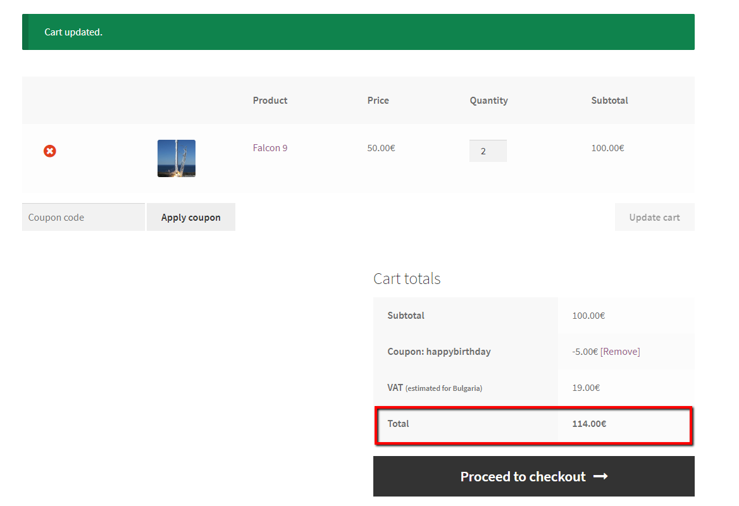
6. After the cart is updated, our test needs to check whether the total price has been changed correctly. If everything is OK, we click on the ‘Proceed to checkout’ button.
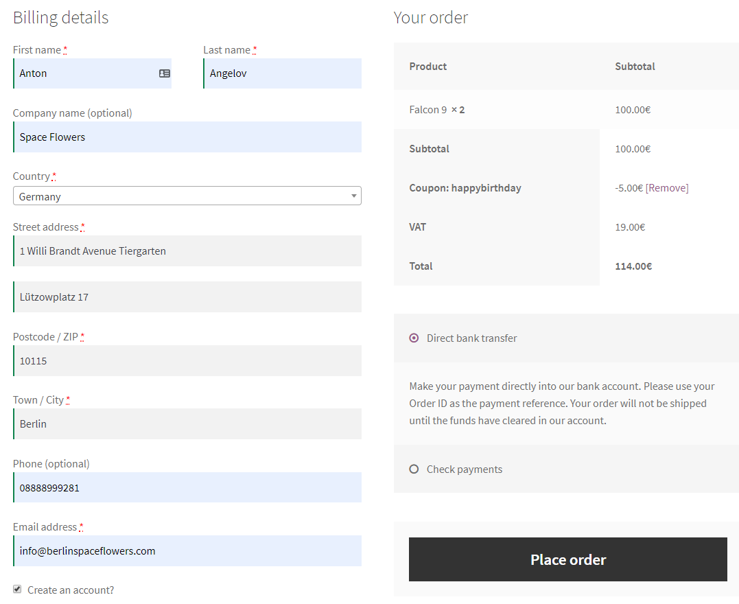
7. We fill all required information and click on the ‘Place order’ button. When the next page is loaded, we need to verify that the order was placed successfully.
Solution 1- Naive Implementation Hard-coded Pauses
Why not now have a look at the code for our first automated test case?
public class ProductPurchaseTestsHardCodedPauses
{
    private IWebDriver _driver;

    public void TestInitialize()
    {
        _driver = new ChromeDriver();
    }

    public void TestCleanup()
    {
        _driver.Quit();
    }

    public void CompletePurchaseSuccessfully_WhenNewClientAndHardCodedPauses()
    {
        _driver.Navigate().GoToUrl("http://demos.bellatrix.solutions/");
        var addToCartFalcon9 = _driver.FindElement(By.CssSelector("[data-product_id*='28']"));
        addToCartFalcon9.Click();
        Thread.Sleep(5000);
        var viewCartButton = _driver.FindElement(By.CssSelector("[class*='added_to_cart wc-forward']"));
        viewCartButton.Click();
        var couponCodeTextField = _driver.FindElement(By.Id("coupon_code"));
        couponCodeTextField.Clear();
        couponCodeTextField.SendKeys("happybirthday");
        var applyCouponButton = _driver.FindElement(By.CssSelector("[value*='Apply coupon']"));
        applyCouponButton.Click();
        Thread.Sleep(5000);
        var messageAlert = _driver.FindElement(By.CssSelector("[class*='woocommerce-message']"));
        Assert.AreEqual("Coupon code applied successfully.", messageAlert.Text);
        var quantityBox = _driver.FindElement(By.CssSelector("[class*='input-text qty text']"));
        quantityBox.Clear();
        Thread.Sleep(500);
        quantityBox.SendKeys("2");
        Thread.Sleep(5000);
        var updateCart = _driver.FindElement(By.CssSelector("[value*='Update cart']"));
        updateCart.Click();
        Thread.Sleep(5000);
        var totalSpan = _driver.FindElement(By.XPath("//*[@class='order-total']//span"));
        Assert.AreEqual("114.00€", totalSpan.Text);
        var proceedToCheckout = _driver.FindElement(By.CssSelector("[class*='checkout-button button alt wc-forward']"));
        proceedToCheckout.Click();
        var billingFirstName = _driver.FindElement(By.Id("billing_first_name"));
        billingFirstName.SendKeys("Anton");
        var billingLastName = _driver.FindElement(By.Id("billing_last_name"));
        billingLastName.SendKeys("Angelov");
        var billingCompany = _driver.FindElement(By.Id("billing_company"));
        billingCompany.SendKeys("Space Flowers");
        var billingCountryWrapper = _driver.FindElement(By.Id("select2-billing_country-container"));
        billingCountryWrapper.Click();
        var billingCountryFilter = _driver.FindElement(By.ClassName("select2-search__field"));
        billingCountryFilter.SendKeys("Germany");
        var germanyOption = _driver.FindElement(By.XPath("//*[contains(text(),'Germany')]"));
        germanyOption.Click();
        var billingAddress1 = _driver.FindElement(By.Id("billing_address_1"));
        billingAddress1.SendKeys("1 Willi Brandt Avenue Tiergarten");
        var billingAddress2 = _driver.FindElement(By.Id("billing_address_2"));
        billingAddress2.SendKeys("Lützowplatz 17");
        var billingCity = _driver.FindElement(By.Id("billing_city"));
        billingCity.SendKeys("Berlin");
        var billingZip = _driver.FindElement(By.Id("billing_postcode"));
        billingZip.Clear();
        billingZip.SendKeys("10115");
        var billingPhone = _driver.FindElement(By.Id("billing_phone"));
        billingPhone.SendKeys("+00498888999281");
        var billingEmail = _driver.FindElement(By.Id("billing_email"));
        billingEmail.SendKeys("info@berlinspaceflowers.com");
        Thread.Sleep(5000);
        var placeOrderButton = _driver.FindElement(By.Id("place_order"));
        placeOrderButton.Click();
        Thread.Sleep(10000);
        var receivedMessage = _driver.FindElement(By.XPath("/html/body/div[1]/div/div/div/main/div/header/h1"));
        Assert.AreEqual("Order received", receivedMessage.Text);
    }
}
I mentioned that our website is using modern JavaScript technologies and most of the operations are asynchronous. In order to handle them in the first version of our tests, we use hard-coded pauses like Thread.Sleep(5000). As you probably know this is a “bad practice”. With these pauses, we added 35.5 seconds on top of the standard test execution time. Sometimes these pauses may not be enough leading to probable test failure other times the element might be already there, and there won’t be a reason to wait for the whole interval.
Implicit VS Explicit Waits
One way to handle the synchronization issues is through a global implicit wait timeout.
IWebDriver driver = new ChromeDriver();
driver.Manage().Timeouts().ImplicitWait = TimeSpan.FromSeconds(30);
However, in some cases, you may need a larger wait interval. What do you do if this happens? One option is to increase the global timeout, but this will affect all existing tests. Another option is to mix implicit and explicit wait. But this is not recommended.
Note
To use WebDriverWait in your .NET tests you need to install a NuGet package called DotNetSeleniumExtras.WaitHelpers.
Let me show you how we can use the Proxy design pattern together with the explicit waits to solve our problems.
Solution 2- Proxy Design Pattern Implementation
In the previous article from the series, we investigated the Proxy design pattern and how it can help us to solve the problem with hard-coded pauses. We significantly improved the speed of the test. However, a few pauses left because the explicit waits couldn’t help us in cases where there are asynchronous requests. The test looked almost identical to the first version because, in the Proxy design pattern, our proxy implements the same interface as the wrapped object.
public class ProductPurchaseTestsProxy
{
    private IWebDriver _driver;

    public void TestInitialize()
    {
        _driver = new WebDriverProxy(new ChromeDriver());
    }

    public void TestCleanup()
    {
        _driver.Quit();
    }

    public void CompletePurchaseSuccessfully_WhenNewClientAndWaitProxy()
    {
        _driver.Navigate().GoToUrl("http://demos.bellatrix.solutions/");
        var addToCartFalcon9 = _driver.FindElement(By.CssSelector("[data-product_id*='28']"));
        addToCartFalcon9.Click();
        ////Thread.Sleep(5000);
        var viewCartButton = _driver.FindElement(By.CssSelector("[class*='added_to_cart wc-forward']"));
        viewCartButton.Click();
        var couponCodeTextField = _driver.FindElement(By.Id("coupon_code"));
        couponCodeTextField.Clear();
        couponCodeTextField.SendKeys("happybirthday");
        var applyCouponButton = _driver.FindElement(By.CssSelector("[value*='Apply coupon']"));
        applyCouponButton.Click();
        ////Thread.Sleep(5000);
        var messageAlert = _driver.FindElement(By.CssSelector("[class*='woocommerce-message']"));
        Assert.AreEqual("Coupon code applied successfully.", messageAlert.Text);
        var quantityBox = _driver.FindElement(By.CssSelector("[class*='input-text qty text']"));
        quantityBox.Clear();
        ////Thread.Sleep(500);
        quantityBox.SendKeys("2");
        ////Thread.Sleep(5000);
        var updateCart = _driver.FindElement(By.CssSelector("[value*='Update cart']"));
        updateCart.Click();
        Thread.Sleep(5000);
        var totalSpan = _driver.FindElement(By.XPath("//*[@class='order-total']//span"));
        Assert.AreEqual("114.00€", totalSpan.Text);
        var proceedToCheckout = _driver.FindElement(By.CssSelector("[class*='checkout-button button alt wc-forward']"));
        proceedToCheckout.Click();
        var billingFirstName = _driver.FindElement(By.Id("billing_first_name"));
        billingFirstName.SendKeys("Anton");
        var billingLastName = _driver.FindElement(By.Id("billing_last_name"));
        billingLastName.SendKeys("Angelov");
        var billingCompany = _driver.FindElement(By.Id("billing_company"));
        billingCompany.SendKeys("Space Flowers");
        var billingCountryWrapper = _driver.FindElement(By.Id("select2-billing_country-container"));
        billingCountryWrapper.Click();
        var billingCountryFilter = _driver.FindElement(By.ClassName("select2-search__field"));
        billingCountryFilter.SendKeys("Germany");
        var germanyOption = _driver.FindElement(By.XPath("//*[contains(text(),'Germany')]"));
        germanyOption.Click();
        var billingAddress1 = _driver.FindElement(By.Id("billing_address_1"));
        billingAddress1.SendKeys("1 Willi Brandt Avenue Tiergarten");
        var billingAddress2 = _driver.FindElement(By.Id("billing_address_2"));
        billingAddress2.SendKeys("Lützowplatz 17");
        var billingCity = _driver.FindElement(By.Id("billing_city"));
        billingCity.SendKeys("Berlin");
        var billingZip = _driver.FindElement(By.Id("billing_postcode"));
        billingZip.Clear();
        billingZip.SendKeys("10115");
        var billingPhone = _driver.FindElement(By.Id("billing_phone"));
        billingPhone.SendKeys("+00498888999281");
        var billingEmail = _driver.FindElement(By.Id("billing_email"));
        billingEmail.SendKeys("info@berlinspaceflowers.com");
        Thread.Sleep(5000);
        var placeOrderButton = _driver.FindElement(By.Id("place_order"));
        placeOrderButton.Click();
        Thread.Sleep(10000);
        var receivedMessage = _driver.FindElement(By.XPath("/html/body/div[1]/div/div/div/main/div/header/h1"));
        Assert.AreEqual("Order received", receivedMessage.Text);
    }
}
Adapter Design Pattern
Definition
Adapter allows the interface of an existing class to be used as another interface.
UML Class Diagram
classDiagram
    Tests --> IDriver
    Tests --> IElement
    WebDriverAdapter ..|> IDriver
    WebDriverAdapter --> IWebDriver
    ElementAdapter ..|> IElement
    ElementAdapter --> IWebElement
    class IDriver {
        +Uri Url
        +string PageSource
        +FindElement(By locator)
        +FindElements(By locator)
        +GoToUrl(string url)
        +WaitForAjax()
    }
    class IElement {
        +By By
        +string Text
        +FindElement(By locator)
        +TypeText(string text)
        +Click()
    }
    class WebDriverAdapter {
        +IWebDriver _driver
        +Uri Url
        +string PageSource
        +FindElement(By locator)
        +FindElements(By locator)
        +GoToUrl(string url)
        +WaitForAjax()
    }
    class ElementAdapter {
        +IWebElement _webElement
        +By By
        +string Text
        +FindElement(By locator)
        +TypeText(string text)
        +Click()
    }
    class Tests {
        +IWebDriver _driver
    }
    class IWebDriver {
        +string Url
        +string Title
        +string PageSource
        +FindElement(By by)
        +FindElements(By by)
        +Quit()
        +Navigate()
    }
    class IWebElement {
        +string Text
        +bool Enabled
        +bool Selected
        +Point Location
        +Size Size
        +bool Displayed
        +FindElement(By locator)
        +FindElements(By locator)
        +SendKeys(string text)
        +Click()
        +Clear()
        +Submit()
        +GetAttribute(string attributeName)
        +GetProperty(string propertyName)
        +GetCssValue(string propertyName)
    }
Participants
-
Target (IDriver, IElement)
Defines the domain-specific interface that client uses.
-
Adapter (WebDriverAdapter, ElementAdapter)
Adapts the interface Adaptee to the Target interface.
-
Adaptee (IWebDriver, IWebElement)
Defines an existing interface that needs adapting..
-
Client (Tests)
Collaborates with objects conforming to the Target interface.
Adapter Design Pattern Implementation
DriverAdapter
Now let’s review how we can implement the Adapter design pattern. If you recall the Proxy design pattern implementation we created in the previous article- the proxy implements the same interface as the Adaptee (IWebDriver). As you will see, we again use composition to hold the dependency in our case, the real Adaptee (ChromeDriver). Still, instead of implementing the Adaptee interface (IWebDriver), the Adapter implements the “enhanced” Target interface IDriver. What is the difference between the IWebDriver and IDriver interfaces?
public interface IDriver
{
    void GoToUrl(string url);
    Uri Url { get; set; }
    IElement FindElement(By locator);
    IEnumerable<IElement> FindElements(By locator);
    void WaitForAjax();
    void Close();
}
The IDriver interface is simpler compared to IWebDriver and contains fewer methods. Instead of writing _driver.Navigate().GoToUrl, you can write _driver.GoToUrl - making the usage easier. This will make our tests more readable too. Moreover, IDriver contains an additional method called WaitForAjax, which will be responsible for handling the waiting of asynchronous web requests.
Note
The Composition Principle in object-oriented programming (OOP) is the principle where classes should achieve polymorphic behavior and code reuse by their composition (by containing instances of other classes that implement the desired functionality) rather than inheritance from a base or parent class. This is especially important in programming languages like C#, where multiple class inheritance is not allowed.
How about reviewing the DriverAdapter implementation?
public class DriverAdapter : IDriver
{
    private readonly IWebDriver _driver;
    private readonly WebDriverWait _webDriverWait;
    public DriverAdapter(IWebDriver driver)
    {
        _driver = driver;
        var timeout = TimeSpan.FromSeconds(30);
        var sleepInterval = TimeSpan.FromSeconds(2);
        _webDriverWait = new WebDriverWait(new SystemClock(), _driver, timeout, sleepInterval);
    }
    public void GoToUrl(string url)
    {
        _driver.Navigate().GoToUrl(url);
    }
    public Uri Url
    {
        get => new Uri(_driver.Url);
        set => _driver.Url = value.ToString();
    }
    public IElement FindElement(By locator)
    {
        IWebElement nativeElement =
        _webDriverWait.Until(ExpectedConditions.ElementExists(locator));
        return new ElementAdapter(_driver, nativeElement, locator);
    }
    public IEnumerable<IElement> FindElements(By locator)
    {
        ReadOnlyCollection<IWebElement> nativeElements =
        _webDriverWait.Until(ExpectedConditions.PresenceOfAllElementsLocatedBy(locator));
        var elements = new List<IElement>();
        foreach (var nativeElement in nativeElements)
        {
            IElement element = new ElementAdapter(_driver, nativeElement, locator);
            elements.Add(element);
        }
        return elements;
    }
    public void WaitForAjax()
    {
        var js = (IJavaScriptExecutor)_driver;
        _webDriverWait.Until(wd => js.ExecuteScript("return jQuery.active").ToString() == "0");
    }
    public void Close()
    {
        _driver.Quit();
        _driver.Dispose();
    }
}
Part of the ‘magic’ is happening inside the FindElement and FindElements methods, where we first wait for the elements to exist before returning them.
In WebDriver, the Until method in the Wait class is simply a loop that executes the contents of the code block passed to it until the code returns a true value. We ask the JavaScript to return jQuery.active count. In the case of the WaitForAjax method, the exit loop condition is reached when there are 0 active AJAX requests. If the conditional returns true, all the AJAX requests have finished, and we are ready to move to the next step.
Note
The code is coupled to the jQuery library, and because of that, it won’t work on websites that don’t use it. Also, it must be used after the load event. Otherwise, it will throw an exception if jQuery is not defined- “Uncaught TypeError: Cannot read property ‘active’ of undefined.”
ElementAdapter
I created a similar Target “enhanced” interface for the IWebElement. It is called IElement. The goal is to make the usage of web elements easier and make the tests a bit more readable.
public interface IElement
{
    By By { get; }
    string Text { get; }
    void TypeText(string text);
    IElement FindElement(By locator);
    void Click();
}
Let’s review the actual implementation.
public class ElementAdapter : IElement
{
    private readonly IWebDriver _webDriver;
    private readonly IWebElement _webElement;
    public ElementAdapter(IWebDriver webDriver, IWebElement webElement, By by)
    {
        _webDriver = webDriver;
        _webElement = webElement;
        By = by;
    }
    public By By { get; }
    public string Text => _webElement?.Text;
    public bool? Enabled => _webElement?.Enabled;
    public bool? Displayed => _webElement?.Displayed;
    public void Click()
    {
        WaitToBeClickable(By);
        _webElement?.Click();
    }
    public IElement FindElement(By locator)
    {
        return new ElementAdapter(_webDriver, _webElement?.FindElement(locator), locator);
    }
    public void TypeText(string text)
    {
        _webElement?.Clear();
        _webElement?.SendKeys(text);
    }
    private void WaitToBeClickable(By by)
    {
        var webDriverWait = new WebDriverWait(_webDriver, TimeSpan.FromSeconds(30));
        webDriverWait.Until(SeleniumExtras.WaitHelpers.ExpectedConditions.ElementToBeClickable(by));
    }
}
On top of the simplified interface and improved method names (instead of SendKeys now we have TypeText), we have additional improvements. One of them is that the TypeText contains the “ugly” code for clearing the field and then typing. Another one is that we first wait for the element to be clickable before performing the actual Click, which will make the tests less flaky.
Solution 3- Adapter Design Pattern Implementation
Let’s refactor our initial test to use the DriverAdapter and ElementAdapter classes. The usage will stay almost the same. All hard-coded pauses are removed since there is this behind-the-scenes waiting for elements to appear. On the other places wherein the case of the proxy usage, we couldn’t remove the pauses because of asynchronous requests- we call now the WaitForAjax method. Another change is that instead of using the Clear and SendKey methods, we use the new adapter’s TypeText.
public class ProductPurchaseTestsAdapter
{
    private IDriver _driver;

    public void TestInitialize()
    {
        _driver = new DriverAdapter(new ChromeDriver());
    }

    public void TestCleanup()
    {
        _driver.Close();
    }

    public void CompletePurchaseSuccessfully_WhenNewClient()
    {
        _driver.GoToUrl("http://demos.bellatrix.solutions/");
        var addToCartFalcon9 = _driver.FindElement(By.CssSelector("[data-product_id*='28']"));
        addToCartFalcon9.Click();
        var viewCartButton = _driver.FindElement(By.CssSelector("[class*='added_to_cart wc-forward']"));
        viewCartButton.Click();
        var couponCodeTextField = _driver.FindElement(By.Id("coupon_code"));
        couponCodeTextField.TypeText("happybirthday");
        var applyCouponButton = _driver.FindElement(By.CssSelector("[value*='Apply coupon']"));
        applyCouponButton.Click();
        var messageAlert = _driver.FindElement(By.CssSelector("[class*='woocommerce-message']"));
        Assert.AreEqual("Coupon code applied successfully.", messageAlert.Text);
        var quantityBox = _driver.FindElement(By.CssSelector("[class*='input-text qty text']"));
        quantityBox.TypeText("2");
        var updateCart = _driver.FindElement(By.CssSelector("[value*='Update cart']"));
        updateCart.Click();
        _driver.WaitForAjax();
        var totalSpan = _driver.FindElement(By.XPath("//*[@class='order-total']//span"));
        Assert.AreEqual("114.00€", totalSpan.Text);
        var proceedToCheckout = _driver.FindElement(By.CssSelector("[class*='checkout-button button alt wc-forward']"));
        proceedToCheckout.Click();
        var billingFirstName = _driver.FindElement(By.Id("billing_first_name"));
        billingFirstName.TypeText("Anton");
        var billingLastName = _driver.FindElement(By.Id("billing_last_name"));
        billingLastName.TypeText("Angelov");
        var billingCompany = _driver.FindElement(By.Id("billing_company"));
        billingCompany.TypeText("Space Flowers");
        var billingCountryWrapper = _driver.FindElement(By.Id("select2-billing_country-container"));
        billingCountryWrapper.Click();
        var billingCountryFilter = _driver.FindElement(By.ClassName("select2-search__field"));
        billingCountryFilter.TypeText("Germany");
        var germanyOption = _driver.FindElement(By.XPath("//*[contains(text(),'Germany')]"));
        germanyOption.Click();
        var billingAddress1 = _driver.FindElement(By.Id("billing_address_1"));
        billingAddress1.TypeText("1 Willi Brandt Avenue Tiergarten");
        var billingAddress2 = _driver.FindElement(By.Id("billing_address_2"));
        billingAddress2.TypeText("Lützowplatz 17");
        var billingCity = _driver.FindElement(By.Id("billing_city"));
        billingCity.TypeText("Berlin");
        var billingZip = _driver.FindElement(By.Id("billing_postcode"));
        billingZip.TypeText("10115");
        var billingPhone = _driver.FindElement(By.Id("billing_phone"));
        billingPhone.TypeText("+00498888999281");
        var billingEmail = _driver.FindElement(By.Id("billing_email"));
        billingEmail.TypeText("info@berlinspaceflowers.com");
        _driver.WaitForAjax();
        var placeOrderButton = _driver.FindElement(By.Id("place_order"));
        placeOrderButton.Click();
        _driver.WaitForAjax();
        var receivedMessage = _driver.FindElement(By.XPath("/html/body/div[1]/div/div/div/main/div/header/h1"));
        Assert.AreEqual("Order received", receivedMessage.Text);
    }
}
Summary
All hard-coded pauses were removed, and the test became much more readable thanks to the improvements we brought with the usage of the Adapter design pattern. In the next article from the series, I will show you how we can further improve our adapters though the Lazy Load design pattern. It will allow the actual find of our elements to happen on element action instead of right away when you call the FindElement and FindElements methods.
