

This is the first article from the new series dedicated to the mobile testing using Appium test automation framework. Here, I am going to show you how to configure your machine to test Android applications- prerequisite installations and setup of emulators. After that, you will find how to start your application on the emulator and perform actions on it.
What Is Appium?
Appium is an open source test automation framework for use with native, hybrid and mobile web apps. It drives iOS, Android, and Windows apps using the WebDriver protocol. It is the “standard” for mobile test automation.
Machine Setup
1. Install Java Development Kit (JDK) version 7 or above
(version 8 recommended in order for UI Automation Viewer to work)
2. Set JAVA_HOME environmental variable to where Java JDK is installed
Open in explorer – Control PanelSystem and SecuritySystem then click Advanced system settings. Click Environmental Variables.
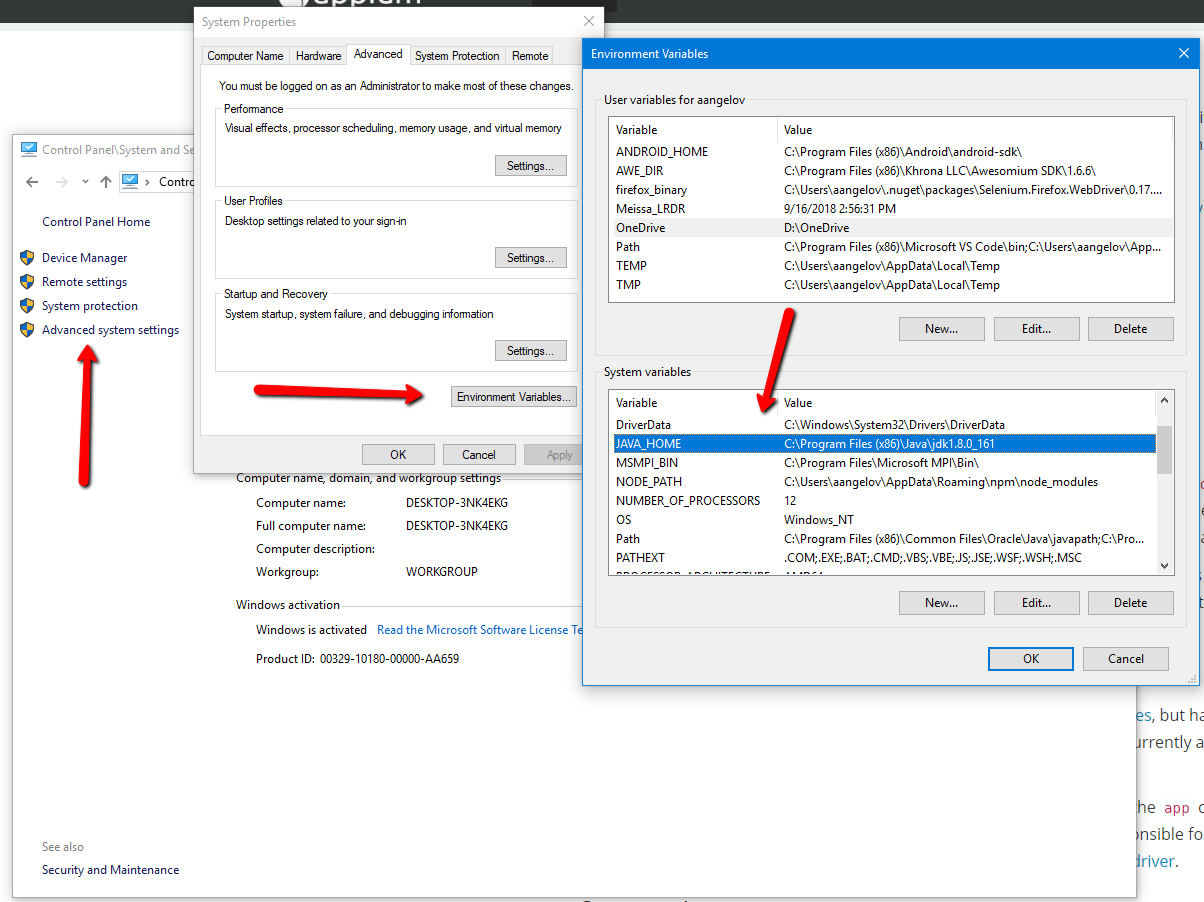
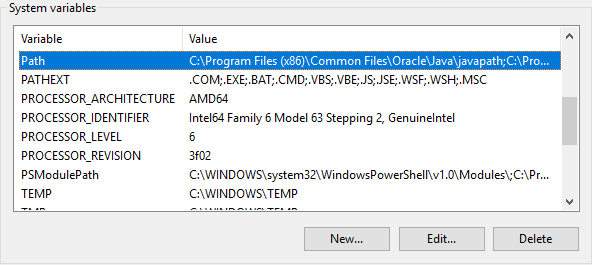
3. Add Java JDK bin folder to the end of Path environmental variable
4. Install the Android Studio to install the Android SDK at its default location if it is not already installed: C:Program Files (x86)Androidandroid-sdk – follow the following guide
5. Create a virtual device with the Android Virtual Device Manager
6. Install Node.js
7. Install Appium from the command line (skip if you install Appium Desktop)
npm install -g appium
8. Install Appium Desktop (optional)
Find Android App Info
Install APK to Virtual Device
ADB, Android Debug Bridge, is a command-line utility included with Google’s Android SDK. ADB can control your device over USB from a computer, copy files back and forth, install and uninstall apps, run shell commands, and more.
First, start the ADB shell using the command – adb shell.
Before automating your app, you may need to expect it and find some info about it. So, you need to install it on your virtual device. To do so, open the command line and execute the following command.
adb install pathToYourApk/yourTestApp.apk
To find the app package and current activity. Open your application on the virtual device and navigate to the desired view. Then open adb shell and use the following command.
dumpsys window windows | grep -E ‘mCurrentFocus|mFocusedApp’
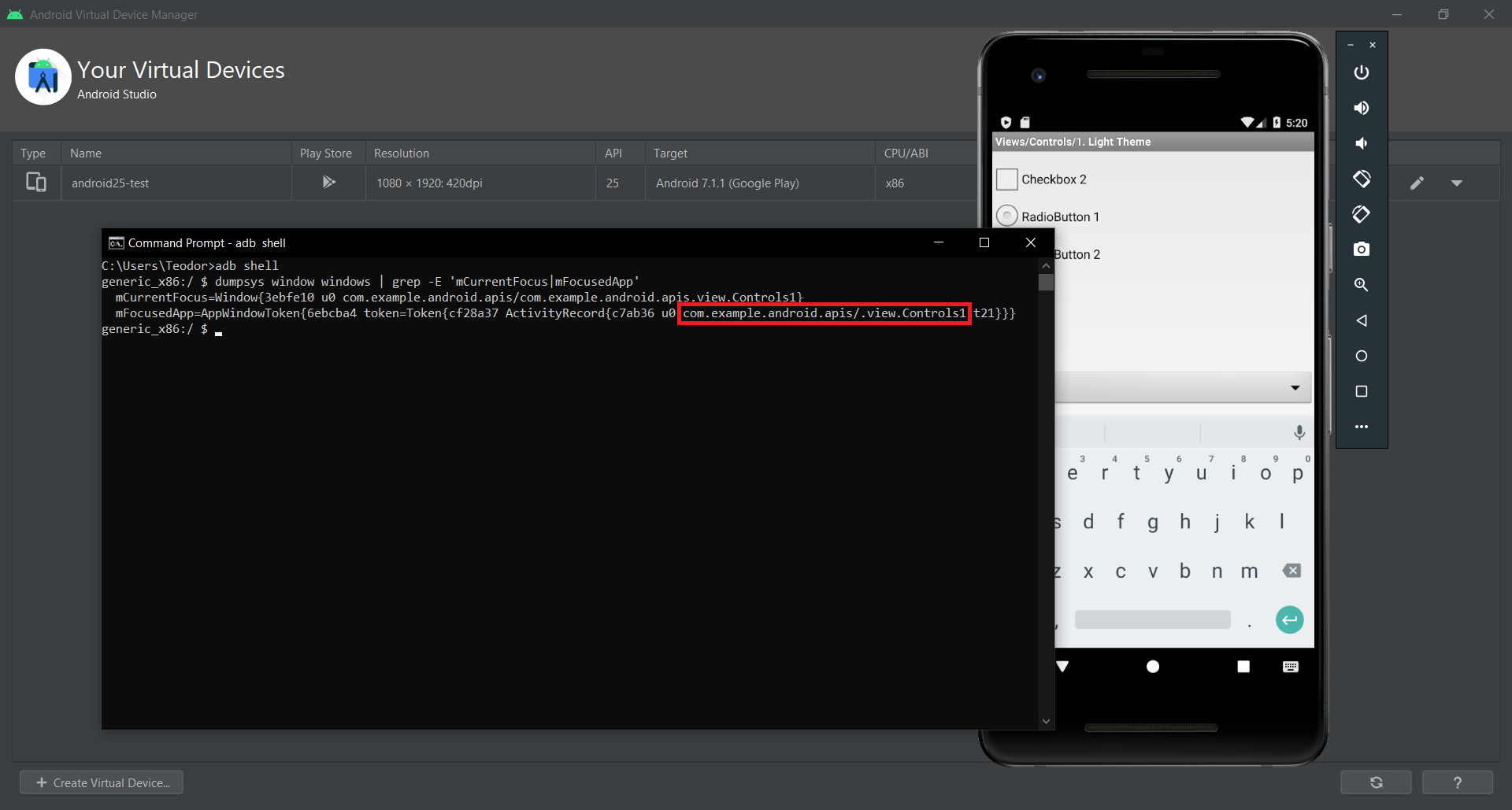
Start Android App in Emulator
You need to make sure that the Appium server is started and listening on port 4723.
private lateinit var driver: AndroidDriver<AndroidElement>

@BeforeClass
fun classInit() {
    val testAppUrl = javaClass.classLoader.getResource("ApiDemos.apk")
    val testAppFile = Paths.get((testAppUrl!!).toURI()).toFile()
    val testAppPath = testAppFile.absolutePath
    val desiredCaps = DesiredCapabilities()
    desiredCaps.setCapability(MobileCapabilityType.DEVICE_NAME, "android25-test")
    desiredCaps.setCapability(AndroidMobileCapabilityType.APP_PACKAGE, "com.example.android.apis")
    desiredCaps.setCapability(MobileCapabilityType.PLATFORM_NAME, "Android")
    desiredCaps.setCapability(MobileCapabilityType.PLATFORM_VERSION, "7.1")
    desiredCaps.setCapability(AndroidMobileCapabilityType.APP_ACTIVITY, ".view.Controls1")
    desiredCaps.setCapability(MobileCapabilityType.APP, testAppPath)
    driver = AndroidDriver<AndroidElement>(URL("http://127.0.0.1:4723/wd/hub"), desiredCaps)
    driver.closeApp()
}

@BeforeMethod
fun testInit() {
    driver.launchApp()
    driver.startActivity(Activity("com.example.android.apis", ".view.Controls1"))
}

@AfterMethod
fun testCleanup() {
    driver.closeApp()
}
After the driver is initialised we closed if the app is open. Then before each test, we launch the app and open the desired activity.
Start Appium Service
Instead of starting Appium server manually, we can start it from code.
appiumLocalService = AppiumServiceBuilder().usingAnyFreePort().build()
appiumLocalService.start()
Get Path to Test App
The apk file is copied from the Resources folder to the compiled binaries. This is how we get the path.
val testAppUrl = javaClass.classLoader.getResource("ApiDemos.apk")
val testAppFile = Paths.get((testAppUrl!!).toURI()).toFile()
val testAppPath = testAppFile.absolutePath
Initialize Desired Capabilities
val testAppUrl = javaClass.classLoader.getResource("ApiDemos.apk")
val testAppFile = Paths.get((testAppUrl!!).toURI()).toFile()
val testAppPath = testAppFile.absolutePath
val desiredCaps = DesiredCapabilities()
desiredCaps.setCapability(MobileCapabilityType.DEVICE_NAME, "android25-test")
desiredCaps.setCapability(AndroidMobileCapabilityType.APP_PACKAGE, "com.example.android.apis")
desiredCaps.setCapability(MobileCapabilityType.PLATFORM_NAME, "Android")
desiredCaps.setCapability(MobileCapabilityType.PLATFORM_VERSION, "7.1")
desiredCaps.setCapability(AndroidMobileCapabilityType.APP_ACTIVITY, ".view.Controls1")
desiredCaps.setCapability(MobileCapabilityType.APP, testAppPath)
Find Android Locators
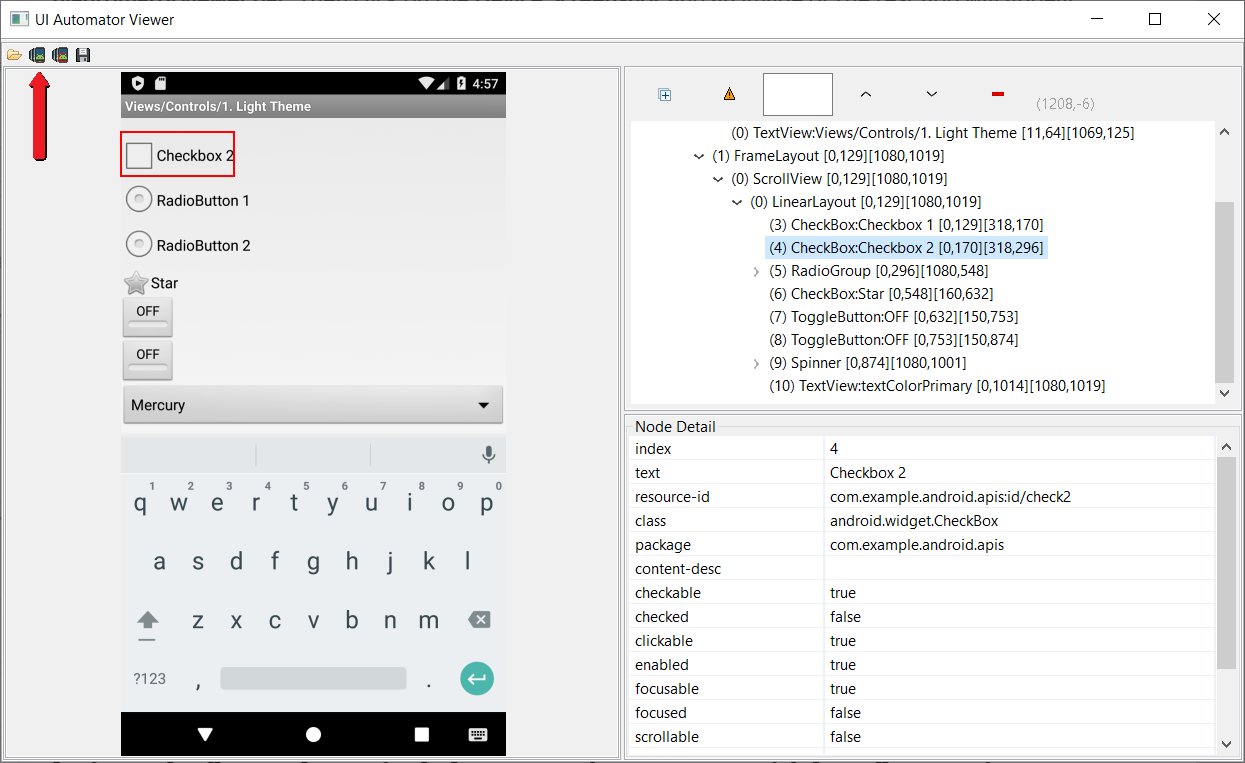
Using the Android SDK UIAutomator Viewer, you can find the elements you are looking for. You can find it in the folder C:Program Files (x86)Androidandroid-sdktoolsbin. Launch the following file – uiautomatorviewer.bat. Then click on the Device Screenshot and an image of the test app will appear.
Find Android Locators with Appium Desktop
Appium provides you with a neat tool that allows you to find the elements you’re looking for. With Appium Desktop you can find any item and its locators by either clicking the element on the screenshot image or locating it in the source tree.
After launching Appium Desktop and starting a session, you can locate any element in the source.
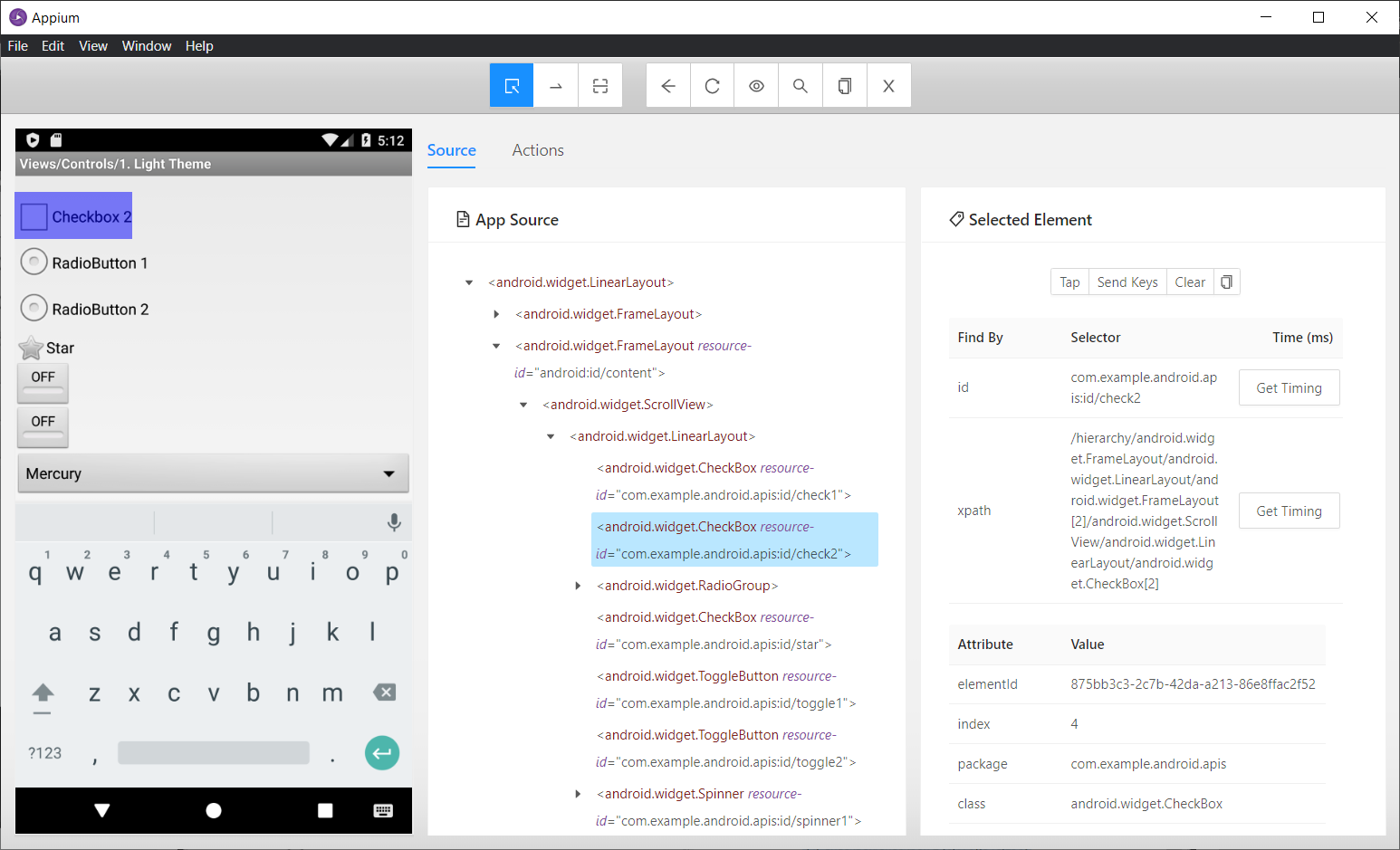
Locating Elements with Appium
-
By ID
    val button = driver.findElementById("com.example.android.apis:id/button")
    ```

-   #### By Class

```kotlin
    val checkBox = driver.findElementByClassName("android.widget.CheckBox")
    ```

-   #### By XPath

```kotlin
    val secondButton = driver.findElementByXPath("//*[@resource-id='com.example.android.apis:id/button']")
    ```

-   #### By AndroidUIAutomator

```kotlin
    AndroidElement thirdButton = driver.findElementByAndroidUIAutomator("new UiSelector().textContains(\"BUTTO\");");
    ```


### Locate Elements inside Parent

```kotlin
@Test
fun locatingElementsInsideAnotherElementTest() {
    val mainElement = driver.findElementById("android:id/content")
    val button = mainElement.findElementById("com.example.android.apis:id/button")
    button.click()
    val checkBox = mainElement.findElementByClassName("android.widget.CheckBox")
    checkBox.click()
    val secondButton =
        mainElement.findElementByXPath("//*[@resource-id='com.example.android.apis:id/button']")
    secondButton.click()
    val thirdButton =
        mainElement.findElementByAndroidUIAutomator("new UiSelector().textContains(\"BUTTO\");")
    thirdButton.click()
}
Gesture Actions in Appium
Swipe
@Test
fun swipeTest() {
    class PlatformTouchAction(performsTouchActions: PerformsTouchActions) :
        TouchAction<PlatformTouchAction>(performsTouchActions)
    driver.startActivity(Activity("com.example.android.apis", ".graphics.FingerPaint"))
    val touchAction = PlatformTouchAction(driver)
    val element = driver.findElementById("android:id/content")
    val point = element.location
    val size = element.size
    touchAction
        .press(PointOption.point(point.x + 5, point.y + 5))
        .waitAction(WaitOptions.waitOptions(Duration.ofMillis(200)))
        .moveTo(PointOption.point(point.x + size.width - 5, point.y + size.height - 5))
        .release()
        .perform()
}