

This is the first article from the new series dedicated to the mobile testing using Appium test automation framework. Here, I am going to show you how to configure your machine to test Android applications- prerequisite installations and setup of emulators. After that, you will find how to start your application on the emulator and perform actions on it.
What Is Appium?
Appium is an open source test automation framework for use with native, hybrid and mobile web apps. It drives iOS, Android, and Windows apps using the WebDriver protocol. It is the “standard” for mobile test automation.
Machine Setup
1. Install Java 7 JDK
2. Set JAVA_HOME environmental variable to where Java JDK is installed
Open in explorer- Control Panel\System and Security\System then click Advanced system settings. Click Environmental Variables.
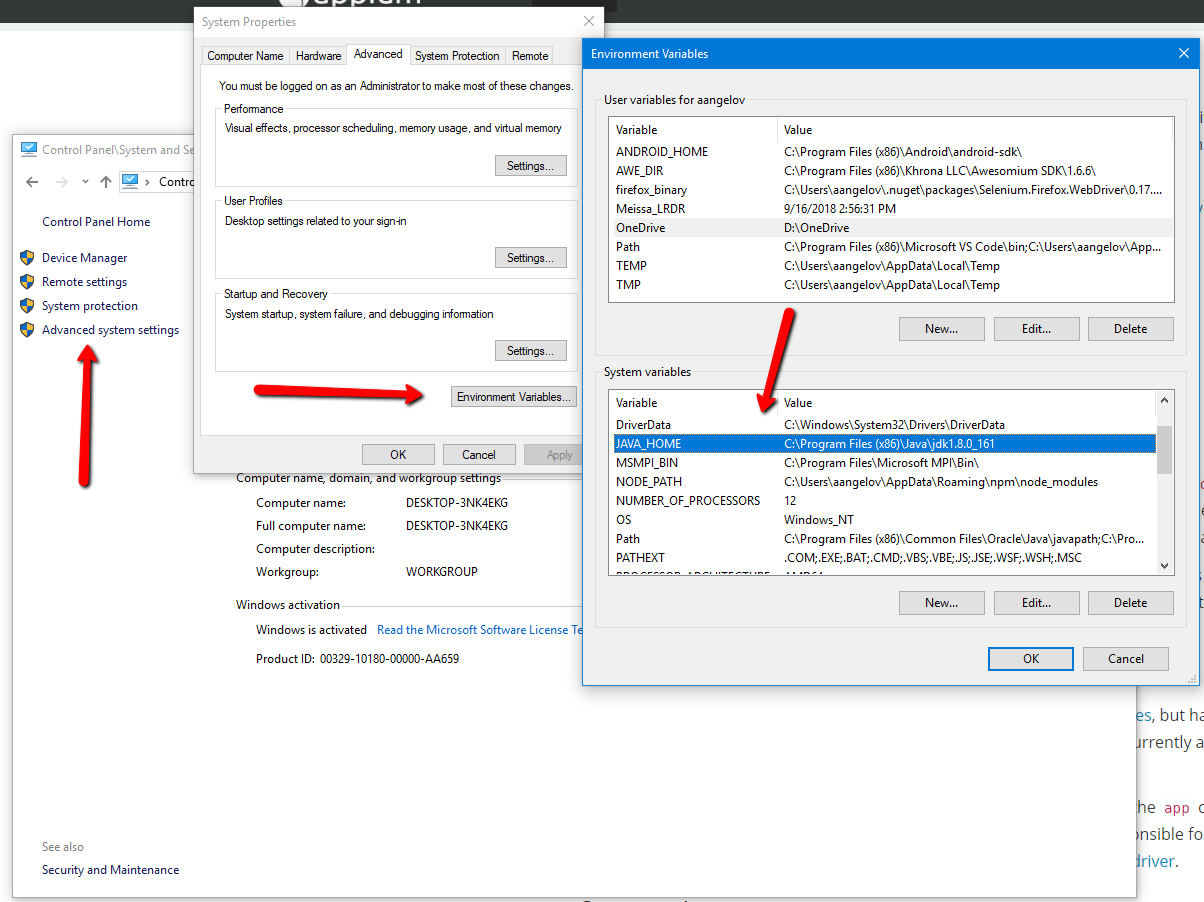
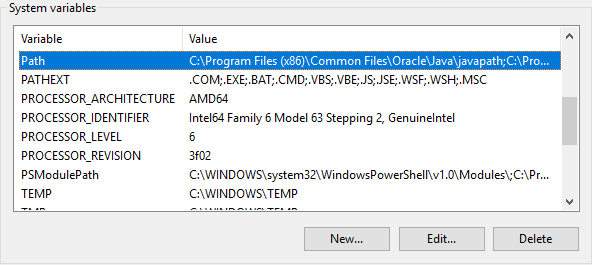
3. Add Java JDK bin folder to the end of Path environmental variable
4. Install the Android SDK at its default location if it is not already installed: C:\Program Files (x86)\Android\android-sdk - follow the following guide
5. Create a virtual device with the Android Device Manager
6. Install Node.js
7. Install Appium from the command line (skip if you install Appium Desktop)
npm install -g appium8. Install Appium Desktop (optional)
Find Android App Info
Install APK to Virtual Device
ADB, Android Debug Bridge, is a command-line utility included with Google’s Android SDK. ADB can control your device over USB from a computer, copy files back and forth, install and uninstall apps, run shell commands, and more.
First, start the ADB shell using the command
adb shellBefore automating your app, you may need to expect it and find some info about it. So, you need to install it on your virtual device. To do so, open the command line and execute the following command.
adb install pathToYourApk/yourTestApp.apkTo find the app package and current activity. Open your application on the virtual device and navigate to the desired view. Then open adb shell and use the following command.
dumpsys window windows | grep -E 'mCurrentFocus|mFocusedApp'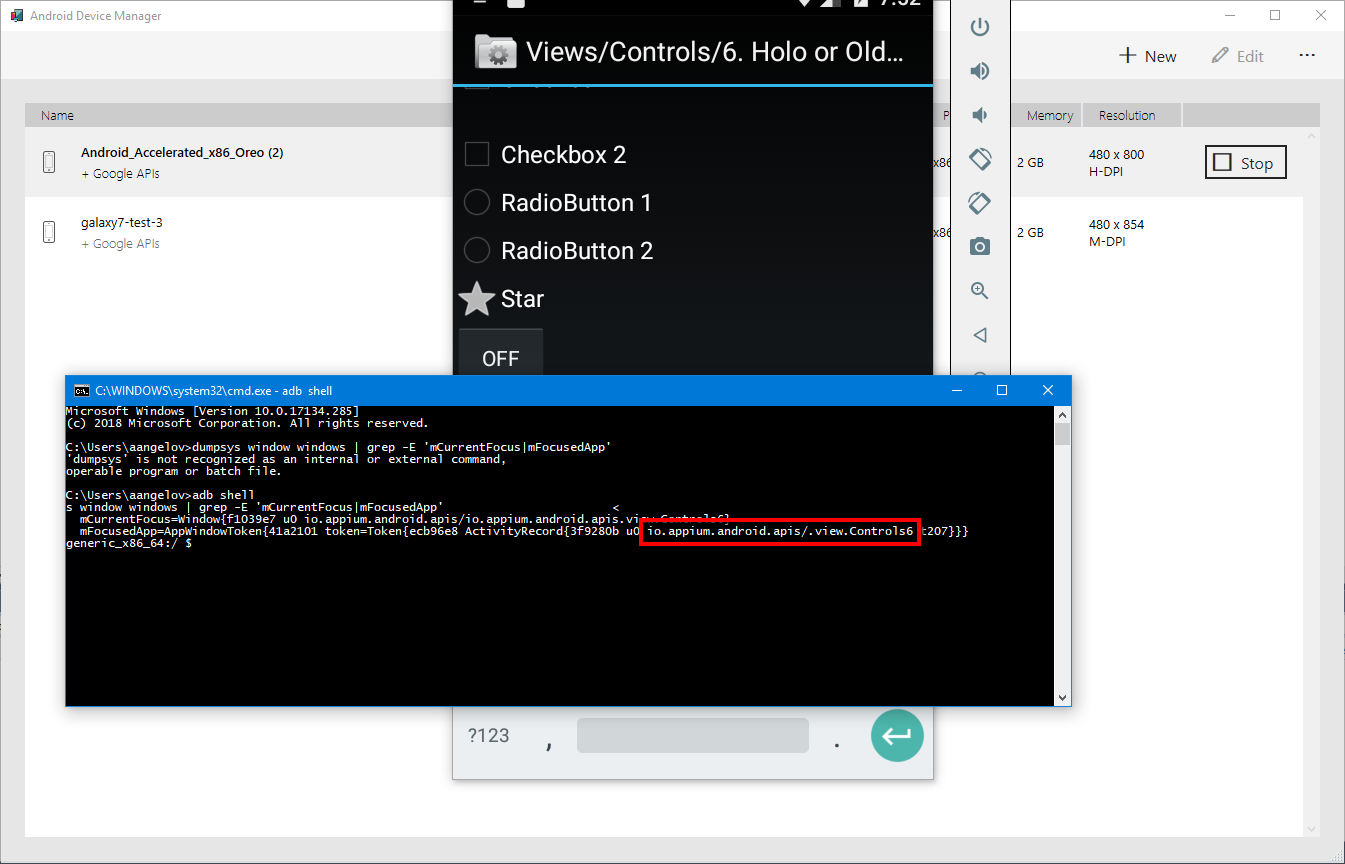
Start Android App in Emulator
private static AndroidDriver<AppiumWebElement> _driver;
private static AppiumLocalService _appiumLocalService;

public static void ClassInitialize(TestContext context)
{
    _appiumLocalService = new AppiumServiceBuilder().UsingAnyFreePort().Build();
    _appiumLocalService.Start();
    var appiumOptions = new AppiumOptions();
    appiumOptions.AddAdditionalCapability(MobileCapabilityType.DeviceName, "Android_Accelerated_x86_Oreo");
    appiumOptions.AddAdditionalCapability(MobileCapabilityType.PlatformName, "Android");
    appiumOptions.AddAdditionalCapability(MobileCapabilityType.PlatformVersion, "7.1");
    appiumOptions.AddAdditionalCapability(MobileCapabilityType.BrowserName, "Chrome");
    _driver = new AndroidDriver<AppiumWebElement>(_appiumLocalService, appiumOptions);
    _driver.CloseApp();
}

public void TestInitialize()
{
    _driver?.LaunchApp();
}

public void TestCleanup()
{
    _driver?.CloseApp();
}

public static void ClassCleanup()
{
    _appiumLocalService.Dispose();
}
After the driver is initialised we closed if the app is open. Then before each test, we launch the app and open the desired activity.
Start Appium Service
Instead of starting Appium server manually, we can start it from code.
_appiumLocalService = new AppiumServiceBuilder().UsingAnyFreePort().Build();
_appiumLocalService.Start();
Get Path to Test App
The apk file is set to be copied on build in the folder Resources. This is how we get the path.
string testAppPath = Path.Combine(AppDomain.CurrentDomain.BaseDirectory, "Resources", "ApiDemos-debug.apk");Initialize Desired Capabilities
_appiumLocalService = new AppiumServiceBuilder().UsingAnyFreePort().Build();
_appiumLocalService.Start();
var appiumOptions = new AppiumOptions();
appiumOptions.AddAdditionalCapability(MobileCapabilityType.DeviceName, "Android_Accelerated_x86_Oreo");
appiumOptions.AddAdditionalCapability(MobileCapabilityType.PlatformName, "Android");
appiumOptions.AddAdditionalCapability(MobileCapabilityType.PlatformVersion, "7.1");
appiumOptions.AddAdditionalCapability(MobileCapabilityType.BrowserName, "Chrome");
_driver = new AndroidDriver<AppiumWebElement>(_appiumLocalService, appiumOptions);
Find Android Locators
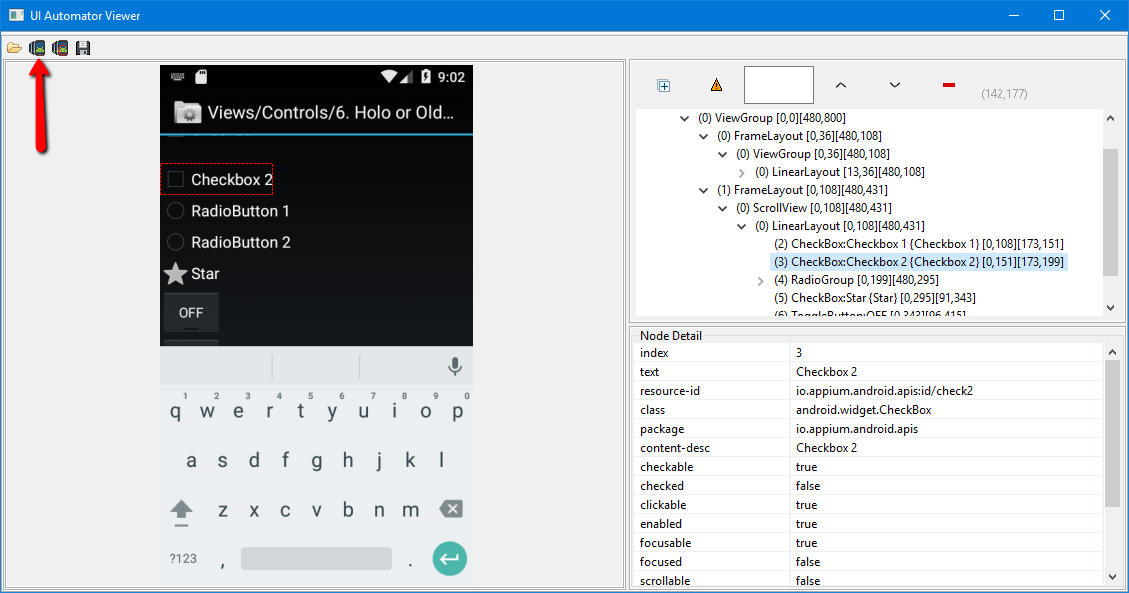
Using the Android SDK UIAutomator Viewer, you can find the elements you are looking for. You can find it in the folder C:\Program Files (x86)\Android\android-sdk\tools\bin. Launch the following file- uiautomatorviewer.bat. Then click on the Device Screenshot and an image of the test app will appear.
Find Android Locators with Appium Desktop
Appium provides you with a neat tool that allows you to find the elements you’re looking for. With Appium Desktop you can find any item and its locators by either clicking the element on the screenshot image or locating it in the source tree.
After launching Appium Desktop and starting a session, you can locate any element in the source.
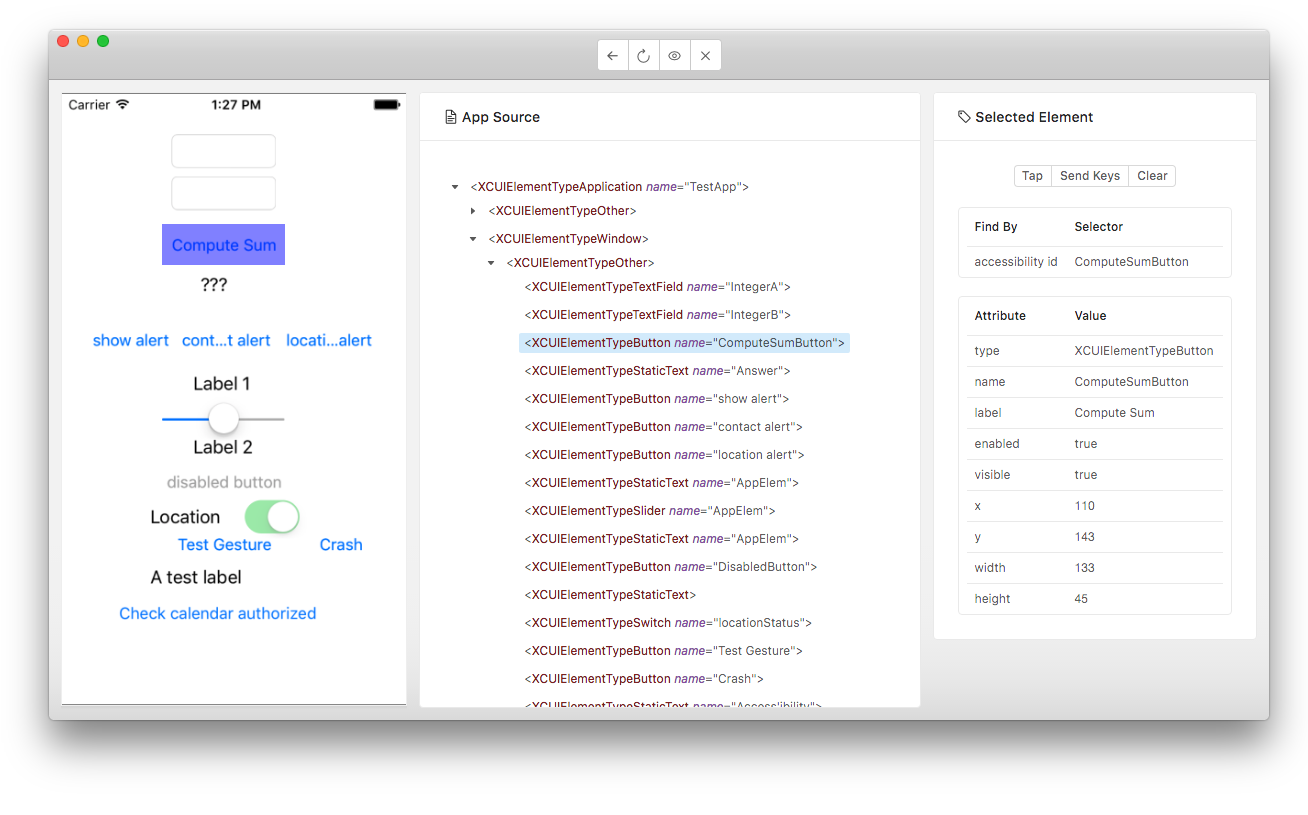
Locating Elements with Appium
- By ID
AndroidElement button = _driver.FindElementById("button");- By Class
AndroidElement checkBox = _driver.FindElementByClassName("android.widget.CheckBox");- By XPath
AndroidElement thirdButton = _driver.FindElementByXPath("//*[@resource-id='com.example.android.apis:id/button']");- By AndroidUIAutomator
AndroidElement secondButton = _driver.FindElementByAndroidUIAutomator("new UiSelector().textContains("BUTTO");");Locate Elements inside Parent
public void LocatingElementInsideAnotherElementTest()
{
    var mainElement = _driver.FindElementById("decor_content_parent");
    var button = mainElement.FindElementById("button");
    button.Click();
    var checkBox = mainElement.FindElementByClassName("android.widget.CheckBox");
    checkBox.Click();
    var thirdButton = mainElement.FindElementByXPath("//*[@resource-id='com.example.android.apis:id/button']");
    thirdButton.Click();
}
Gesture Actions in Appium
public void SwipeTest()
{
    _driver.StartActivity("io.appium.android.apis", ".graphics.FingerPaint");
    var element = _driver.FindElementById("android:id/content");
    Point point = element.Coordinates.LocationInDom;
    Size size = element.Size;
    new TouchAction(_driver)
    .Press(point.X + 5, point.Y + 5)
    .Wait(200)
    .MoveTo(point.X + size.Width - 5, point.Y + size.Height - 5)
    .Release()
    .Perform();
}