

The second article from the Appium Series is going to be about testing iOS apps. I am going to show you how to configure your machine to test iOS applications- prerequisite installations and setup of simulators. After that, you will find how to start your application on the simulator and perform actions on it.
What Is Appium?
Appium is an open source test automation framework for use with native, hybrid and mobile web apps. It drives iOS, Android, and Windows apps using the WebDriver protocol. It is the “standard” for mobile test automation.
Prerequisites
1. Mac computer with macOS 10.11/10.12 or higher
2. XCode 7 or higher
Machine Setup
1. Install Java 7 JDK
2. Install Node.js
3. Install Appium from the command line (skip if you install Appium Desktop)
npm install -g appium4. Install Appium Desktop (optional)
5. Install the Carthage dependency manager
bash brew install carthageStart iOS App in Simulator
private static IOSDriver<IOSElement> _driver;

public static void ClassInitialize(TestContext context)
{
    string testAppPath = Path.Combine(AppDomain.CurrentDomain.BaseDirectory, "Resources", "TestApp.app.zip");
    var appiumOptions = new AppiumOptions();
    appiumOptions.AddAdditionalCapability(MobileCapabilityType.DeviceName, "iPhone 6");
    appiumOptions.AddAdditionalCapability(MobileCapabilityType.PlatformName, "iOS");
    appiumOptions.AddAdditionalCapability(MobileCapabilityType.PlatformVersion, "11.3");
    appiumOptions.AddAdditionalCapability(MobileCapabilityType.App, testAppPath);
    _driver = new IOSDriver<IOSElement>(new Uri("http://127.0.0.1:4723/wd/hub"), appiumOptions);
    _driver.CloseApp();
}

public void TestInitialize()
{
    _driver?.LaunchApp();
}

public void TestCleanup()
{
    _driver?.CloseApp();
}
You need to make sure that the Appium server is started and listening on port 4723. After the driver is initialised we closed if the app is open. Then before each test, we launch the app.
Start Appium Service with Code
Instead of starting Appium server manually, we can start it from code.
Note: However, at the time of writing this is working on Windows but crashing on Mac.
var args = new OptionCollector().AddArguments(GeneralOptionList.PreLaunch());
_appiumLocalService = new AppiumServiceBuilder().UsingAnyFreePort().Build();
_appiumLocalService.Start();
Get Path to Test App
The app file is set to be copied on build in the folder Resources. This is how we get the path.
string testAppPath = Path.Combine(AppDomain.CurrentDomain.BaseDirectory, "Resources", "TestApp.app.zip");Initialize Appium Options
string testAppPath = Path.Combine(AppDomain.CurrentDomain.BaseDirectory, "Resources", "TestApp.app.zip");
var appiumOptions = new AppiumOptions();
appiumOptions.AddAdditionalCapability(MobileCapabilityType.DeviceName, "iPhone 6");
appiumOptions.AddAdditionalCapability(MobileCapabilityType.PlatformName, "iOS");
appiumOptions.AddAdditionalCapability(MobileCapabilityType.PlatformVersion, "11.3");
appiumOptions.AddAdditionalCapability(MobileCapabilityType.App, testAppPath);
_driver = new IOSDriver<IOSElement>(new Uri("http://127.0.0.1:4723/wd/hub"), appiumOptions);
You need to set the device name to the name of your simulator. If you want to test a native or hybrid app, you have to set the app path. And lastly, add the platform name and version.
Find iOS Locators with Appium Desktop
Appium provides you with a neat tool that allows you to find the elements you’re looking for. With Appium Desktop you can find any item and its locators by either clicking the element on the screenshot image or locating it in the source tree.
After launching Appium Desktop and starting a session, you can locate any element in the source.
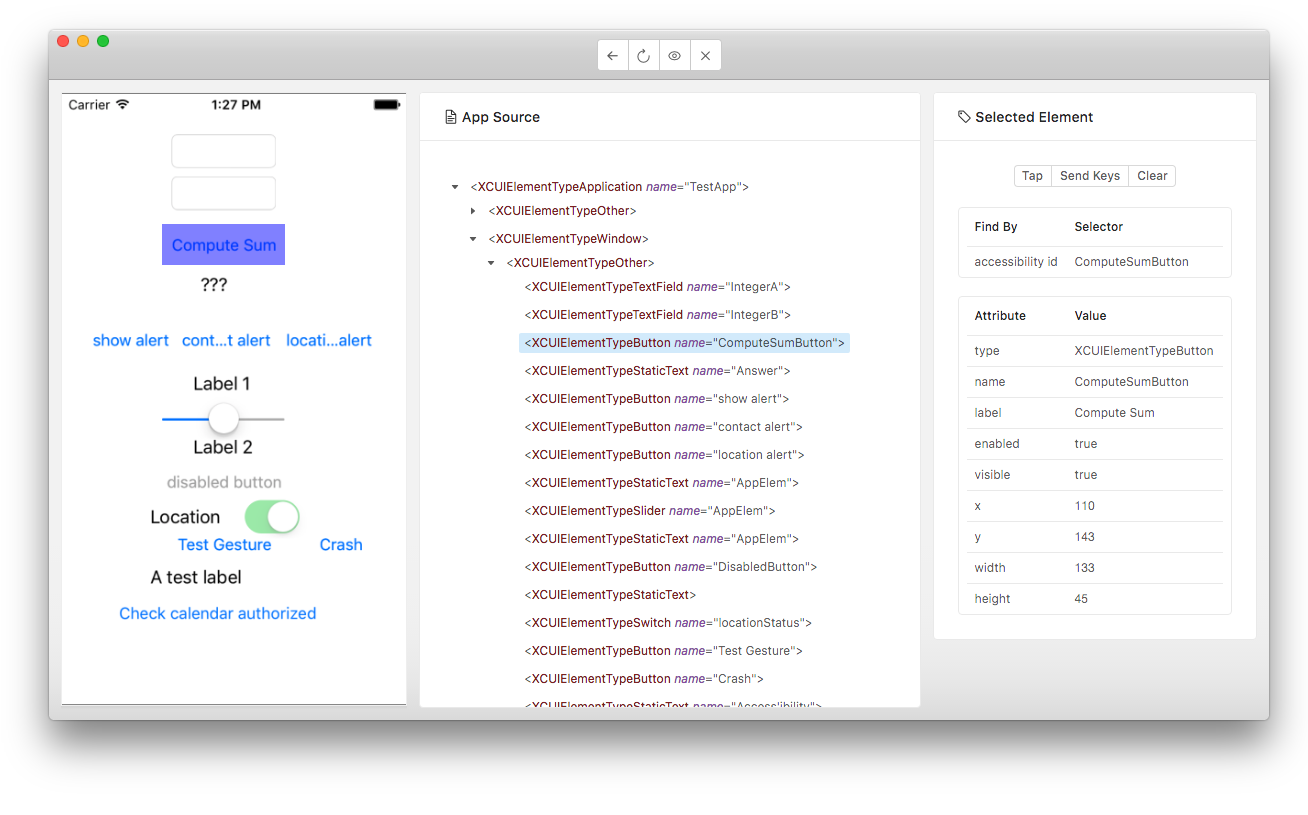
Locating Elements with Appium
By ID
IOSElement textField = _driver.FindElementById("IntegerA");By Class
IOSElement textField = _driver.FindElementByClass("XCUIElementTypeTextField");By Name
IOSElement textField = _driver.FindElementByName("IntegerA");By XPath
IOSElement button = _driver.FindElementByXPath("//XCUIElementTypeButton[@name="ComputeSumButton"]");By IOSNsPredicate
IOSElement button = _driver.FindElementByIOSNsPredicate("type == "XCUIElementTypeButton" AND name == "ComputeSumButton"");Locate Elements using IOSDriver
public void AddTwoNumbersTest()
{
    IOSElement numberOne = _driver.FindElementById("IntegerA");
    var numberTwo = _driver.FindElementById("IntegerB");
    var compute = _driver.FindElementByName("ComputeSumButton");
    var answer = _driver.FindElementByName("Answer");
    numberOne.Clear();
    numberOne.SetImmediateValue("5");
    numberTwo.Clear();
    numberTwo.SetImmediateValue("6");
    compute.Click();
    Assert.AreEqual("11", answer.GetAttribute("value"));
}
You just need to call the FindElementBy methods of the IOSDriver to locate the elements. As you can see from the example, it is a bit tricky how we type the text in the text fields. We don’t use WebDriver’s SendKey method, but we use the Appium’s SetImmediateValue. Also, to get the text typed, we need to get the value attribute of the iOS element.
Locate Elements inside Parent
public void LocatingElementInsideAnotherElementTest()
{
    var mainElement = _driver.FindElementByIosNsPredicate("type == "XCUIElementTypeApplication" AND name == "TestApp"");
    var numberOne = mainElement.FindElementById("IntegerA");
    var numberTwo = mainElement.FindElementById("IntegerB");
    var compute = mainElement.FindElementByName("ComputeSumButton");
    var answer = mainElement.FindElementByName("Answer");
    numberOne.Clear();
    numberOne.SetImmediateValue("5");
    numberTwo.Clear();
    numberTwo.SetImmediateValue("6");
    compute.Click();
    Assert.AreEqual("11", answer.GetAttribute("value"));
}
You have similar FindElementBy methods on element level so that you can find elements inside other elements.
Gesture Actions in Appium
To perform any touch actions, we use the special TouchAction class. You can use it to do a series of steps simultaneously.
Swipe
public void SwipeTest()
{
    ITouchAction touchAction = new TouchAction(_driver);
    var element = _driver.FindElementById("IntegerA");
    Point point = element.Coordinates.LocationInDom;
    Size size = element.Size;
    touchAction
    .Press(point.X + 5, point.Y + 5)
    .Wait(200).MoveTo(point.X + size.Width - 5, point.Y + size.Height - 5)
    .Release()
    .Perform();
}
MoveTo
public void MoveToTest()
{
    ITouchAction touchAction = new TouchAction(_driver);
    var element = _driver.FindElementById("IntegerA");
    Point point = element.Coordinates.LocationInDom;
    touchAction.MoveTo(point.X, point.Y).Perform();
}
Tap
public void TapTest()
{
    ITouchAction touchAction = new TouchAction(_driver);
    var element = _driver.FindElementById("IntegerA");
    Point point = element.Coordinates.LocationInDom;
    touchAction.Tap(point.X, point.Y, 2).Perform();
}