
Achieving high-quality test automation that brings value- you need to understand core programming concepts such as SOLID and the usage of design patterns. In the previous article, we investigated the Adapter design pattern and how it can help us to eliminate the usage of hard-coded pauses in our automated tests and instead automatically wait for elements to appear. Moreover, it helped us to improve the API Usability of our tests. The tests became much more readable and easier to write. Here we will extend the solution by enhancing our adapter to implement the Lazy Loading design pattern to delay the finding of our web elements until we need them.
For more detailed overview and usage of many more design patterns and best practices in automated testing, check my book “Design Patterns for High-Quality Automated Tests, C# Edition, High-Quality Tests Attributes, and Best Practices”. You can read part of three of the chapters:
Defining High-Quality Test Attributes for Automated Tests
Benchmarking for Assessing Automated Test Components Performance
Generic Repository Design Pattern- Test Data Preparation
Let’s quickly review what our initial problem was and what the different solutions looked like.
Overview Video
The Problem
We will start by checking the requirements of what we need to automate. Imagine that you work for a startup called “EU Space Rockets”. Our company makes the world a better place by allowing people to buy rockets through our website. How cool is that! Your job is to create a series of automated tests and make sure that everything is working as expected.
Our website uses modern web technologies and all actions are loading asynchronous instead of reloading the whole page.
Let us have a look at a step by step approach on how to create your first automated test case:
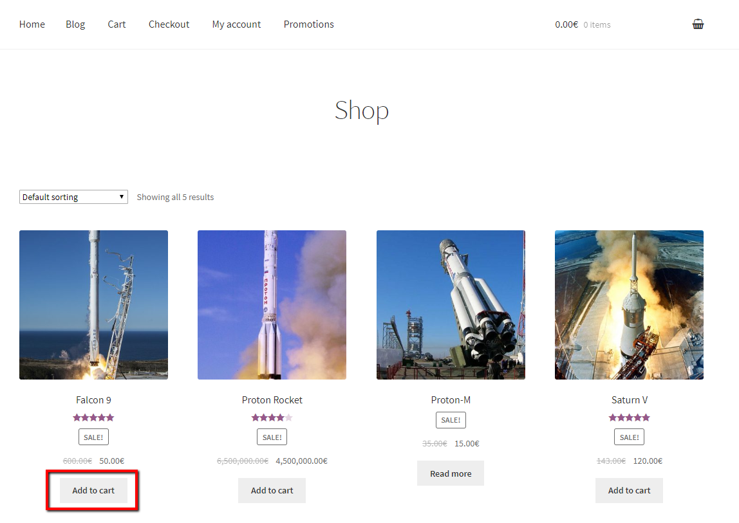
1. We navigate to the home page of our website and then click on the ‘Add to cart’ button that adds a ‘Falcon 9’ rocket to the cart.
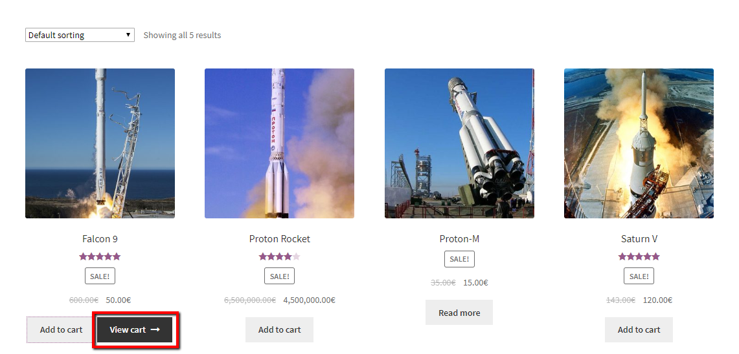
2. Next, we need to click on the ‘View cart’ button which will lead us to the cart page.
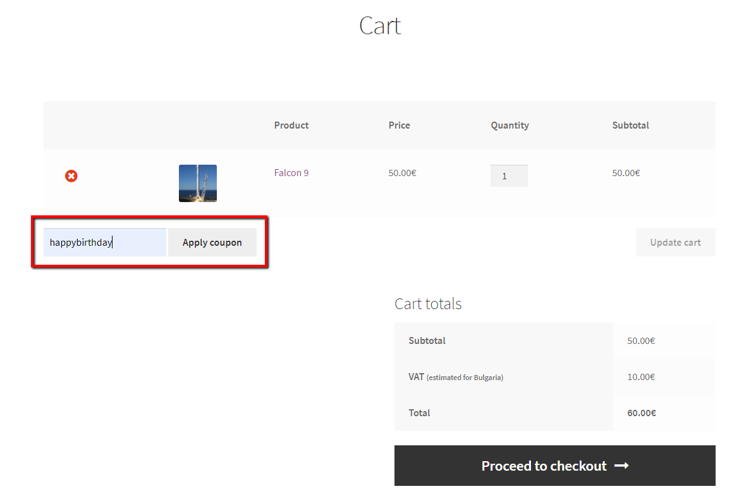
3. If it’s our birthday, we can apply the special discount coupon given to us by the company.
4. Before proceeding with any operations, we need to make sure that the loading indicator is not displayed.
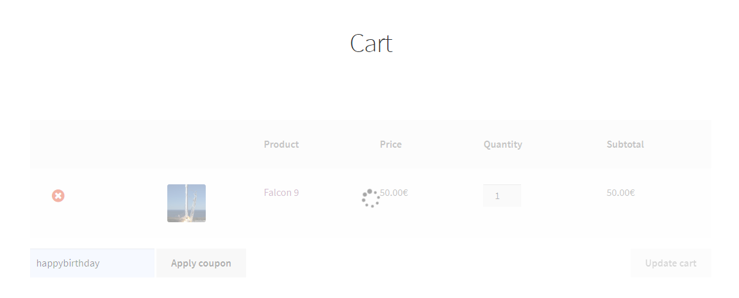
5. Next, since we got a discount, we have additional funding to buy additional rockets. So, we increase the quantity to 2 and click on the ‘Update cart’ button.
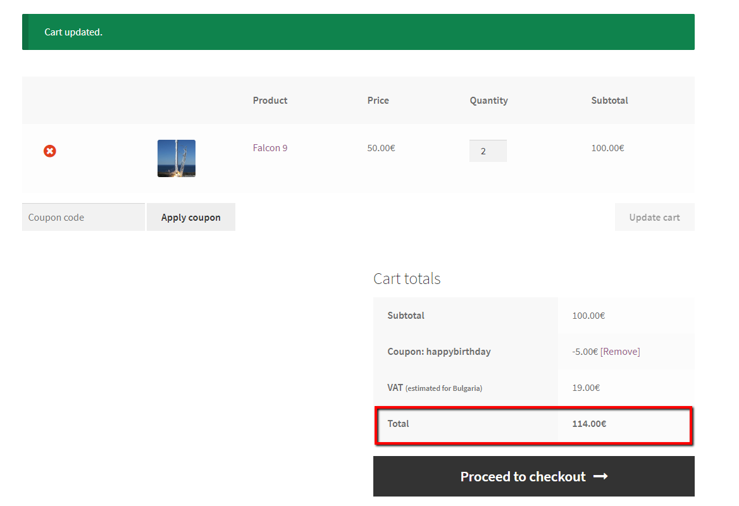
6. After the cart is updated, our test needs to check whether the total price has been changed correctly. If everything is OK, we click on the ‘Proceed to checkout’ button.
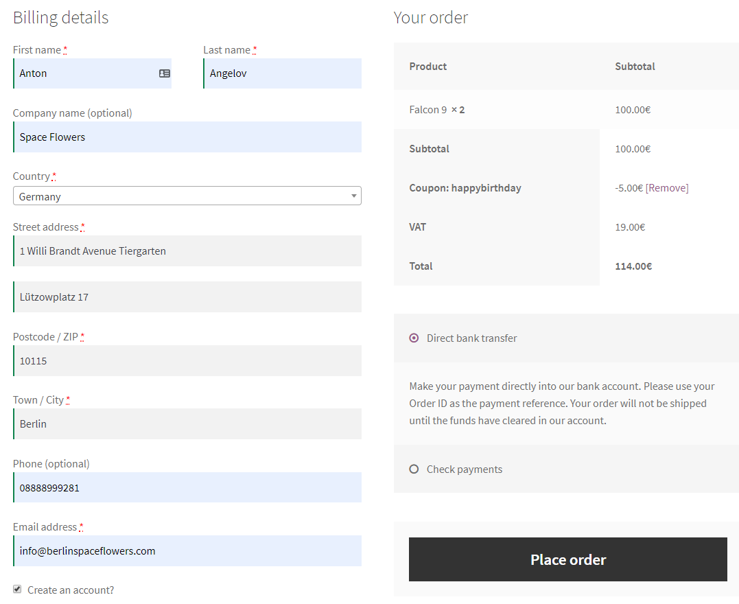
7. We fill all required information and click on the ‘Place order’ button. When the next page is loaded, we need to verify that the order was placed successfully.
Solution 1- Naive Implementation Hard-coded Pauses
Why not now have a look at the code for our first automated test case?
public class ProductPurchaseTestsHardCodedPauses
{
    private IWebDriver _driver;

    public void TestInitialize()
    {
        _driver = new ChromeDriver();
    }

    public void TestCleanup()
    {
        _driver.Quit();
    }

    public void CompletePurchaseSuccessfully_WhenNewClientAndHardCodedPauses()
    {
        _driver.Navigate().GoToUrl("http://demos.bellatrix.solutions/");
        var addToCartFalcon9 = _driver.FindElement(By.CssSelector("[data-product_id*='28']"));
        addToCartFalcon9.Click();
        Thread.Sleep(5000);
        var viewCartButton = _driver.FindElement(By.CssSelector("[class*='added_to_cart wc-forward']"));
        viewCartButton.Click();
        var couponCodeTextField = _driver.FindElement(By.Id("coupon_code"));
        couponCodeTextField.Clear();
        couponCodeTextField.SendKeys("happybirthday");
        var applyCouponButton = _driver.FindElement(By.CssSelector("[value*='Apply coupon']"));
        applyCouponButton.Click();
        Thread.Sleep(5000);
        var messageAlert = _driver.FindElement(By.CssSelector("[class*='woocommerce-message']"));
        Assert.AreEqual("Coupon code applied successfully.", messageAlert.Text);
        var quantityBox = _driver.FindElement(By.CssSelector("[class*='input-text qty text']"));
        quantityBox.Clear();
        Thread.Sleep(500);
        quantityBox.SendKeys("2");
        Thread.Sleep(5000);
        var updateCart = _driver.FindElement(By.CssSelector("[value*='Update cart']"));
        updateCart.Click();
        Thread.Sleep(5000);
        var totalSpan = _driver.FindElement(By.XPath("//*[@class='order-total']//span"));
        Assert.AreEqual("114.00€", totalSpan.Text);
        var proceedToCheckout = _driver.FindElement(By.CssSelector("[class*='checkout-button button alt wc-forward']"));
        proceedToCheckout.Click();
        var billingFirstName = _driver.FindElement(By.Id("billing_first_name"));
        billingFirstName.SendKeys("Anton");
        var billingLastName = _driver.FindElement(By.Id("billing_last_name"));
        billingLastName.SendKeys("Angelov");
        var billingCompany = _driver.FindElement(By.Id("billing_company"));
        billingCompany.SendKeys("Space Flowers");
        var billingCountryWrapper = _driver.FindElement(By.Id("select2-billing_country-container"));
        billingCountryWrapper.Click();
        var billingCountryFilter = _driver.FindElement(By.ClassName("select2-search__field"));
        billingCountryFilter.SendKeys("Germany");
        var germanyOption = _driver.FindElement(By.XPath("//*[contains(text(),'Germany')]"));
        germanyOption.Click();
        var billingAddress1 = _driver.FindElement(By.Id("billing_address_1"));
        billingAddress1.SendKeys("1 Willi Brandt Avenue Tiergarten");
        var billingAddress2 = _driver.FindElement(By.Id("billing_address_2"));
        billingAddress2.SendKeys("Lützowplatz 17");
        var billingCity = _driver.FindElement(By.Id("billing_city"));
        billingCity.SendKeys("Berlin");
        var billingZip = _driver.FindElement(By.Id("billing_postcode"));
        billingZip.Clear();
        billingZip.SendKeys("10115");
        var billingPhone = _driver.FindElement(By.Id("billing_phone"));
        billingPhone.SendKeys("+00498888999281");
        var billingEmail = _driver.FindElement(By.Id("billing_email"));
        billingEmail.SendKeys("info@berlinspaceflowers.com");
        Thread.Sleep(5000);
        var placeOrderButton = _driver.FindElement(By.Id("place_order"));
        placeOrderButton.Click();
        Thread.Sleep(10000);
        var receivedMessage = _driver.FindElement(By.XPath("/html/body/div[1]/div/div/div/main/div/header/h1"));
        Assert.AreEqual("Order received", receivedMessage.Text);
    }
}
I mentioned that our website is using modern JavaScript technologies and most of the operations are asynchronous. In order to handle them in the first version of our tests, we use hard-coded pauses like Thread.Sleep(5000). As you probably know this is a “bad practice”. With these pauses, we added 35.5 seconds on top of the standard test execution time. Sometimes these pauses may not be enough leading to probable test failure other times the element might be already there, and there won’t be a reason to wait for the whole interval.
Solution 2- Proxy Design Pattern Implementation
In an article from the series, we investigated the Proxy design pattern and how it can help us to solve the problem with hard-coded pauses. We significantly improved the speed of the test. However, a few pauses left because the explicit waits couldn’t help us in cases where there are asynchronous requests. The test looked almost identical to the first version because, in the Proxy design pattern, our proxy implements the same interface as the wrapped object.
public class ProductPurchaseTestsProxy
{
    private IWebDriver _driver;

    public void TestInitialize()
    {
        _driver = new WebDriverProxy(new ChromeDriver());
    }

    public void TestCleanup()
    {
        _driver.Quit();
    }

    public void CompletePurchaseSuccessfully_WhenNewClientAndWaitProxy()
    {
        _driver.Navigate().GoToUrl("http://demos.bellatrix.solutions/");
        var addToCartFalcon9 = _driver.FindElement(By.CssSelector("[data-product_id*='28']"));
        addToCartFalcon9.Click();
        ////Thread.Sleep(5000);
        var viewCartButton = _driver.FindElement(By.CssSelector("[class*='added_to_cart wc-forward']"));
        viewCartButton.Click();
        var couponCodeTextField = _driver.FindElement(By.Id("coupon_code"));
        couponCodeTextField.Clear();
        couponCodeTextField.SendKeys("happybirthday");
        var applyCouponButton = _driver.FindElement(By.CssSelector("[value*='Apply coupon']"));
        applyCouponButton.Click();
        ////Thread.Sleep(5000);
        var messageAlert = _driver.FindElement(By.CssSelector("[class*='woocommerce-message']"));
        Assert.AreEqual("Coupon code applied successfully.", messageAlert.Text);
        var quantityBox = _driver.FindElement(By.CssSelector("[class*='input-text qty text']"));
        quantityBox.Clear();
        ////Thread.Sleep(500);
        quantityBox.SendKeys("2");
        ////Thread.Sleep(5000);
        var updateCart = _driver.FindElement(By.CssSelector("[value*='Update cart']"));
        updateCart.Click();
        Thread.Sleep(5000);
        var totalSpan = _driver.FindElement(By.XPath("//*[@class='order-total']//span"));
        Assert.AreEqual("114.00€", totalSpan.Text);
        var proceedToCheckout = _driver.FindElement(By.CssSelector("[class*='checkout-button button alt wc-forward']"));
        proceedToCheckout.Click();
        var billingFirstName = _driver.FindElement(By.Id("billing_first_name"));
        billingFirstName.SendKeys("Anton");
        var billingLastName = _driver.FindElement(By.Id("billing_last_name"));
        billingLastName.SendKeys("Angelov");
        var billingCompany = _driver.FindElement(By.Id("billing_company"));
        billingCompany.SendKeys("Space Flowers");
        var billingCountryWrapper = _driver.FindElement(By.Id("select2-billing_country-container"));
        billingCountryWrapper.Click();
        var billingCountryFilter = _driver.FindElement(By.ClassName("select2-search__field"));
        billingCountryFilter.SendKeys("Germany");
        var germanyOption = _driver.FindElement(By.XPath("//*[contains(text(),'Germany')]"));
        germanyOption.Click();
        var billingAddress1 = _driver.FindElement(By.Id("billing_address_1"));
        billingAddress1.SendKeys("1 Willi Brandt Avenue Tiergarten");
        var billingAddress2 = _driver.FindElement(By.Id("billing_address_2"));
        billingAddress2.SendKeys("Lützowplatz 17");
        var billingCity = _driver.FindElement(By.Id("billing_city"));
        billingCity.SendKeys("Berlin");
        var billingZip = _driver.FindElement(By.Id("billing_postcode"));
        billingZip.Clear();
        billingZip.SendKeys("10115");
        var billingPhone = _driver.FindElement(By.Id("billing_phone"));
        billingPhone.SendKeys("+00498888999281");
        var billingEmail = _driver.FindElement(By.Id("billing_email"));
        billingEmail.SendKeys("info@berlinspaceflowers.com");
        Thread.Sleep(5000);
        var placeOrderButton = _driver.FindElement(By.Id("place_order"));
        placeOrderButton.Click();
        Thread.Sleep(10000);
        var receivedMessage = _driver.FindElement(By.XPath("/html/body/div[1]/div/div/div/main/div/header/h1"));
        Assert.AreEqual("Order received", receivedMessage.Text);
    }
}
We couldn’t remove all hard-coded pauses since some of them are there so that we can handle asynchronous requests. To deal with them, we created a 3rd implementation using the Adapter design pattern.
Solution 3- Adapter Design Pattern Implementation
All hard-coded pauses were removed since there is this behind-the-scenes waiting for elements to appear. On the other places wherein the case of the proxy usage, we couldn’t remove the pauses because of asynchronous requests- we call now the WaitForAjax method. Another change is that instead of using the Clear and SendKey methods, we use the new adapter’s TypeText.
public class ProductPurchaseTestsAdapter
{
    private IDriver _driver;

    public void TestInitialize()
    {
        _driver = new DriverAdapter(new ChromeDriver());
    }

    public void TestCleanup()
    {
        _driver.Close();
    }

    public void CompletePurchaseSuccessfully_WhenNewClient()
    {
        _driver.GoToUrl("http://demos.bellatrix.solutions/");
        var addToCartFalcon9 = _driver.FindElement(By.CssSelector("[data-product_id*='28']"));
        addToCartFalcon9.Click();
        var viewCartButton = _driver.FindElement(By.CssSelector("[class*='added_to_cart wc-forward']"));
        viewCartButton.Click();
        var couponCodeTextField = _driver.FindElement(By.Id("coupon_code"));
        couponCodeTextField.TypeText("happybirthday");
        var applyCouponButton = _driver.FindElement(By.CssSelector("[value*='Apply coupon']"));
        applyCouponButton.Click();
        var messageAlert = _driver.FindElement(By.CssSelector("[class*='woocommerce-message']"));
        Assert.AreEqual("Coupon code applied successfully.", messageAlert.Text);
        var quantityBox = _driver.FindElement(By.CssSelector("[class*='input-text qty text']"));
        quantityBox.TypeText("2");
        var updateCart = _driver.FindElement(By.CssSelector("[value*='Update cart']"));
        updateCart.Click();
        _driver.WaitForAjax();
        var totalSpan = _driver.FindElement(By.XPath("//*[@class='order-total']//span"));
        Assert.AreEqual("114.00€", totalSpan.Text);
        var proceedToCheckout = _driver.FindElement(By.CssSelector("[class*='checkout-button button alt wc-forward']"));
        proceedToCheckout.Click();
        var billingFirstName = _driver.FindElement(By.Id("billing_first_name"));
        billingFirstName.TypeText("Anton");
        var billingLastName = _driver.FindElement(By.Id("billing_last_name"));
        billingLastName.TypeText("Angelov");
        var billingCompany = _driver.FindElement(By.Id("billing_company"));
        billingCompany.TypeText("Space Flowers");
        var billingCountryWrapper = _driver.FindElement(By.Id("select2-billing_country-container"));
        billingCountryWrapper.Click();
        var billingCountryFilter = _driver.FindElement(By.ClassName("select2-search__field"));
        billingCountryFilter.TypeText("Germany");
        var germanyOption = _driver.FindElement(By.XPath("//*[contains(text(),'Germany')]"));
        germanyOption.Click();
        var billingAddress1 = _driver.FindElement(By.Id("billing_address_1"));
        billingAddress1.TypeText("1 Willi Brandt Avenue Tiergarten");
        var billingAddress2 = _driver.FindElement(By.Id("billing_address_2"));
        billingAddress2.TypeText("Lützowplatz 17");
        var billingCity = _driver.FindElement(By.Id("billing_city"));
        billingCity.TypeText("Berlin");
        var billingZip = _driver.FindElement(By.Id("billing_postcode"));
        billingZip.TypeText("10115");
        var billingPhone = _driver.FindElement(By.Id("billing_phone"));
        billingPhone.TypeText("+00498888999281");
        var billingEmail = _driver.FindElement(By.Id("billing_email"));
        billingEmail.TypeText("info@berlinspaceflowers.com");
        _driver.WaitForAjax();
        var placeOrderButton = _driver.FindElement(By.Id("place_order"));
        placeOrderButton.Click();
        _driver.WaitForAjax();
        var receivedMessage = _driver.FindElement(By.XPath("/html/body/div[1]/div/div/div/main/div/header/h1"));
        Assert.AreEqual("Order received", receivedMessage.Text);
    }
}
Notice the flow of the test - first, we need to “find” the element and then perform the action against it. When you call the FindElement method inside, we call the WebDriverWait class, which retrieves the web element immediately at the moment it appears on the page in the right state. The Lazy Loading design pattern can help us improve a bit of this flow and delay the finding of the web elements until they are actually needed. Let’s review how we can use it.
Decorator Design Pattern Current Implementation
How about quickly recall what our decorators looked like?
public class DriverAdapter : IDriver
{
    private readonly IWebDriver _driver;
    private readonly WebDriverWait _webDriverWait;
    public DriverAdapter(IWebDriver driver)
    {
        _driver = driver;
        var timeout = TimeSpan.FromSeconds(30);
        var sleepInterval = TimeSpan.FromSeconds(2);
        _webDriverWait = new WebDriverWait(new SystemClock(), _driver, timeout, sleepInterval);
    }
    public void GoToUrl(string url)
    {
        _driver.Navigate().GoToUrl(url);
    }
    public Uri Url
    {
        get => new Uri(_driver.Url);
        set => _driver.Url = value.ToString();
    }
    public IElement FindElement(By locator)
    {
        IWebElement nativeElement =
        _webDriverWait.Until(ExpectedConditions.ElementExists(locator));
        return new ElementAdapter(_driver, nativeElement, locator);
    }
    public IEnumerable<IElement> FindElements(By locator)
    {
        ReadOnlyCollection<IWebElement> nativeElements =
        _webDriverWait.Until(ExpectedConditions.PresenceOfAllElementsLocatedBy(locator));
        var elements = new List<IElement>();
        foreach (var nativeElement in nativeElements)
        {
            IElement element = new ElementAdapter(_driver, nativeElement, locator);
            elements.Add(element);
        }
        return elements;
    }
    public void WaitForAjax()
    {
        var js = (IJavaScriptExecutor)_driver;
        _webDriverWait.Until(wd => js.ExecuteScript("return jQuery.active").ToString() == "0");
    }
    public void Close()
    {
        _driver.Quit();
        _driver.Dispose();
    }
}
The DriverAdapter implements the simpler and enhanced IDriver interface. It wraps the usage of the Adaptee (IWebDriver) through the Composition Principle. It waits for the elements to appear and then return them as element adapters. Also, it gives us the new WaitForAjax method.
Here is the implementation of the ElementDriver:
public class ElementAdapter : IElement
{
    private readonly IWebDriver _webDriver;
    private readonly IWebElement _webElement;
    public ElementAdapter(IWebDriver webDriver, IWebElement webElement, By by)
    {
        _webDriver = webDriver;
        _webElement = webElement;
        By = by;
    }
    public By By { get; }
    public string Text => _webElement?.Text;
    public bool? Enabled => _webElement?.Enabled;
    public bool? Displayed => _webElement?.Displayed;
    public void Click()
    {
        WaitToBeClickable(By);
        _webElement?.Click();
    }
    public IElement FindElement(By locator)
    {
        return new ElementAdapter(_webDriver, _webElement?.FindElement(locator), locator);
    }
    public void TypeText(string text)
    {
        _webElement?.Clear();
        _webElement?.SendKeys(text);
    }
    private void WaitToBeClickable(By by)
    {
        var webDriverWait = new WebDriverWait(_webDriver, TimeSpan.FromSeconds(30));
        webDriverWait.Until(SeleniumExtras.WaitHelpers.ExpectedConditions.ElementToBeClickable(by));
    }
}
On top of the simplified interface and improved method names (instead of SendKeys now we have TypeText), we have additional improvements. One of them is that the TypeText contains the “ugly” code for clearing the field and then typing. Another one is that we first wait for the element to be clickable before performing the actual Click, which will make the tests less flaky.
Now let’s see how we can modify these two classes to implement the Lazy Loading design pattern.
Lazy Loading Design Pattern
Definition
Lazy loading is a concept where we delay the loading of an object until the point where we need it. Lazy loading is the process of initializing a class when it’s needed. A software design pattern where the initialization of an object occurs only when it is needed and not before to preserve the simplicity of usage and improve performance.
The pattern can be implemented differently depending on the use case.
Note
One way to do it in the .NET world is by using the Lazy
class. To prepare for lazy initialization, you create an instance of Lazy . The type argument of the Lazy object that you create specifies the type of object that you want to initialize lazily. The constructor that you use to create the Lazy object determines the characteristics of the initialization. Lazy initialization occurs the first time the Lazy .Value property is accessed.
In our case, we won’t use the Lazy
Lazy Loading Design Pattern Implementation
The first change that we need to do is in the DriverAdapter class. Instead of using the WebDriverWait for locating the elements immediately in the FindElement and FindElements methods, we will return the adapted elements.
public class DriverAdapter : IDriver
{
    private readonly IWebDriver _driver;
    public DriverAdapter(IWebDriver driver)
    {
        _driver = driver;
    }
    public void GoToUrl(string url)
    {
        _driver.Navigate().GoToUrl(url);
    }
    public Uri Url
    {
        get => new Uri(_driver.Url);
        set => _driver.Url = value.ToString();
    }
    public IElement Create(By locator)
    {
        return new ElementAdapter(_driver, locator);
    }
    public IElementsList CreateElements(By locator)
    {
        return new ElementsList(_driver, locator);
    }
    public void WaitForAjax()
    {
        var timeout = TimeSpan.FromSeconds(30);
        var sleepInterval = TimeSpan.FromSeconds(2);
        var webDriverWait = new WebDriverWait(new SystemClock(), _driver, timeout, sleepInterval);
        var js = (IJavaScriptExecutor)_driver;
        webDriverWait.Until(wd => js.ExecuteScript("return jQuery.active").ToString() == "0");
    }
    public void Close()
    {
        _driver.Quit();
        _driver.Dispose();
    }
}
Another difference compared to the initial implementation is that now the FindElements returns IElementList collection instead of IEnumerable
public interface IElementsList : IEnumerable<IElement>
{
    IElement this { get; }
    int Count();
    void ForEach(Action<IElement> action);
}
It will give us the possibility to use an index against the collection and its usage in foreach statements.
public class ElementsList : IElementsList
{
    private readonly By _by;
    private readonly ElementFinderService _elementFinder;
    private readonly IWebDriver _driver;
    public ElementsList(IWebDriver driver, By by)
    {
        _by = by;
        _elementFinder = new ElementFinderService(driver);
        _driver = driver;
    }
    public IElement this => GetAndWaitWebDriverElements().ElementAt(i);
    public IEnumerator<IElement> GetEnumerator() => GetAndWaitWebDriverElements().GetEnumerator();
    IEnumerator IEnumerable.GetEnumerator() => GetEnumerator();
    public int Count()
    {
        return _elementFinder.FindAll(_by).Count();
    }
    public void ForEach(Action<IElement> action)
    {
        foreach (var element in this)
        {
            action(element);
        }
    }
    private IEnumerable<IElement> GetAndWaitWebDriverElements()
    {
        var nativeElements = _elementFinder.FindAll(_by);
        foreach (var nativeElement in nativeElements)
        {
            IElement element = new ElementAdapter(_driver, _by);
            yield return element;
        }
    }
}
The ‘magic’ is happening in the GetAndWaitWebDriverElements method where we call the new ElementFinder class which locates all elements and after that we wrap them in our adapter.
Note
You use a yield return statement to return each element one at a time. The sequence returned from an iterator method can be consumed by using a foreach statement or LINQ query. Each iteration of the foreach loop calls the iterator method. When a yield return statement is reached in the iterator method, expression is returned, and the current location in code is retained. Execution is restarted from that location the next time that the iterator function is called. You can use a yield break statement to end the iteration.
public class ElementFinderService
{
    private readonly WebDriverWait _webDriverWait;
    public ElementFinderService(IWebDriver driver)
    {
        var timeout = TimeSpan.FromSeconds(30);
        var sleepInterval = TimeSpan.FromSeconds(2);
        _webDriverWait = new WebDriverWait(new SystemClock(), driver, timeout, sleepInterval);
    }
    public IWebElement Find(By by)
    {
        return _webDriverWait.Until(ExpectedConditions.ElementExists(by));
    }
    public IEnumerable<IWebElement> FindAll(By by)
    {
        return _webDriverWait.Until(ExpectedConditions.PresenceOfAllElementsLocatedBy(by));
    }
}
Now the ElementFinder class contains the logic that was previously in the FindElement and FindElements methods of the DriverAdapter. I moved it in a separate class so that we can reuse the code among the adapters.
Here is what our ElementAdapter looks after the refactoring:
public class ElementAdapter : IElement
{
    private readonly IWebDriver _driver;
    private readonly ElementFinderService _elementFinder;
    public ElementAdapter(IWebDriver driver, By by)
    {
        _driver = driver;
        By = by;
        _elementFinder = new ElementFinderService(driver);
    }
    public IWebElement NativeWebElement
    {
        get => _elementFinder.Find(By);
    }
    public By By { get; }
    public string Text => NativeWebElement?.Text;
    public bool? Enabled => NativeWebElement?.Enabled;
    public bool? Displayed => NativeWebElement?.Displayed;
    public void Click()
    {
        WaitToBeClickable(By);
        NativeWebElement?.Click();
    }
    public IElement CreateElement(By locator)
    {
        return new ElementAdapter(_driver, locator);
    }
    public IElementsList CreateElements(By locator)
    {
        return new ElementsList(_driver, locator);
    }
    public void TypeText(string text)
    {
        var webElement = NativeWebElement;
        webElement?.Clear();
        webElement?.SendKeys(text);
    }
    private void WaitToBeClickable(By by)
    {
        var webDriverWait = new WebDriverWait(_driver, TimeSpan.FromSeconds(30));
        webDriverWait.Until(SeleniumExtras.WaitHelpers.ExpectedConditions.ElementToBeClickable(by));
    }
}
Now we don’t use the Composition Principle to hold a reference to the IWebElement. This is why we removed the acceptance of the IWebElement argument in the constructor. Instead, we introduced a new property called NativeWebElement, which inside its getter, calls the ElementFindService. We use the new property inside each method or adapter’s property. This means that the web element search will be performed once we call these properties or methods, not when the Create methods invoked.
Solution 4- Lazy Loading Design Pattern Implementation
The test may stay absolutely the same. However, I made a small change just to demonstrate the new pattern. Now all elements are created before their usage, and then we are using all of them. Compared to the previous example, the test case is far more visible, not “polluted” with all “find” logic.
public class ProductPurchaseTestsAdapter
{
    private IDriver _driver;

    public void TestInitialize()
    {
        _driver = new DriverAdapter(new ChromeDriver());
    }

    public void TestCleanup()
    {
        _driver.Close();
    }

    public void CompletePurchaseSuccessfully_WhenNewClient()
    {
        _driver.GoToUrl("http://demos.bellatrix.solutions/");
        var addToCartFalcon9 = _driver.Create(By.CssSelector("[data-product_id*='28']"));
        var viewCartButton = _driver.Create(By.CssSelector("[class*='added_to_cart wc-forward']"));
        var couponCodeTextField = _driver.Create(By.Id("coupon_code"));
        var applyCouponButton = _driver.Create(By.CssSelector("[value*='Apply coupon']"));
        var messageAlert = _driver.Create(By.CssSelector("[class*='woocommerce-message']"));
        var quantityBox = _driver.Create(By.CssSelector("[class*='input-text qty text']"));
        var totalSpan = _driver.Create(By.XPath("//*[@class='order-total']//span"));
        var proceedToCheckout = _driver.Create(By.CssSelector("[class*='checkout-button button alt wc-forward']"));
        var billingFirstName = _driver.Create(By.Id("billing_first_name"));
        var billingCountryWrapper = _driver.Create(By.Id("select2-billing_country-container"));
        var billingCountryFilter = _driver.Create(By.ClassName("select2-search__field"));
        var updateCart = _driver.Create(By.CssSelector("[value*='Update cart']"));
        var germanyOption = _driver.Create(By.XPath("//*[contains(text(),'Germany')]"));
        var billingAddress1 = _driver.Create(By.Id("billing_address_1"));
        var billingAddress2 = _driver.Create(By.Id("billing_address_2"));
        var billingCity = _driver.Create(By.Id("billing_city"));
        var billingZip = _driver.Create(By.Id("billing_postcode"));
        var billingLastName = _driver.Create(By.Id("billing_last_name"));
        var billingCompany = _driver.Create(By.Id("billing_company"));
        var billingPhone = _driver.Create(By.Id("billing_phone"));
        var billingEmail = _driver.Create(By.Id("billing_email"));
        var placeOrderButton = _driver.Create(By.Id("place_order"));
        var receivedMessage = _driver.Create(By.XPath("/html/body/div[1]/div/div/div/main/div/header/h1"));
        addToCartFalcon9.Click();
        viewCartButton.Click();
        couponCodeTextField.TypeText("happybirthday");
        applyCouponButton.Click();
        Assert.AreEqual("Coupon code applied successfully.", messageAlert.Text);
        quantityBox.TypeText("2");
        updateCart.Click();
        _driver.WaitForAjax();
        Assert.AreEqual("114.00€", totalSpan.Text);
        proceedToCheckout.Click();
        billingFirstName.TypeText("Anton");
        billingLastName.TypeText("Angelov");
        billingCompany.TypeText("Space Flowers");
        billingCountryWrapper.Click();
        billingCountryFilter.TypeText("Germany");
        germanyOption.Click();
        billingAddress1.TypeText("1 Willi Brandt Avenue Tiergarten");
        billingAddress2.TypeText("Lützowplatz 17");
        billingCity.TypeText("Berlin");
        billingZip.TypeText("10115");
        billingPhone.TypeText("+00498888999281");
        billingEmail.TypeText("info@berlinspaceflowers.com");
        _driver.WaitForAjax();
        placeOrderButton.Click();
        _driver.WaitForAjax();
        Assert.AreEqual("Order received", receivedMessage.Text);
    }
}