
In the next few articles from the Automation Tools Series, I will show you different test automation reporting solutions. Finally, there will be an article comparing them showing their pros and cons. Test automation reporting and visual representation of test results is something crucial for the successful test automation project. Moreover, it can save you a lot of time analyzing the tests results, especially if there are many failing entries. The integration with this type of solution is one of the main features of the 5th generation test automation frameworks.
What is Test Portal?
Definition
ReportPortal is a service, that provides increased capabilities to speed up results analysis and reporting through the use of built-in analytic features.
ReportPortal is a great addition to the Continuous Integration and Continuous Testing process.
What ReportPortal can do?
-
Test case execution results structure
Test case execution results are stored following the same structure you have in your reporting suites and test plan. The test cases are shown together with all related data in one place, right where you need it: logs, screenshots, binary data. The execution pipeline of certain test cases are also available for you, so one can see previous execution results in one click.
-
Collaborative analysis
ReportPortal also gives you the ability to collaboratively analyze the test automation results. Particular test cases can be associated with a product bug, an automation issue, a system issue or can be submitted as an issue ticket directly from the execution result.
-
Historical data of test execution
ReportPortal provides enhanced capabilities along with auto-results analysis by leveraging historical data of test execution.
-
Automatic Analysis With each execution
ReportPortal automatically figures out the root cause of a fail. As a result of this analysis ReportPortal is marking a test result with a flag. Engineers will be alerted about this issue to provide the further analysis: if it has been resolved already or which test results require actual human analysis.
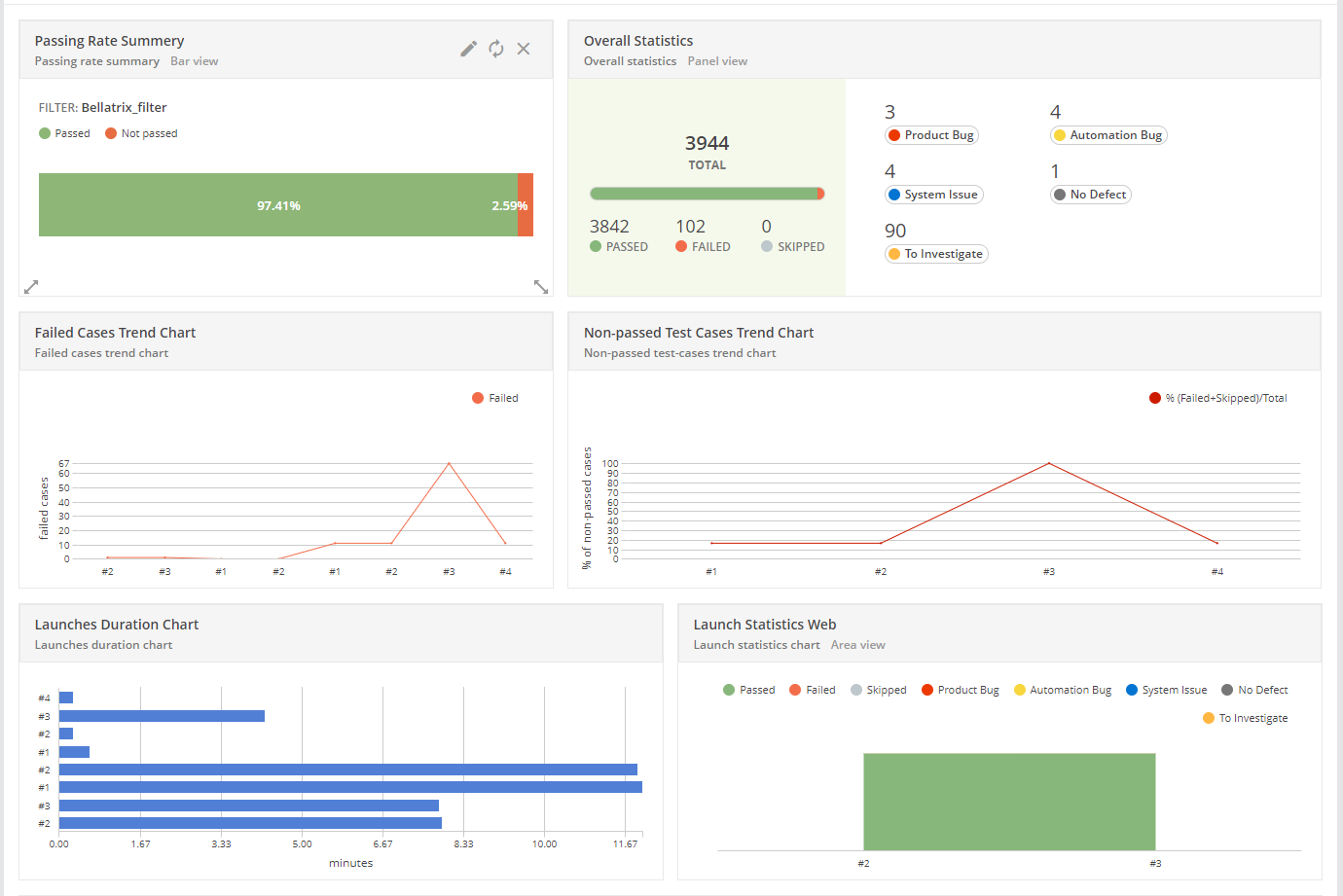
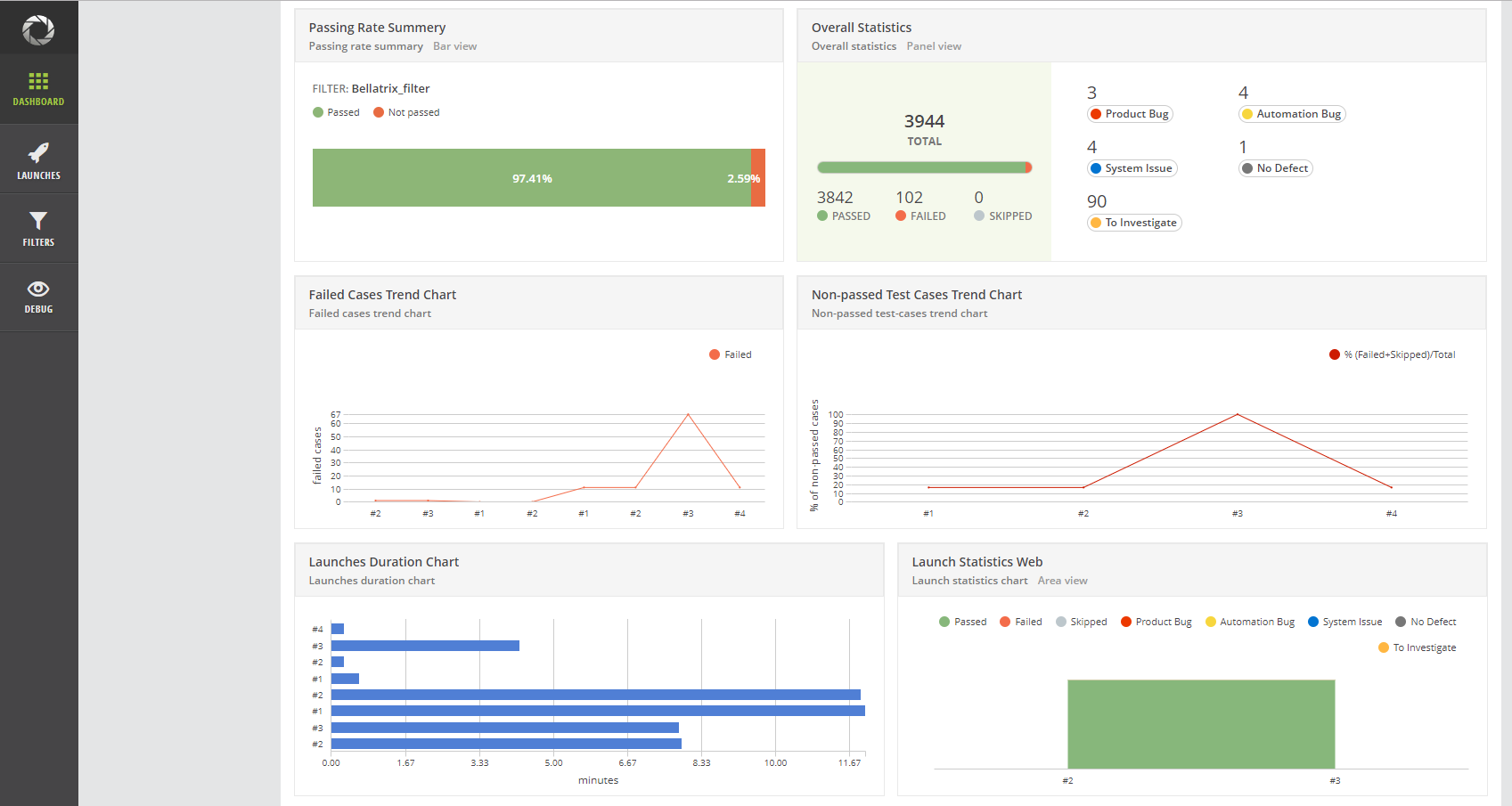
Here, I have created a dashboard visualizing the data from our latest BELLATRIX test runs. The first one shows the passing rate of all tests. The next one displays overall statistics- how many tests were executed and various types of bugs after the investigation process. Bellow, you can find some trend charts between runs. Also, there are some nice widgets for making a comparison between the test runs duration.
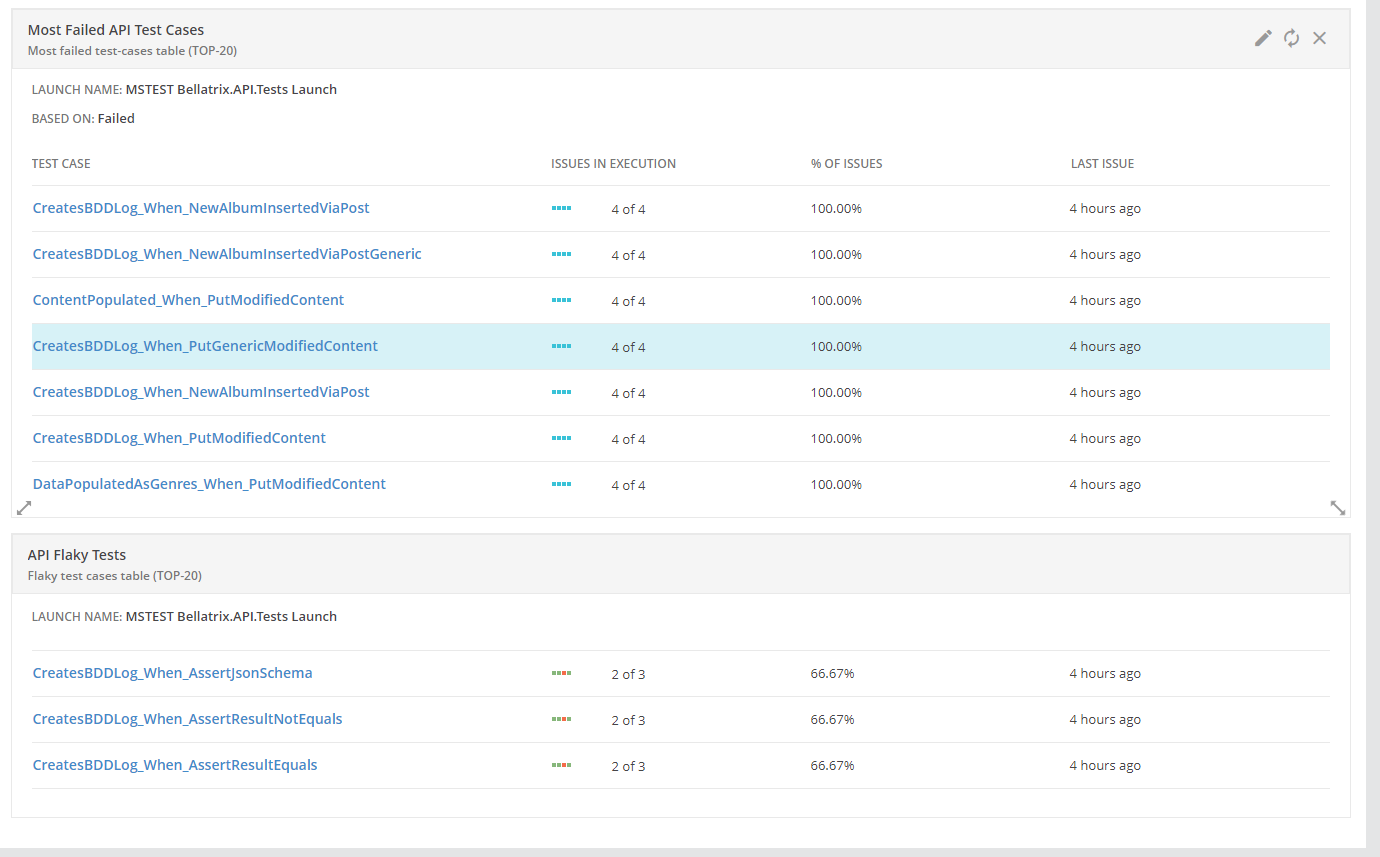
Above you can find two more widgets that display the latest runs flaky tests and the tests that most failed. This is a cool feature for trying to stabilize these tests.
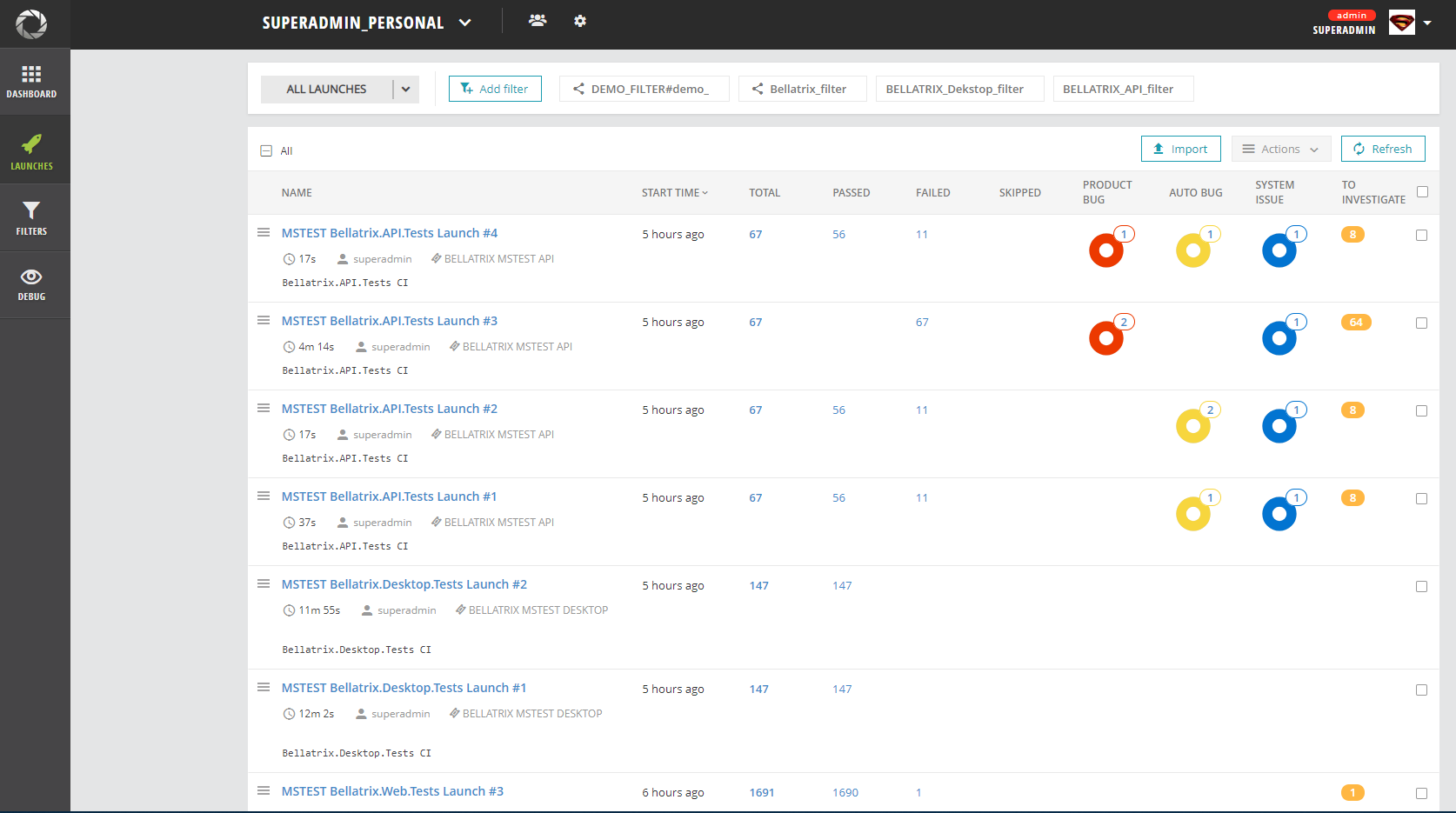
From the Launches tab, you can see the latest runs and filter them.
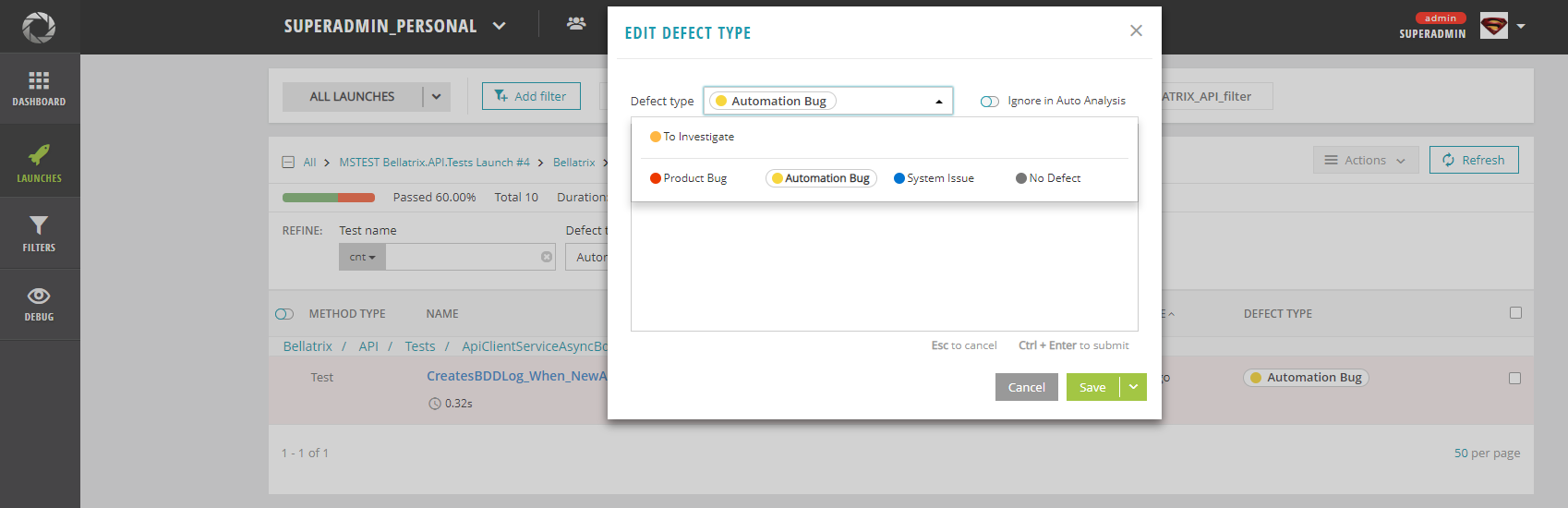
When you open a failed tests it initially is set that it needs investigation after that you can mark it as Product Bug, Automation Bug or System issue like a problem in the test environment.
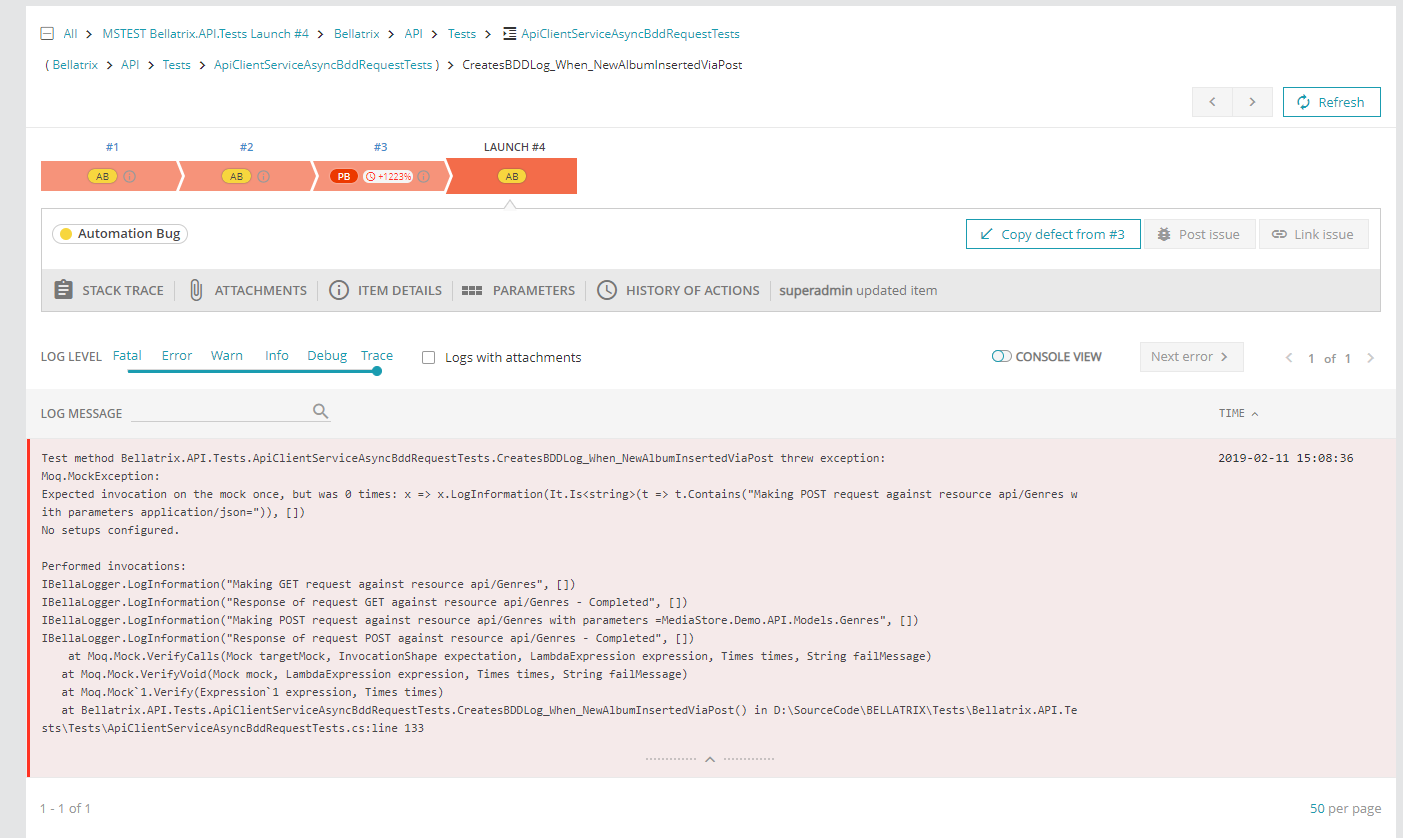
All test failure info is synced automatically and well displayed.
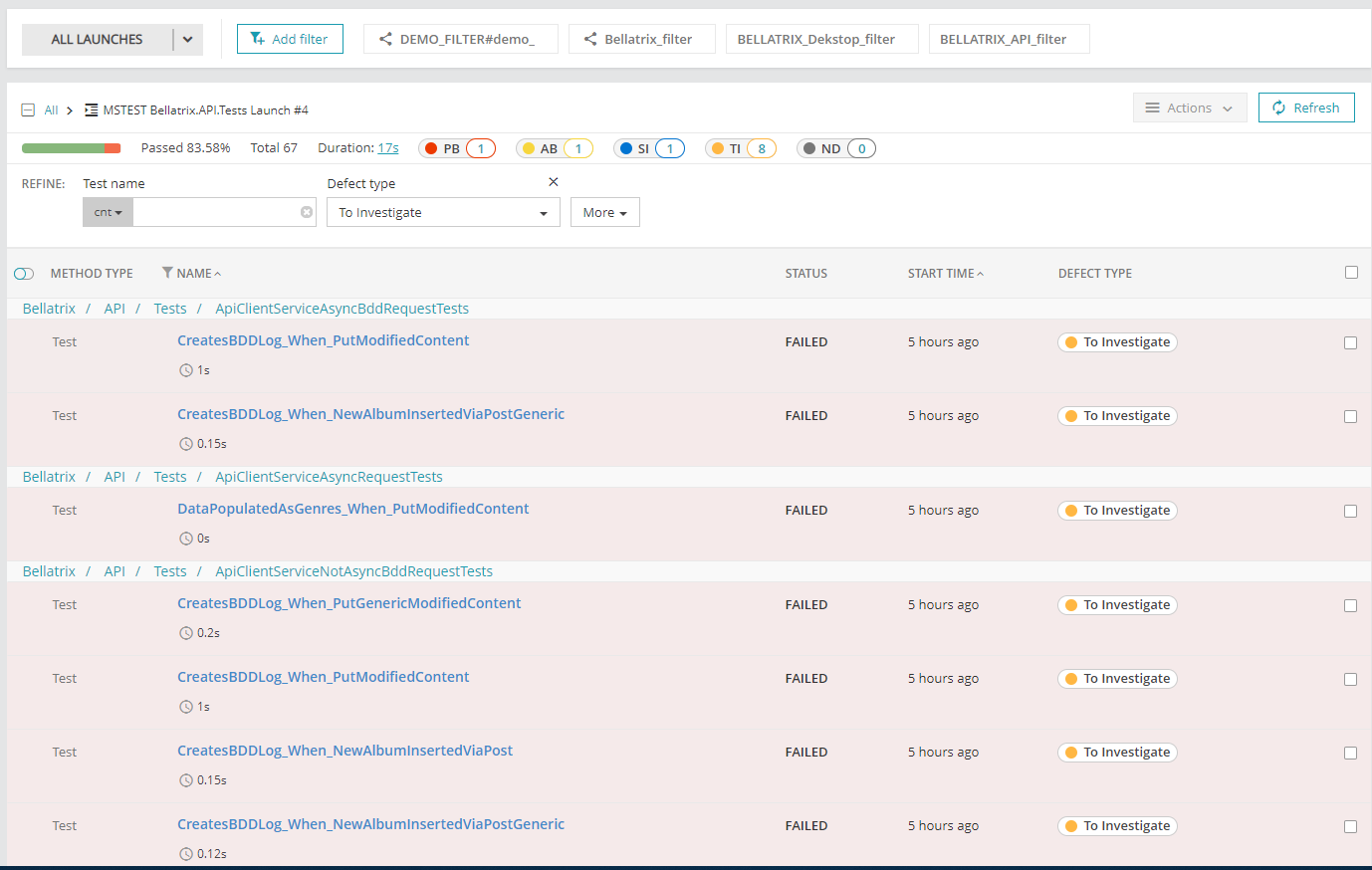
Last but not least you can filter based on the bug type and check all of these tests.
How it works?
ReportPortal seamlessly integrates with mainstream platforms such as Jenkins, Jira, BDD process, majority of Functional and Unit testing frameworks. Real-time integration provides businesses the ability to manage and track execution status directly from the ReportPortal.
Considering a high load rate and performance requirements, the following technologies are used:
-
NoSQL MongoDB
Super fast write to DB, clustering.
-
REST Web Service
Lightweight requests, industry standard.
-
Mobile responsive UI
Check it at any mobile device with default browser.
The ReportPortal consists of the following services:
-
Authorization Service
In charge of access tokens distribution.
-
Gateway Service
Main entry point to application. Port used by gateway should be opened and accessible from outside network.
-
API Service
Main application API.
-
UI Service
All statics for user interface.
-
JIRA Service
Interaction with JIRA.
-
Rally Service
Interaction with Rally.
-
TFS Service
Interaction with TFS.
How to Install It?
The easiest way to deploy ReportPortal it to use Docker. Docker allows to install ReportPortal on Linux, Mac or Windows. Make sure that you have allocated at least 2 CPUs and 3Gb or RAM for Docker operations.
1. Make sure the Docker (Engine, Compose) is installed.
2. Download the latest compose descriptor example from here. You can make it by next command:
curl https://raw.githubusercontent.com/reportportal/reportportal/master/docker-compose.yml -o docker-compose.yml3. Start the application using the following command:
docker-compose -p reportportal up -d --force-recreate4. Open your browser with the IP address of the deployed environment at port 8080
5. Use next login\pass for access:
default\1q2w3e or superadmin\erebus
How to Integrate Test Portal with MSTest Test Project?
First, ReportPortal can be integrated to any kind of test project- unit, integration, DB, API, web, mobile tests.
For the demo project we will test a simple Calculator library.
public class Calculator
{
    public int Square(int num) => num * num;
    public int Add(int num1, int num2) => num1 + num2;
    public int Multiply(int num1, int num2) => num1 * num2;
    public int Subtract(int num1, int num2)
    {
        if (num1 > num2)
        {
            return num1 - num2;
        }
        return num2 - num1;
    }
    public float Division(float num1, float num2) => num1 / num2;
}
We need to install the following NuGet packages:
-
Microsoft.NET.Test.Sdk
-
MSTest.TestFramework
-
MSTest.TestAdapter
-
ReportPortal.VSTest.TestLogger
To integrate ReportPortal in your tests, you need the last one. After that when you execute your tests through native dotnet vstest test runner the tests will be automatically synced with the portal.
public class CalculatorDivisionTests
{

    public void Return4_WhenMultiply2And2()
    {
        var calculator = new Calculator();
        int actualResult = calculator.Multiply(2, 2);
        Assert.AreEqual(4, actualResult);
    }


    public void Return0_WhenMultiply0And0()
    {
        var calculator = new Calculator();
        int actualResult = calculator.Multiply(0, 0);
        Assert.AreEqual(0, actualResult);
    }


    public void ReturnMinus5_WhenMultiply5AndMinus1()
    {
        var calculator = new Calculator();
        int actualResult = calculator.Multiply(5, -1);
        Assert.AreEqual(0, actualResult);
    }
}
ReportPortal Configuration
Next you need to a json configuration file to your project called ReportPortal.config.json.
{
  "$schema": "https://raw.githubusercontent.com/reportportal/agent-net-vstest/master/ReportPortal.VSTest.TestLogger/ReportPortal.config.schema",
  "enabled": true,
  "server": {
    "url": "http://127.0.0.1:8080/api/v1/",
    "project": "superadmin_personal",
    "authentication": {
      "uuid": "d8685bb4-2f2a-4335-9c8b-1f2a5d176d02"
    }
  },
  "launch": {
    "name": "Automate The Planet Test Portal Demo",
    "description": "This is a demo run of the ATP demo examples for a demonstration of Test Portal integration with MSTest tests.",
    "debugMode": false,
    "tags": ["Automate The Planet", "Test Reporting", "MSTEST"]
  }
}
You need to mention the name of your project, and from the ReportPortal settings section, you need to copy the authentication guid for your user. In the launch settings, you can customize the name of the test runs and add some tags.
Send Test Results to ReportPortal
If you run your tests from Visual Studio the results won’t show up in the portal. Instead you need to run them from command line using the following command.
dotnet vstest Bellatrix.Web.Tests.dll --testcasefilter:TestCategory=CI --logger:ReportPortalThe most important part is mentioning the logger —logger:ReportPortal.
dotnet vstest official documentation
How to Integrate Test Portal with NUnit Test Project?
First, you need to install the ReportPortal.NUnit NuGet package to your test project.
To enable NUnit extension you have to add **ReportPortal.addins** file in the folder where NUnit Runner is located. The content of the file should contain line with relative path to the ReportPortal.NUnitExtension.dll
. To read more about how NUnit is locating extensions please follow this.
To enable ReportPortal.Extension you need create a **ReportPortal.addins** file in the **NUnitRunner** folder with the following content:
../YourProject/bin/Debug/ReportPortal.NUnitExtension.dll
